
PDF to Word Converter
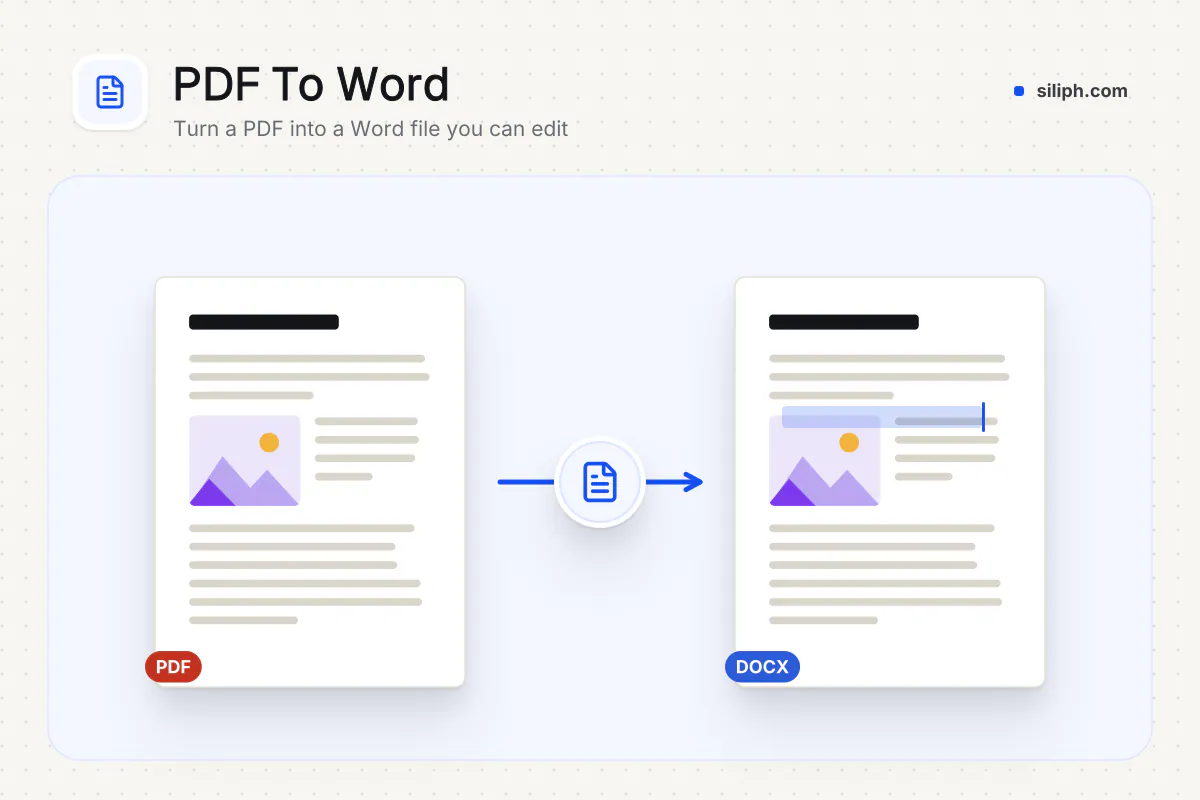
Turn a PDF into a Word document you can edit, with paragraphs, tables and images carried over as real Word content.
- Free: Free to use. No signup requiredFree to useNo signup required
- Secure: Secure and private. Files deleted within 2 hoursSecure and privateFiles deleted within 2 hours
- Fast: Fast processing. Optimized for speedFast processingOptimized for speed
- All devices: Works on all devices. Desktop, tablet and mobileWorks on all devicesDesktop, tablet and mobile
Loading the PDF To Word workspace… Files are processed securely and deleted automatically.
Why use this tool
Your files are safe
Your file is sent over an encrypted connection to our servers, deleted within 2 hours, and never viewed by a person.
Files up to 200 MB
One task can be up to 200 MB for this tool. Free, with no account.
Works everywhere
Use Siliph on desktop, tablet and mobile. No installation required.
Step by step
How to convert PDF to Word
Get it done in 4 simple steps.
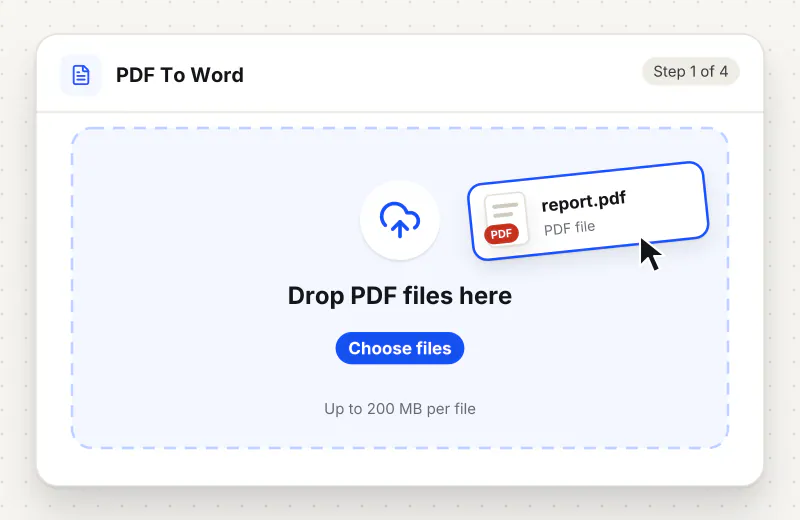
Step 1: Upload your PDF
Add up to 20 PDF files by dragging them into the drop zone or clicking Choose PDF files. A task can hold up to 200 MB in total, and every page of each PDF is converted.
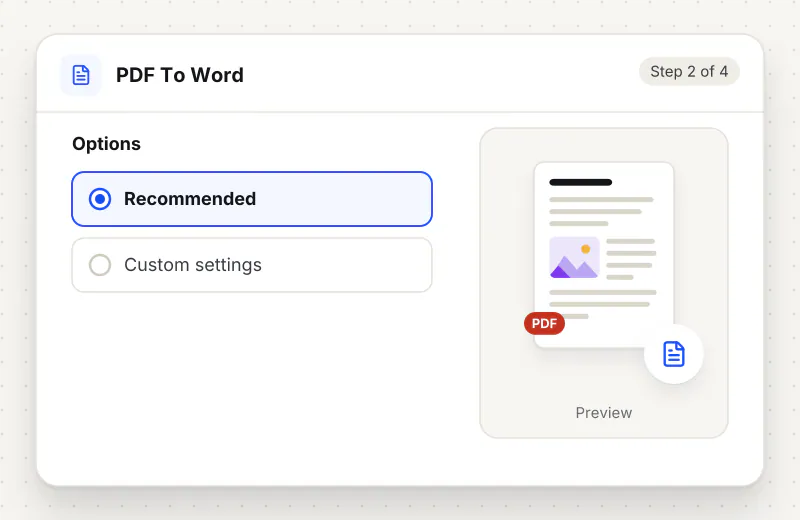
Step 2: Pick the file type
Under File type, keep Word (.docx) or pick Word 97-2003 (.doc) for Word 2003 or older. For a scan, switch on Scanned PDF: recognise text (OCR) and choose the Document language; recognised text is always saved as .docx.
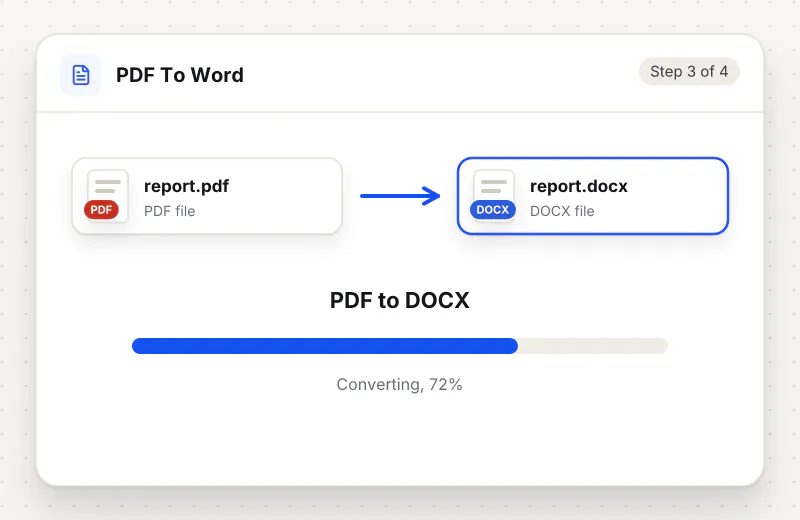
Step 3: Start the conversion
Click Convert to Word. The tool rebuilds each page as a Word document while the progress bar runs; a 50-page report takes a moment, a 2000-page file takes longer.
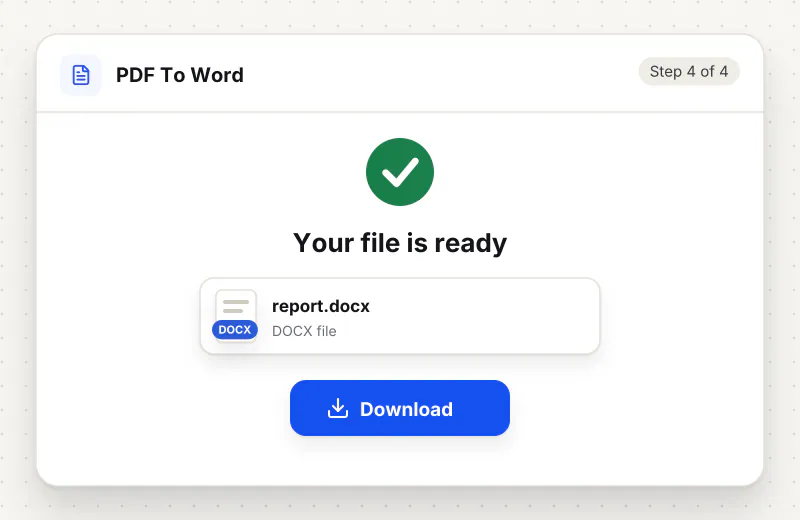
Step 4: Download the Word file
Download the Word file and open it in Microsoft Word, Google Docs or LibreOffice. If a scanned PDF came back as pictures of text, convert it again with the OCR switch on.
Convert your PDF documents to Microsoft Word format (.docx). Preserve text, images, and layout as much as possible.
- Output is a DOCX that opens in Word, Google Docs and LibreOffice
- Word .docx or 97-2003 .doc, plus an OCR switch for scans
- Up to 20 PDFs and 200 MB per task
In short
The PDF to Word converter turns a PDF into an editable DOCX or older DOC file. Paragraphs, headings, tables and images are rebuilt as Word content, so you can edit the text instead of retyping it. A switch reads scans with OCR. It is free with no account, takes up to 200 MB and deletes uploads within 2 hours.
Features
What you get
Editable text, not a picture of the page
Text in a PDF with a text layer comes back as real Word paragraphs with headings and lists, so you can rewrite a clause, fix a typo or run a spell check instead of working on top of a flat image.
Tables and images stay in place
Tables are rebuilt as Word tables with rows and cells you can edit, and images are placed close to where they sat on the PDF page, so an invoice, a syllabus or a report keeps its shape.
Batch conversion of up to 20 PDFs
Convert a folder of PDFs in one task, up to 200 MB in total, and download the DOCX files together. Every PDF becomes its own Word document, and there is no daily limit.
What does PDF To Word do?
The converter reads the text layer of each PDF page, works out where paragraphs, headings and columns begin and end, and writes them into a DOCX with font sizes and positions kept as close to the original as the PDF allows. Tables become Word tables and images are placed where they sat on the page. With the OCR switch on, the text is read from the page images instead and saved as a DOCX without the original layout. Your original PDF is not changed; you get a new Word file beside it.
A PDF pins every letter to a fixed spot on the page, which is why it looks the same on every screen and why editing it is painful. The PDF to Word converter reverses that: it groups the positioned characters back into words, lines and paragraphs, keeps headings, lists and tables as Word elements, and writes the result as a DOCX. A PDF exported from Word, Google Docs or InDesign converts cleanly because its text layer is intact. A magazine page with text wrapped around photos still converts, but you may need to nudge a text box or two afterwards.
A scanned PDF is a different case. The scanner saved a photo of each page, so there is no text to extract and a plain conversion places each page in Word as an image. Switch on Scanned PDF: recognise text (OCR) and pick the Document language: the Word file then gets the recognised text, without the original page layout. To keep the layout, run OCR PDF first and convert the searchable copy. The Convert Scanned PDF to Word page opens with the switch already on. Check the result once: OCR can misread handwriting, faint stamps or tiny footnotes.
Pick the output by what you need to do next. If you only want the words, PDF to Text is quicker and skips the formatting. Spreadsheets with figures belong in PDF to Excel, and slide decks in PDF to PPT. Once you have edited the DOCX, Word to PDF turns it back into a PDF for sending, and PDF Editor is the shortcut when you only need to fix a date or a name without leaving PDF. Every converter is listed in the PDF Converter hub.
PDF to Word runs on our servers: the PDF travels over an encrypted connection, is converted automatically with no human access, and is deleted within 2 hours along with the Word file it produced. There is no account and no email address to enter. Each task takes up to 200 MB and 20 files, and there is no daily limit.
Every file is encrypted.
On the way to us and while stored.
- Sent over HTTPS
- Deleted automatically within 2 hours
- Never sold, never viewed by a person
When to use it
- A contract arrived as a PDF and the other side wants tracked changes in Word
- You need to reuse paragraphs and tables from a report without retyping them
- A form or template exists only as a PDF and the dates, names or prices must be updated
- A CV or cover letter was exported to PDF and the original Word file is lost
- A teacher, client or journal will only accept a DOCX, not a PDF
At a glance
Free plan at a glance
What you get on the free plan, and when a paid plan applies.
| Price | Free for personal and business use, with no daily limit |
|---|---|
| File size | Up to 200 MB per task for this tool |
| Where it runs | On our servers, over an encrypted connection |
| File deletion | Deleted automatically within 2 hours |
Why Siliph
Siliph compared with typical free PDF sites
The right-hand column sums up 5 popular free PDF sites we checked in October 2026.
| Feature | Siliph | Typical free PDF sites |
|---|---|---|
| Account | Not needed | Some sites ask you to sign in to finish or repeat a task |
| Free use | No daily limit | Some sites stop you after a few tasks an hour |
| Where your file goes | Uploaded over HTTPS and deleted within 2 hours | Usually uploaded, then deleted after 1 to 2 hours |
| Scanned PDFs (OCR) | Free, in 9 languages | A paid feature on some sites |
Checked October 2026. Other sites change their plans; check before you rely on a limit.Side-by-side comparisons
Questions about PDF To Word
Does PDF to Word keep my formatting and layout?
Paragraphs, headings, lists, tables and images are carried over as editable Word elements, and the result is close to the original for PDFs made from Word or Google Docs. Multi-column pages, text wrapped around pictures and decorative fonts may shift slightly, so open the DOCX once and tidy anything that moved.
Why did my converted Word file contain only images?
The PDF was a scan: each page is a photo with no text behind it. Convert it again with Scanned PDF: recognise text (OCR) switched on and pick the Document language. The Word file then gets the recognised text, without the original page layout.
Can I get a DOC file instead of DOCX?
Yes. Under File type, pick Word 97-2003 (.doc) for Word 2003 or older programs; Word (.docx) suits current Word, Google Docs and LibreOffice. With the OCR switch on, the output is always .docx, so .doc cannot be picked.
Can I convert several PDFs to Word at once?
Yes. Add up to 20 PDF files and 200 MB to one task. Every PDF becomes its own DOCX, and you download them together when the task finishes.
Will the fonts in my PDF be kept?
Text keeps its size, weight and position as closely as the PDF allows. Where the exact typeface is not installed on your computer, Word substitutes a similar one, which can change line breaks; pick the font you want from the Word font list after conversion.
Can I convert PDF to Word on a Mac, iPhone or Android phone?
Yes. The converter works in the browser on Mac, Windows, Linux, iPhone and Android, so you do not need Word or any app to run it. To edit the DOCX on a phone afterwards, open it in the Word, Google Docs or Pages app.
Can I edit my CV if I only have it as a PDF?
Yes. Convert the PDF to Word, update your jobs and dates in Word or Google Docs, then save it as a PDF again. A CV made in Word comes back close to the original; a designed template with columns may need its spacing tidied.
Which languages can the scanned PDF option read?
English, Hindi, Spanish, French, German, Portuguese, Chinese (Simplified), Arabic and Japanese. Pick the main language printed on the page under Document language before you convert.
Is PDF to Word free, and do I need an account?
Yes, it is free, and no account or email address is needed. Every Siliph tool is free in the same way, with no daily limit; each task here takes up to 200 MB and 20 PDFs.
Is my file private and secure?
Yes. Your file travels over HTTPS, is stored encrypted, is processed by machines with no person looking at it, and is deleted automatically within 2 hours. You need no account, and Siliph never sells your files. How we protect your files
Guides and how-tos
Walk-throughs for common jobs, such as hitting an upload limit or preparing an application.
- GuideConvert PDF to Word without losing the formatting
- Step by stepConvert Scanned PDF to WordText recognition (OCR) is already switched on here, so a scanned or photographed page comes back as editable Word text. Pick the language printed in the scan, then convert; the original page layout is not kept.
- Step by stepConvert a Resume PDF to WordLost the Word file of your CV and only have the PDF? Convert it to DOCX here, update the jobs, dates and skills in Word, then save a fresh PDF to send.
- Step by stepConvert PDF to Word and Keep the FormattingA PDF exported from Word or another editor converts back with its headings, tables and images close to where they were. Scans and heavily designed layouts are harder, and the answers below explain what to expect.
- Use casePDF tools for studentsEdit a form or worksheet that was only shared as a PDF.
- Use casePDF tools for teachers and schoolsReuse last year’s paper by turning the PDF back into an editable document.
Embed this tool on your site
Add PDF To Word to your blog or website for free, with a credit link back to Siliph.
Get the embed code
Embed code (iframe)
<iframe src="https://siliph.com/pdf-to-word/?embed=1" title="PDF To Word — Siliph" width="100%" height="620" style="border:0;border-radius:12px;max-width:900px;" loading="lazy" allow="clipboard-write"></iframe>
<p style="font-size:12px;color:#666;margin-top:8px;">Free tool by <a href="https://siliph.com/pdf-to-word/" rel="nofollow">Siliph</a></p>
Credit link for blog posts and tool lists
<p style="font-size:12px;color:#666;margin-top:8px;">Free tool by <a href="https://siliph.com/pdf-to-word/" rel="nofollow">Siliph</a></p>
Direct link: siliph.com/pdf-to-word/