

Crop Image
Drag a box over the part of the photo you want to keep, or pick a shape such as square or 16:9, and crop.
Drag a box on the photo or pick a shape such as square, 4:5 or 16:9, then crop one image or a whole batch the same way. Siliph is free for personal use and needs no account. Many tools work right on your device; the others use secure servers in Europe and India and delete your files within 2 hours.
- Square, 4:5, 3:2, 16:9 and more
- Same crop for every image in a batch
- Photos stay on your device
- Sent over an encrypted connection
- Files deleted after 2 hours
- Free, no signup, no watermark
Loading the Crop Image workspace… Files are processed securely and deleted automatically.
Crop Image in short
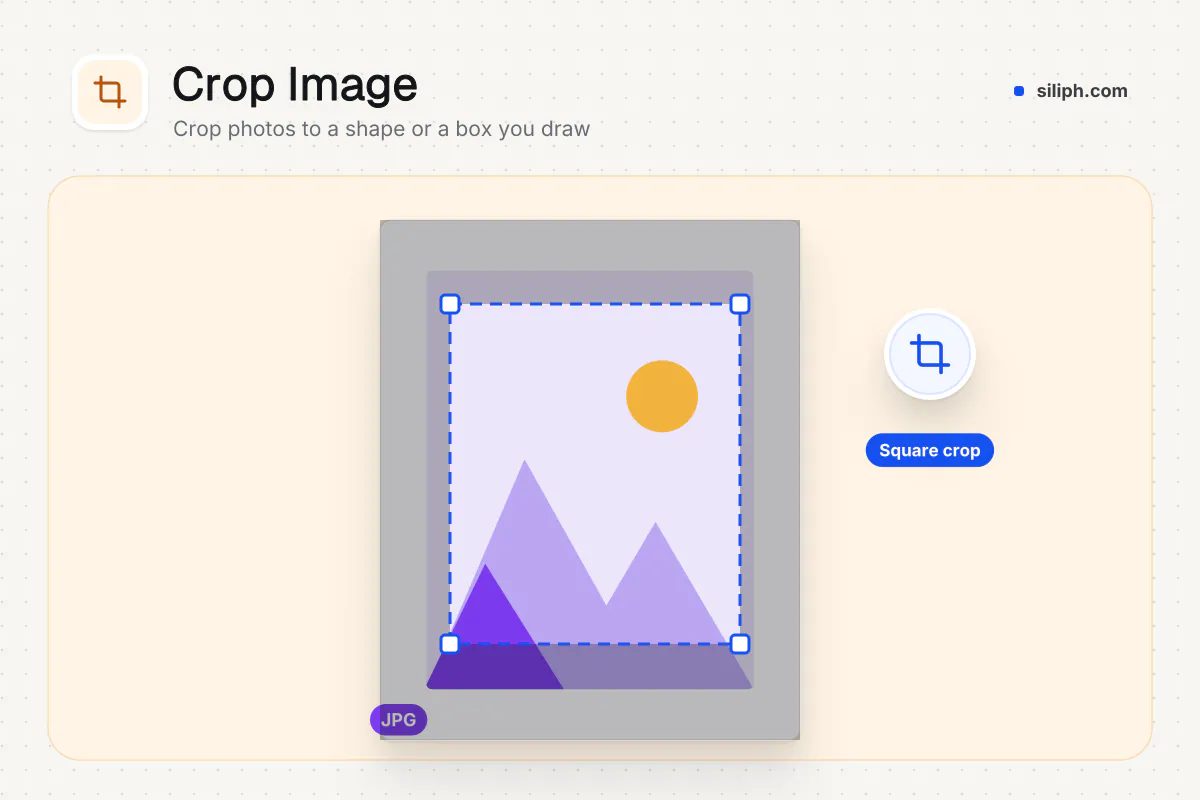
Crop Image keeps the part of a photo you mark with a box. Drag the box and its corners on the preview, or pick a fixed shape such as square, 4:5, 3:2 or 16:9 for the largest centred area. A batch is cropped the same way. Photos are cropped in your browser, free and without an account.
Step by step
How to crop an image
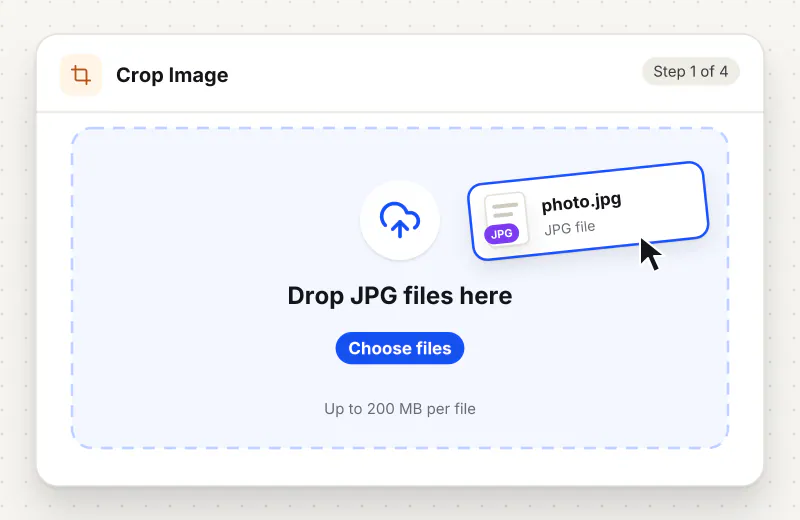
Step 1: Add your photo
Drag a JPG, PNG, WebP or HEIC image onto the drop zone or click Choose images to crop. Add more images to crop them all at the same place.
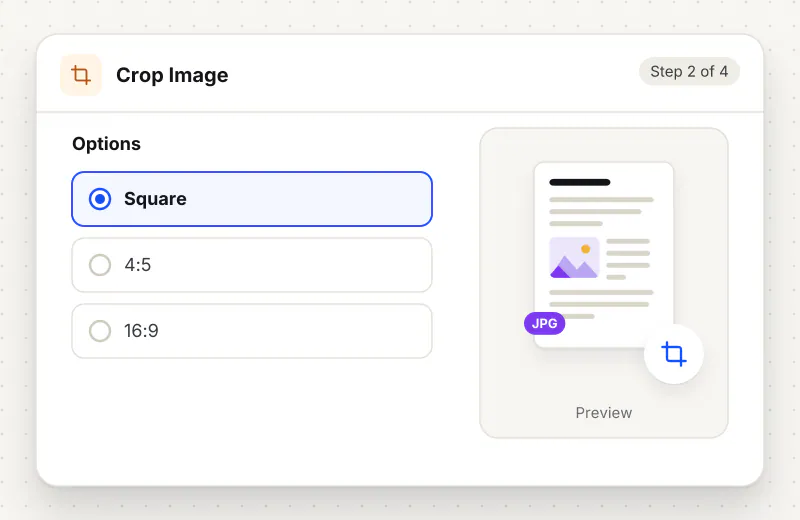
Step 2: Pick a shape
Under Shape, choose Free to draw any rectangle, or Square, 4:5, 3:4, 2:3, 4:3, 3:2, 16:9 or 9:16. A fixed shape starts as the largest centred box of that shape.
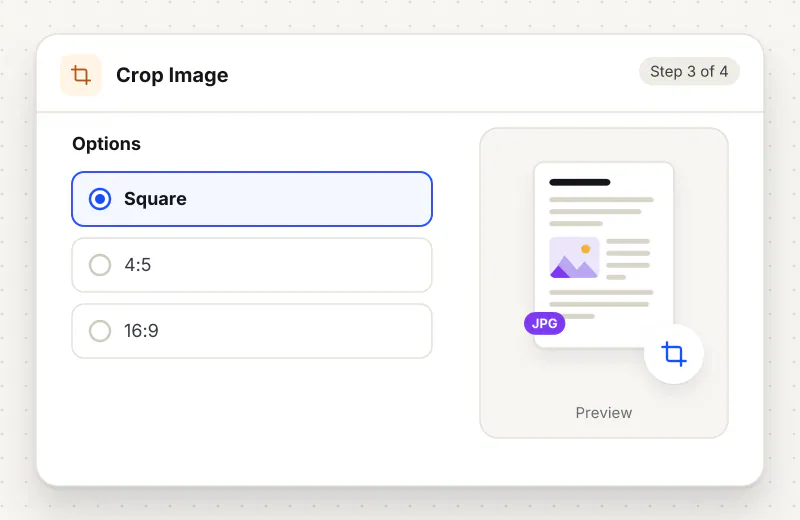
Step 3: Move and resize the box
Drag the box to move it and drag a corner to resize it. Arrow keys move it in small steps and Shift with an arrow key resizes it. The line below shows how many pixels are kept.
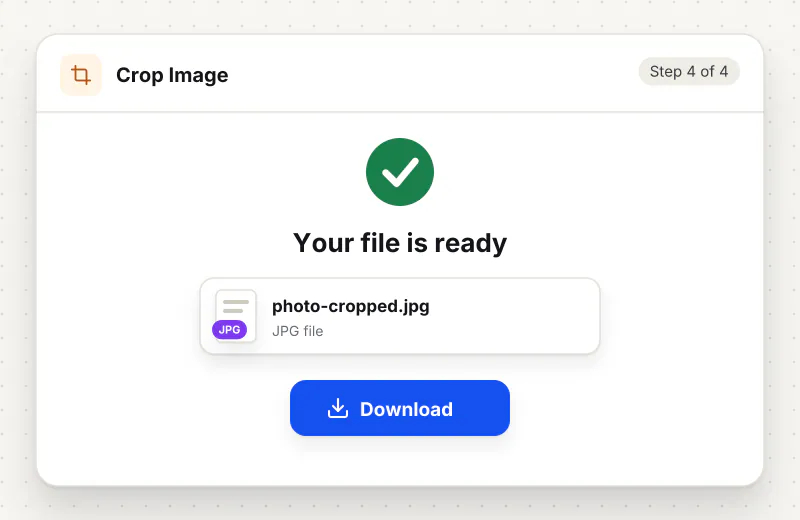
Step 4: Crop and download
Start the task. One image downloads with -cropped added to its name; a batch comes back as cropped-images.zip.
Features
What Crop Image gives you
Shapes for every frame
Square for profile pictures, 4:5 and 9:16 for phone feeds and stories, 3:2 and 4:3 for prints and slides, 16:9 for video covers. Corners keep the shape while you resize the box.
Same crop for a batch
The box is measured as a share of each photo, so twenty photos from the same camera get the same crop. With a fixed shape, every result has exactly that shape even if one photo is a different size.
No quality lost outside the cut
Only the edges are removed. The pixels you keep are not resized, and the image is saved in its own format, so a PNG stays a PNG with any transparency it had.
What does Crop Image do?
The tool cuts the photo down to the box and saves only those pixels, at full quality, in the same format as before (HEIC becomes JPG). The box is stored as a share of the width and height, so the same crop can be used on every image in a batch, and a fixed shape is kept exact even when the photos differ in size.
Cropping is the quickest way to improve a photo: it removes clutter at the edges and puts the subject where the eye lands first. It also fixes shape problems, because many sites show only a square or a tall rectangle and cut off whatever does not fit. Crop Image lets you decide which part stays instead of leaving it to the site.
Start with the shape the destination uses. Square suits most profile pictures, 4:5 fills a phone feed, 9:16 fits a story and 16:9 matches video thumbnails and slides. Free lets you draw any rectangle; if you never move it, the tool trims a tenth from each edge, which is what the preview shows. Most browsers cannot preview HEIC photos, so for those pick a shape and the centre is kept.
A crop changes the shape, not the number of pixels in the part you keep. To hit an exact size such as 1080 × 1080 after cropping, run the result through Resize Image. A sideways photo should be turned first with Rotate Image, and Compress Image to KB brings a crop under a form limit. For PDF pages rather than pictures, Crop PDF trims margins.
All of this happens in your browser. The photo is read and cut on your device and never leaves it. The tool is free for personal use, takes up to 20 images in one task and needs no account.
Your file stays on your device.
This tool runs in your browser.
- Processed on your phone or computer, not uploaded
- No account, no sign-up
- Free for personal use
When to use Crop Image
- A profile picture must be square but your photo is a wide landscape shot
- A screenshot shows a whole screen and you only need one message from it
- A product photo has too much empty floor around the item
- A slide or video cover needs a 16:9 picture from a portrait photo
Questions about Crop Image
How do I crop a photo to a square?
Pick Square under Shape. The largest centred square appears on the preview; drag it to the part you want, or drag a corner to make it smaller while it stays square. Then start the task.
Can I crop several images the same way?
Yes. Add all the images, then set the box on the preview of the first one. Each image is cropped at the same place, measured as a share of its width and height, and the results come back in cropped-images.zip.
Does cropping reduce the image quality?
No. The pixels inside the box are kept as they are and only the edges are removed. JPG files are saved again at high quality, and PNG and WebP keep their format.
Why is there no preview for my HEIC photo?
Most browsers cannot display HEIC images, although the tool can still read them. Pick a shape and the largest centred area of that shape is kept, or change the photo to JPG first with HEIC to JPG to see it.
Can I use the keyboard to place the crop box?
Yes. Click or tab to the box, then use the arrow keys to move it in small steps. Hold Shift with an arrow key to make it wider, narrower, taller or shorter.
Is Crop Image free, and does it need an account?
It is free for personal use with no account. Photos are cropped in your browser on your own device.
Is my file private and secure?
Yes. Crop Image runs on your phone or computer, so your file stays there and never goes to our servers. You need no account, and Siliph never sells your files. How we protect your files
Embed this tool on your site
Add Crop Image to your blog or website for free, with a credit link back to Siliph.
Get the embed code
Embed code (iframe)
<iframe src="https://siliph.com/crop-image/?embed=1" title="Crop Image — Siliph" width="100%" height="620" style="border:0;border-radius:12px;max-width:900px;" loading="lazy" allow="clipboard-write"></iframe>
<p style="font-size:12px;color:#666;margin-top:8px;">Free tool by <a href="https://siliph.com/crop-image/" rel="nofollow">Siliph</a></p>
Credit link for blog posts and tool lists
<p style="font-size:12px;color:#666;margin-top:8px;">Free tool by <a href="https://siliph.com/crop-image/" rel="nofollow">Siliph</a></p>
Direct link: siliph.com/crop-image/