

PowerPoint to PDF Converter
Send a deck as a PDF that looks the same on every screen, as full slides or as printable handouts.
Convert slides to PDF for sharing, printing, or archiving. Works with PPT and PPTX files. Siliph is free for personal use and needs no account. Many tools work right on your device; the others use secure servers in Europe and India and delete your files within 2 hours.
- Looks exactly like the original
- Batch convert up to 20 files
- Searchable, selectable output
- Sent over an encrypted connection
- Files deleted after 2 hours
- Free, no signup, no watermark
Loading the PowerPoint To PDF workspace… Files are processed securely and deleted automatically.
PowerPoint to PDF Converter in short
PowerPoint to PDF converts PPTX and PPT presentations into a PDF that keeps your text, colours and images fixed in place. Choose full slides or a handout layout with up to 9 slides per page, add speaker notes if you need them, and pick the page size. It is free with no account and deletes uploads within 2 hours.
Step by step
How to convert PowerPoint to PDF
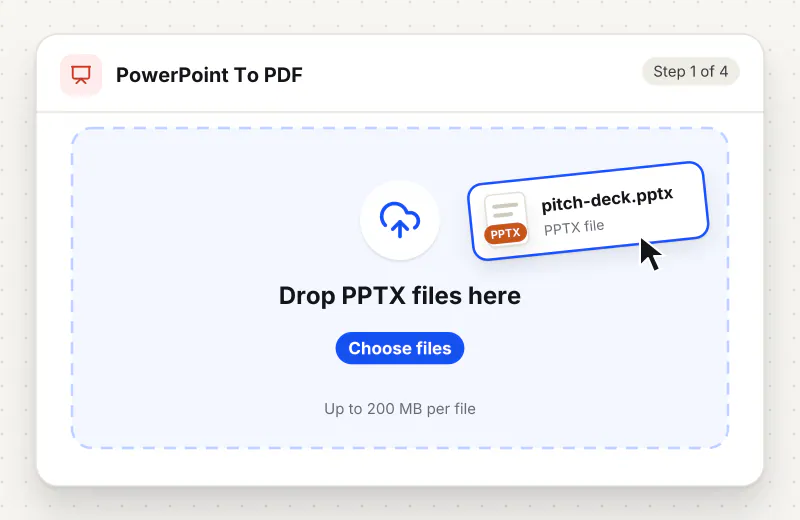
Step 1: Upload the presentation
Drag a PPTX or PPT file into the drop zone or click Choose a PowerPoint file. Files can be up to 200 MB.
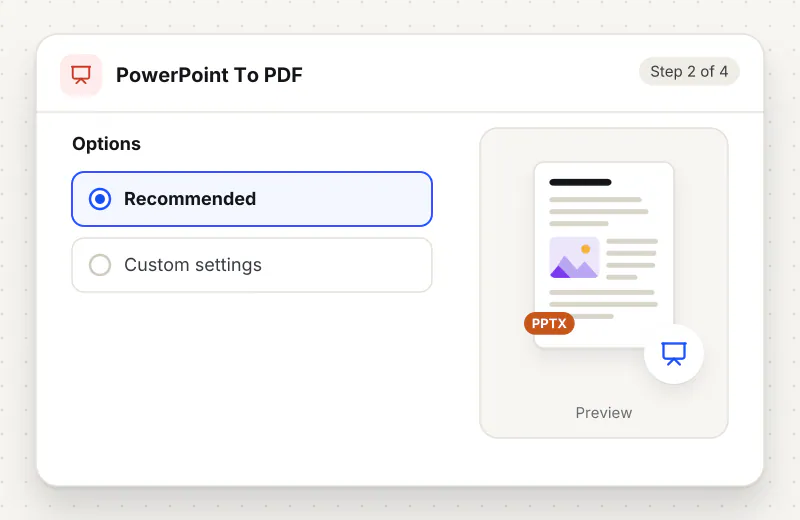
Step 2: Choose page size and layout
Keep Page size on Same as slides, or pick A4 (210 × 297 mm) or Letter (8.5 × 11 in). Under Slide layout, keep Full slide (1 per page) or choose 2, 3 (with lines), 4, 6 or 9 slides per page.
Step 3: Set orientation and notes
Choose Landscape or Portrait for A4, Letter and handout pages. Switch on Include speaker notes to print each slide with its notes below it, one slide per page, which suits rehearsal copies.
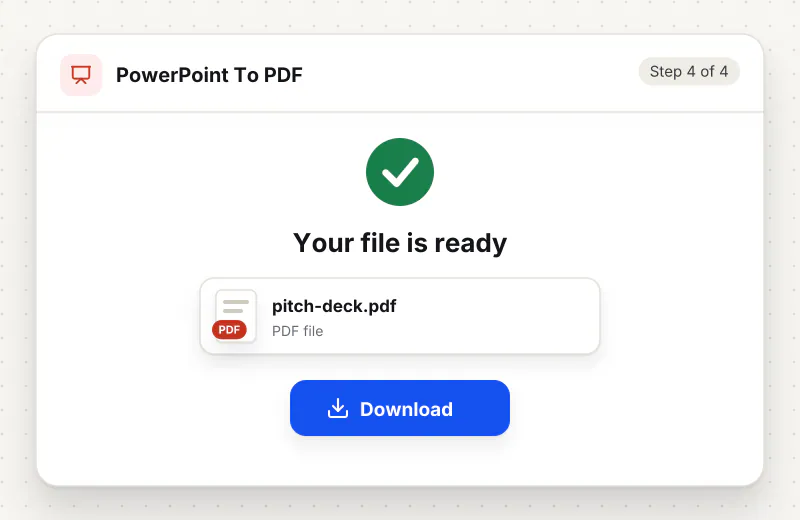
Step 4: Convert and download
Start the conversion and download the PDF. Open it and check slides with charts, embedded fonts and dense text before you send it on.
Features
What PowerPoint to PDF Converter gives you
Handout layouts for printing
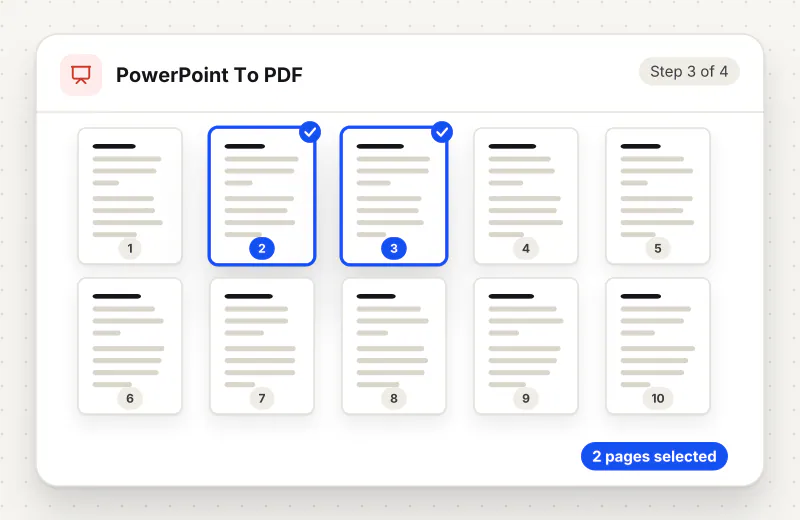
Print 2, 4, 6 or 9 slides per page to save paper, or 3 slides per page with lines so the audience can take notes beside each one, straight from the same upload.
Speaker notes in the PDF
Turn on Include speaker notes and each page shows a slide with its notes below it, giving presenters and students a single reference copy instead of a separate notes document.
Page sizes for screen and paper
Same as slides keeps the exact slide shape for on-screen viewing, while A4 and Letter scale each slide onto office paper in landscape or portrait for printing.
What does PowerPoint to PDF Converter do?
The converter opens your presentation and prints each slide to a PDF page the size of the slide. If you pick A4, Letter or a handout layout, the slides are then scaled onto that paper in the orientation you choose. Text, colours and pictures are fixed in place, so the deck looks the same on any computer. Animations and transitions cannot exist in a PDF and are left out; each slide appears in its final, fully built state.
A PowerPoint file depends on the fonts, version and settings of the computer that opens it, which is why a deck can look different on a client laptop. A PDF fixes the look. PowerPoint to PDF turns PPTX and PPT files into PDFs with every slide shown in its finished state. For the newer file type alone, the PPTX to PDF page walks through the same job.
Choose the layout by how the PDF will be used. Full slide (1 per page) with Same as slides is best for sharing on screen and is the most faithful to the original. For printed handouts, 3 slides per page (with lines) leaves room for notes, while 6 or 9 per page gives a compact overview for revision. Speaker notes print one slide per page with the notes below, so they replace the handout layout; include them for rehearsal copies but leave them out of files sent to clients.
Animations, transitions, embedded videos and sounds have no place in a PDF, so plan around them: a slide that builds up in steps will appear fully built. If the PDF is too big for an email or a portal, run Compress PDF. To combine the slides with a report, use Merge PDF. Going the other way, PDF to PowerPoint rebuilds a deck from a PDF, and Multiple Pages per Sheet arranges an existing PDF on fewer sheets.
Pick PDF over PPTX whenever the deck is finished and only needs to be read. Conference organisers and teachers often ask for PDF uploads because a PDF opens on any projector laptop without the right fonts installed. Recruiters and clients can read a pitch on a phone without PowerPoint. A handout PDF with three slides per page is lighter to print than the full deck, and a version with speaker notes makes a tidy rehearsal script. Keep the PPTX as your master, since a PDF cannot be edited back into animated slides without rebuilding them.
PowerPoint to PDF runs on our servers. Your deck travels over an encrypted connection, is converted automatically with nobody viewing the slides, and is removed from our servers within 2 hours along with the PDF. You can convert as many decks as you need without signing up.
Every file is encrypted.
On the way to us and while stored.
- Sent over HTTPS
- Deleted automatically within 2 hours
- Never sold, never viewed by a person
When to use PowerPoint to PDF Converter
- A client or examiner will open your deck on a computer without PowerPoint
- A conference or course portal asks for slides as a PDF upload
- You want printed handouts with three slides and lines for notes on each page
- A speaker needs a copy of the deck with their notes under each slide
- An embedded font keeps breaking when the PPTX opens on another machine
At a glance
PowerPoint to PDF Converter: free at a glance
What you get on the free plan, and when a paid plan applies.
| Price | Free for personal use, up to 30 tasks in any 24 hours |
|---|---|
| File size | Up to 200 MB per task |
| Files per task | Up to 20 on the free plan (up to 100 on paid plans) |
| Account | Not needed |
| Where it runs | On our servers, over an encrypted connection |
| File deletion | Deleted automatically within 2 hours |
| Watermark | None |
| Business use | Paid plans from ₹399 a week |
Why Siliph
PowerPoint to PDF Converter on Siliph and on typical free PDF sites
The right-hand column sums up 5 popular free PDF sites we checked in October 2026.
| Feature | Siliph | Typical free PDF sites |
|---|---|---|
| Account for personal use | Not needed | Some sites ask you to sign in to finish or repeat a task |
| Free use | Up to 30 tasks in any 24 hours, 20 files a task | Some sites stop you after a few tasks an hour |
| Where your file goes | Uploaded over HTTPS and deleted within 2 hours | Usually uploaded, then deleted after 1 to 2 hours |
Checked October 2026. Other sites change their plans; check before you rely on a limit.Side-by-side comparisons
Questions about PowerPoint to PDF Converter
How do I convert PowerPoint to PDF with notes?
Switch on Include speaker notes before you convert. Each PDF page then shows one slide with the notes you typed in PowerPoint below it, which is handy for rehearsal or lecture copies.
Can I print several slides on one PDF page?
Yes. Under Slide layout, choose 2, 4, 6 or 9 slides per page, or 3 slides per page (with lines) for handouts with space to write. Full slide (1 per page) gives one slide per page.
Will my animations and transitions be kept?
No. A PDF cannot play animations or transitions, so each slide is saved in its final state with every element visible. Embedded video and audio do not play in a PDF either.
Does it work with old PPT files as well as PPTX?
Yes. Both PPTX and the older PPT format are accepted, up to 200 MB per file, and the output is a PDF you can open in any reader.
Which page size should I pick for a PowerPoint PDF?
Keep Same as slides for a PDF read on screen, since pages match your 16:9 or 4:3 slides exactly. Pick A4 or Letter when the PDF will be printed, especially for handouts.
Why do my fonts look different in the PDF?
If the deck uses a font that is not embedded in the PPTX, a similar font is used instead, which can move text. Embed fonts when saving in PowerPoint, or switch to a common font, and convert again.
Can I convert Google Slides or Keynote to PDF here?
This tool takes PPTX and PPT files. In Google Slides choose File, Download, Microsoft PowerPoint (.pptx); in Keynote choose File, Export To, PowerPoint. Upload the exported deck here to use the handout layouts and speaker notes option.
Is PowerPoint to PDF free, with no sign-up?
Yes. It is free for personal use and needs no account. Uploaded presentations and their PDFs are removed from our servers within 2 hours.
Is my file private and secure?
Yes. Your file travels over HTTPS, is stored encrypted, is processed by machines with no person looking at it, and is deleted automatically within 2 hours. You need no account, and Siliph never sells your files. How we protect your files
Guides for PowerPoint to PDF Converter
Walk-throughs for common jobs, such as hitting an upload limit or preparing an application.
Embed this tool on your site
Add PowerPoint To PDF to your blog or website for free, with a credit link back to Siliph.
Get the embed code
Embed code (iframe)
<iframe src="https://siliph.com/ppt-to-pdf/?embed=1" title="PowerPoint To PDF — Siliph" width="100%" height="620" style="border:0;border-radius:12px;max-width:900px;" loading="lazy" allow="clipboard-write"></iframe>
<p style="font-size:12px;color:#666;margin-top:8px;">Free tool by <a href="https://siliph.com/ppt-to-pdf/" rel="nofollow">Siliph</a></p>
Credit link for blog posts and tool lists
<p style="font-size:12px;color:#666;margin-top:8px;">Free tool by <a href="https://siliph.com/ppt-to-pdf/" rel="nofollow">Siliph</a></p>
Direct link: siliph.com/ppt-to-pdf/