

JPG to PNG Converter
Turn JPG photos into PNG files for editing, design apps and forms that only list PNG.
Turn JPG photos into PNG files for editing or for apps that ask for PNG. Every pixel is kept; convert one image or a whole batch. Siliph is free for personal use and needs no account. Many tools work right on your device; the others use secure servers in Europe and India and delete your files within 2 hours.
- Every pixel kept, no new blur
- Convert a whole batch at once
- Photos stay on your device
- Sent over an encrypted connection
- Files deleted after 2 hours
- Free, no signup, no watermark
Loading the JPG to PNG workspace… Files are processed securely and deleted automatically.
JPG to PNG Converter in short
JPG to PNG converts JPG and JPEG photos into PNG files in your browser. PNG is lossless, so the picture is copied pixel for pixel and later edits add no new blur. Width and height stay the same. Convert one photo or a batch and download a PNG or a ZIP, free for personal use without an account.
Step by step
How to convert JPG to PNG
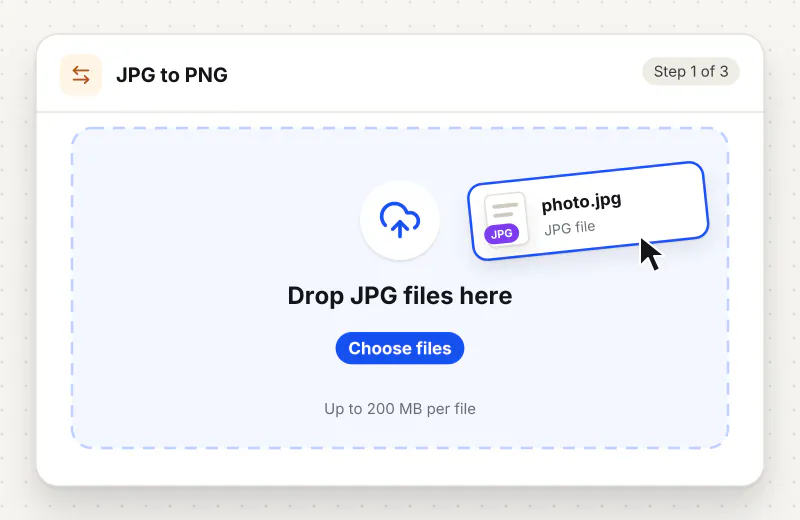
Step 1: Choose your JPG photos
Drag JPG or JPEG files into the drop zone, or click Choose JPG images. The tool waits until you press the button, so add every photo you need first.
Step 2: Start the conversion
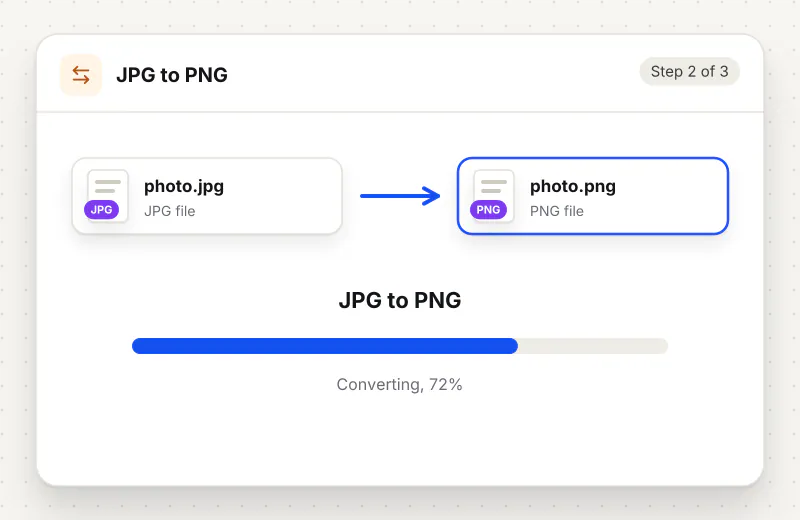
The Convert to PNG panel has no settings, since PNG keeps every pixel. Press Convert to PNG.
Step 3: Download the PNG files
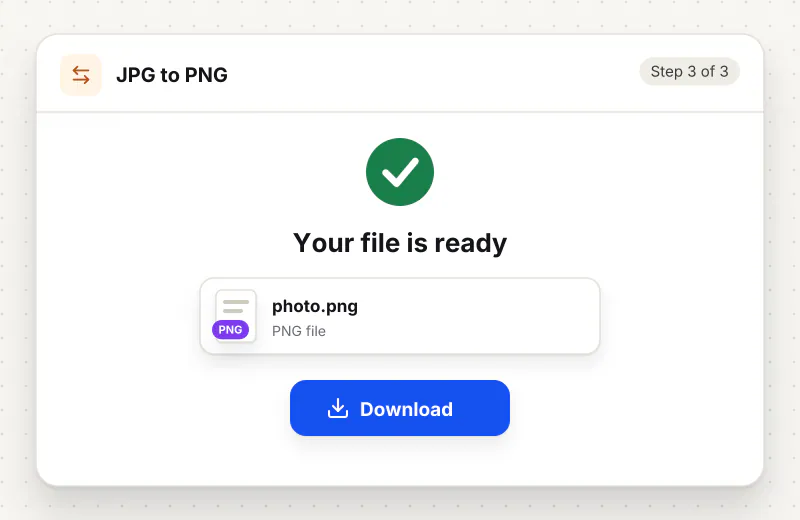
One photo downloads as a PNG with its original name. More than one arrives in png-images.zip, ready to unpack into a folder.
Features
What JPG to PNG Converter gives you
A clean master copy for editing
JPG loses a little detail each time it is saved. Converting once to PNG gives you a working copy you can crop, mark up and save again and again without that slow decline.
Upright and without location data
Photos taken sideways on a phone come out the right way up, and the PNG is saved fresh, so the GPS position and camera model stored in the JPG are left behind.
Batch with original names
Convert a folder of photos in one task. holiday-01.jpg becomes holiday-01.png, and two files with the same name are kept apart with -2 at the end.
What does JPG to PNG Converter do?
Each JPG is turned the right way up using its rotation tag, then written out as a PNG with every pixel exactly as your browser shows it. There is no quality setting, because PNG does not discard detail. Camera details and location are not carried over into the new file. Expect the PNG to be several times larger than the JPG.
People usually switch a photo to PNG for one of three reasons: a website or app only accepts PNG, they plan to edit the picture many times, or they want a copy that holds no camera data. In all three cases the PNG shows exactly what the JPG showed, with nothing added and nothing more taken away.
Converting cannot undo the compression a JPG already went through, so blocky patches in a low-quality photo stay in the PNG. Nor does it add a transparent background: a JPG has none, so the PNG will not either. To cut a subject out you need an editor; to trim the edges, Crop Image is enough.
The main cost is size. A 3 MB phone photo can easily become a 10 to 20 MB PNG. If a form needs PNG but also a small file, change the pixel size with Resize Image after converting. When PNG is not actually required, keep the JPG or go the other way with PNG to JPG; for web pages, JPG to WebP gives a far smaller file.
All the work happens in your browser on your device; the photos never leave it, which matters when they show your home, family or documents. The tool is free for personal use, handles up to 20 photos per task and needs no account.
Your file stays on your device.
This tool runs in your browser.
- Processed on your phone or computer, not uploaded
- No account, no sign-up
- Free for personal use
When to use JPG to PNG Converter
- An online form or app upload says PNG only
- You will edit a photo many times and do not want it to get softer on every save
- A design tool or slide template expects PNG images
- You want a copy of a photo without the GPS location stored in the JPG
Questions about JPG to PNG Converter
Does converting JPG to PNG improve quality?
No. The PNG holds exactly the pixels the JPG has, including any blur or blocky patches. What it does give you is a file that will not lose more detail when you edit and save it again.
Will the PNG have a transparent background?
No. A JPG has no transparency, so the PNG keeps the same solid background. Removing a background needs an editing step; converting the format alone does not do it.
Why is the PNG so much bigger than my JPG?
JPG throws away fine detail to make photos small, while PNG stores every pixel. For camera photos that often means a file three to five times larger. Resize the image if the size is a problem.
Is GPS location kept in the PNG?
No. The PNG is drawn from the photo and saved as a new file, so the location, date and camera details stored inside the JPG are not copied.
Will a sideways phone photo come out the right way up?
Yes. Phones often save photos sideways with a rotation tag. That tag is applied before saving, so the PNG shows the photo the way your gallery does.
Do I need to install anything?
No. The converter runs in your web browser on a computer or phone, and the photos are processed on that device.
Is my file private and secure?
Yes. JPG to PNG Converter runs on your phone or computer, so your file stays there and never goes to our servers. You need no account, and Siliph never sells your files. How we protect your files
Embed this tool on your site
Add JPG to PNG to your blog or website for free, with a credit link back to Siliph.
Get the embed code
Embed code (iframe)
<iframe src="https://siliph.com/jpg-to-png/?embed=1" title="JPG to PNG — Siliph" width="100%" height="620" style="border:0;border-radius:12px;max-width:900px;" loading="lazy" allow="clipboard-write"></iframe>
<p style="font-size:12px;color:#666;margin-top:8px;">Free tool by <a href="https://siliph.com/jpg-to-png/" rel="nofollow">Siliph</a></p>
Credit link for blog posts and tool lists
<p style="font-size:12px;color:#666;margin-top:8px;">Free tool by <a href="https://siliph.com/jpg-to-png/" rel="nofollow">Siliph</a></p>
Direct link: siliph.com/jpg-to-png/