
Split PDF by Size
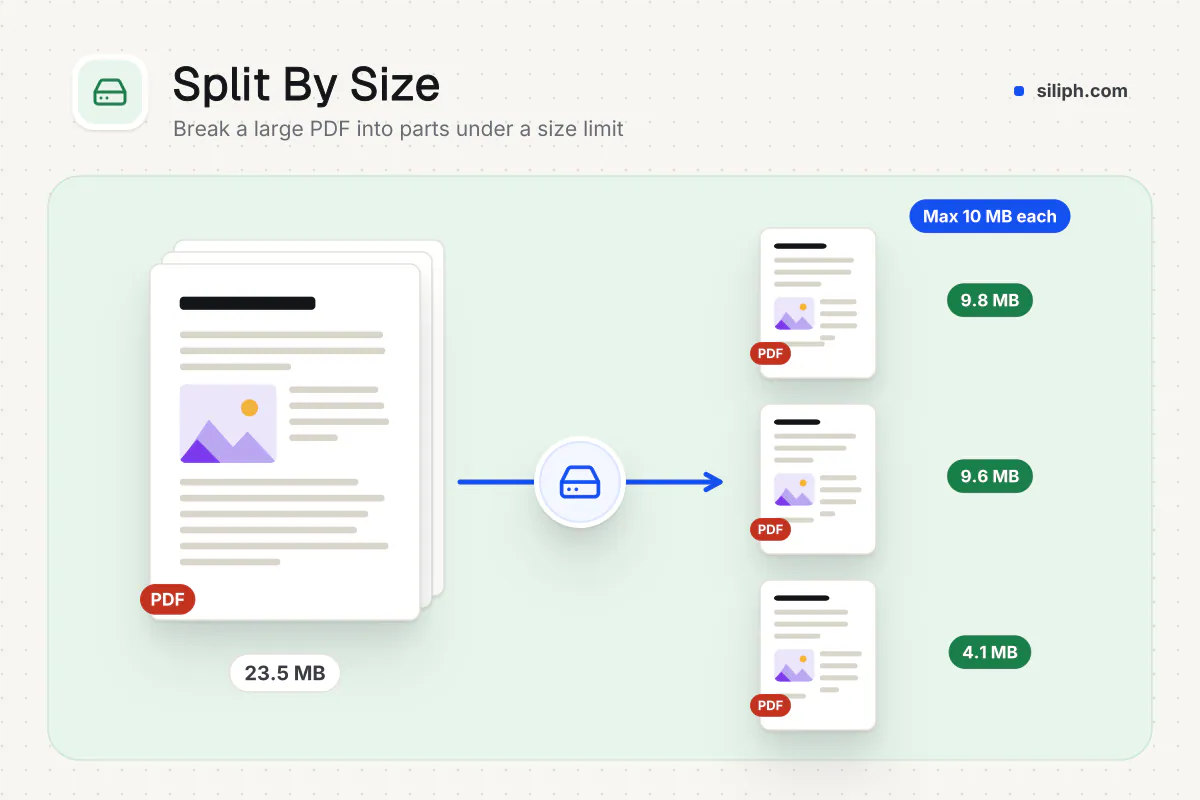
Break a heavy PDF into consecutive parts that each fit under the megabyte cap of an inbox or upload form.
- Free: Free to use. No signup requiredFree to useNo signup required
- Secure: Secure and private. Files deleted within 2 hoursSecure and privateFiles deleted within 2 hours
- Fast: Fast processing. Optimized for speedFast processingOptimized for speed
- All devices: Works on all devices. Desktop, tablet and mobileWorks on all devicesDesktop, tablet and mobile
Loading the Split By Size workspace… Files are processed securely and deleted automatically.
Why use this tool
Your files are safe
Your file is sent over an encrypted connection to our servers, deleted within 2 hours, and never viewed by a person.
Files up to 150 MB
One task can be up to 150 MB for this tool. Free, with no account.
Works everywhere
Use Siliph on desktop, tablet and mobile. No installation required.
Step by step
How to split a PDF by size
Get it done in 4 simple steps.
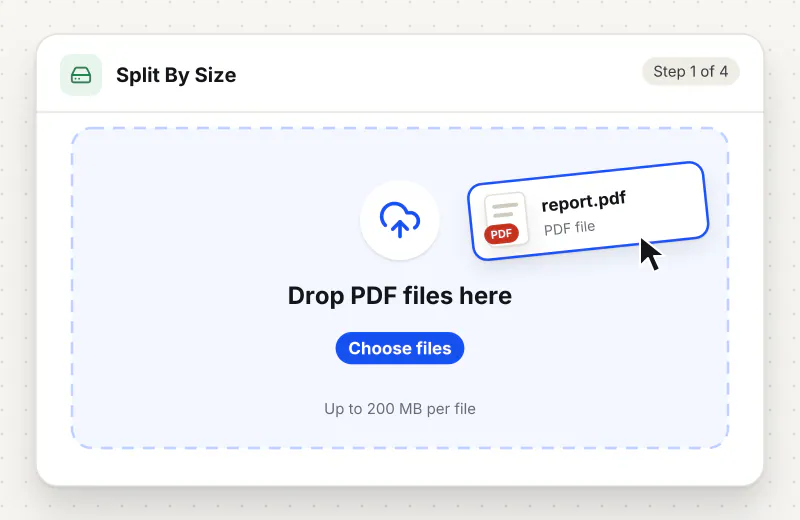
Step 1: Upload the large PDF
Drop the PDF into the upload area or click Choose a large PDF. Files up to 150 MB and 2000 pages are accepted, and the upload progress shows before you can start.
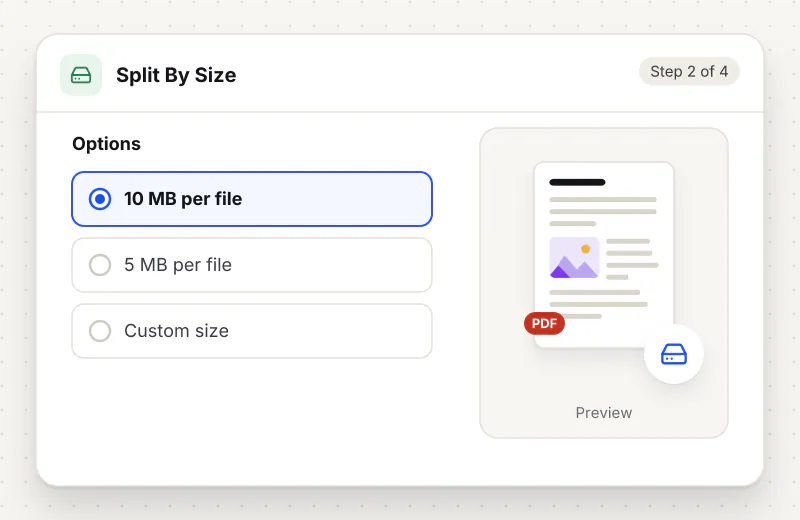
Step 2: Set the size cap
Type a whole number of megabytes in Maximum file size (MB). The box starts at 5. Pick a figure a little below the real limit, for example 9 for a 10 MB portal, to leave a margin.
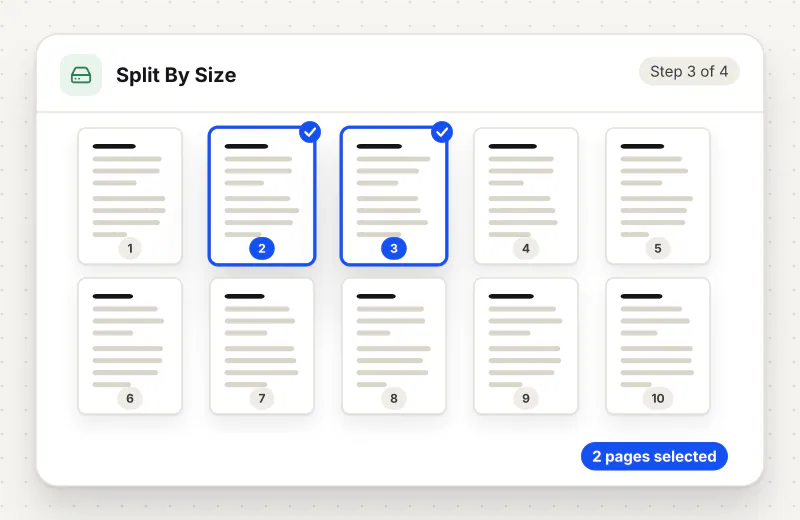
Step 3: Split the file
Click Split By Size. The server builds the parts one after another, so a long scan takes a little longer than a short report.
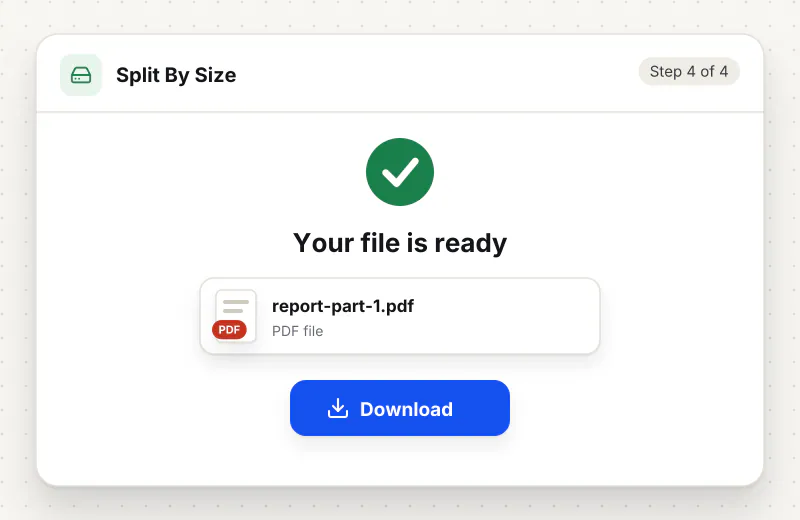
Step 4: Download the parts
Download the parts, named after the original with -part-1, -part-2 and so on. Check the size of each before you attach it, especially if the PDF has very heavy single pages.
Get multiple smaller documents with specific file sizes
- Set one figure: Maximum file size (MB)
- Parts keep the original page order
- Files up to 150 MB and 2000 pages
In short
Split PDF by size cuts a large PDF into smaller files that each stay under a megabyte figure you choose. Type a number in Maximum file size (MB), run the task and download parts named part 1, part 2 and so on, in page order. It is free, needs no account and accepts files up to 150 MB.
Features
What you get
Cut by megabytes, not by pages
Page counts are a poor guide to file size: ten scanned photos can outweigh a hundred pages of text. This tool measures each part as it grows, so the cut lands where the size runs out.
Consecutive parts in page order
Each part holds a run of pages in the original order, and the numbered names keep the set in sequence, so a recipient can read part 1 through to the last part without confusion.
Quality left alone
Pages are copied, not compressed or re-rendered. Text stays sharp and searchable and images keep their resolution; only the grouping of pages into files changes.
What does Split By Size do?
The tool measures groups of pages as saved PDFs and narrows down to the largest run of pages, in order, that stays under your figure. That run becomes a part, and the next part starts with the following page. Pages are copied without recompression, so quality does not change. Because a page cannot be cut, a single page heavier than your figure ends up in a part of its own.
Size caps are everywhere: mail servers that bounce large attachments, government and exam portals that accept a few megabytes per upload, chat apps with their own ceilings. A scanned contract or a photo-heavy report can be many times over those figures. Splitting by size gives you a set of smaller PDFs that each fit, without guessing how many pages will squeeze under the cap.
Type the cap in Maximum file size (MB) and leave a little headroom. Some systems count megabytes slightly differently, so 9 is safer than 10 for a 10 MB cap. Every part except possibly the last fills up close to your figure. The one case this tool cannot solve is a single page that is heavier than the cap: it gets a part of its own and that part will still be too big. The Split PDF by File Size page opens this same tool.
When even the parts are too heavy, shrink the file first with Compress PDF and then split the smaller copy. To cut at fixed page ranges instead, use Split PDF; to cut every page of a scanned spread down the middle, use Split In Half. If the recipient needs the parts back as one file, Merge PDF joins them in order.
Split By Size runs on our servers. Your PDF is sent over TLS, split automatically with no human access, and both the upload and the parts are deleted within 2 hours. The tool is free and needs no account. Each PDF can be up to 150 MB and 2000 pages.
Every file is encrypted.
On the way to us and while stored.
- Sent over HTTPS
- Deleted automatically within 2 hours
- Never sold, never viewed by a person
When to use it
- Your email provider bounces anything over 25 MB and the scan is 80 MB
- A government portal accepts several uploads but caps each one at a few megabytes
- A file-sharing chat app refuses a large PDF but takes smaller pieces
- A tender system wants a long submission sent as numbered volumes under a size cap
At a glance
Free plan at a glance
What you get on the free plan, and when a paid plan applies.
| Price | Free for personal and business use, with no daily limit |
|---|---|
| File size | Up to 150 MB per task for this tool |
| Where it runs | On our servers, over an encrypted connection |
| File deletion | Deleted automatically within 2 hours |
Questions about Split By Size
How do I split a PDF into parts under 10 MB?
Upload the PDF, type 9 in Maximum file size (MB) to leave a small margin, and click Split By Size. Each part is closed before it passes that figure, and the parts download in page order.
Why is one part bigger than the size I set?
That part holds a single page that weighs more than your figure on its own. A page cannot be cut, so compress the PDF first with Compress PDF, then split the smaller copy.
Can I split several PDFs by size in one task?
Yes. Add all the files and each one is split under the same size cap. The parts are named after their own file, such as report-part-1 and invoice-part-1, so they do not mix up.
Does splitting by size reduce image quality?
No. Pages are copied into the parts without recompression, so images and text look exactly as they did. To make the file lighter as well, run Compress PDF before splitting.
How many parts will I get?
Roughly the file size divided by your figure, plus one or two. Each part stops at the last whole page that fits, so parts tend to finish a little under the cap rather than exactly on it.
Is my file deleted after splitting?
Yes. The upload and the parts are deleted from our servers within 2 hours, and the split runs automatically without anyone viewing the document.
Is my file private and secure?
Yes. Your file travels over HTTPS, is stored encrypted, is processed by machines with no person looking at it, and is deleted automatically within 2 hours. You need no account, and Siliph never sells your files. How we protect your files
Guides and how-tos
Walk-throughs for common jobs, such as hitting an upload limit or preparing an application.
Embed this tool on your site
Add Split By Size to your blog or website for free, with a credit link back to Siliph.
Get the embed code
Embed code (iframe)
<iframe src="https://siliph.com/split-by-size/?embed=1" title="Split By Size — Siliph" width="100%" height="620" style="border:0;border-radius:12px;max-width:900px;" loading="lazy" allow="clipboard-write"></iframe>
<p style="font-size:12px;color:#666;margin-top:8px;">Free tool by <a href="https://siliph.com/split-by-size/" rel="nofollow">Siliph</a></p>
Credit link for blog posts and tool lists
<p style="font-size:12px;color:#666;margin-top:8px;">Free tool by <a href="https://siliph.com/split-by-size/" rel="nofollow">Siliph</a></p>
Direct link: siliph.com/split-by-size/