

Rotate Image
Turn sideways or upside-down photos the right way up, or mirror them, with a preview before you save.
Turn photos a quarter turn left or right, upside down, or mirror them. Works on one image or a whole batch and keeps the original quality settings. Siliph is free for personal use and needs no account. Many tools work right on your device; the others use secure servers in Europe and India and delete your files within 2 hours.
- Left, right or upside down
- Mirror left to right or top to bottom
- Photos stay on your device
- Sent over an encrypted connection
- Files deleted after 2 hours
- Free, no signup, no watermark
Loading the Rotate Image workspace… Files are processed securely and deleted automatically.
Rotate Image in short
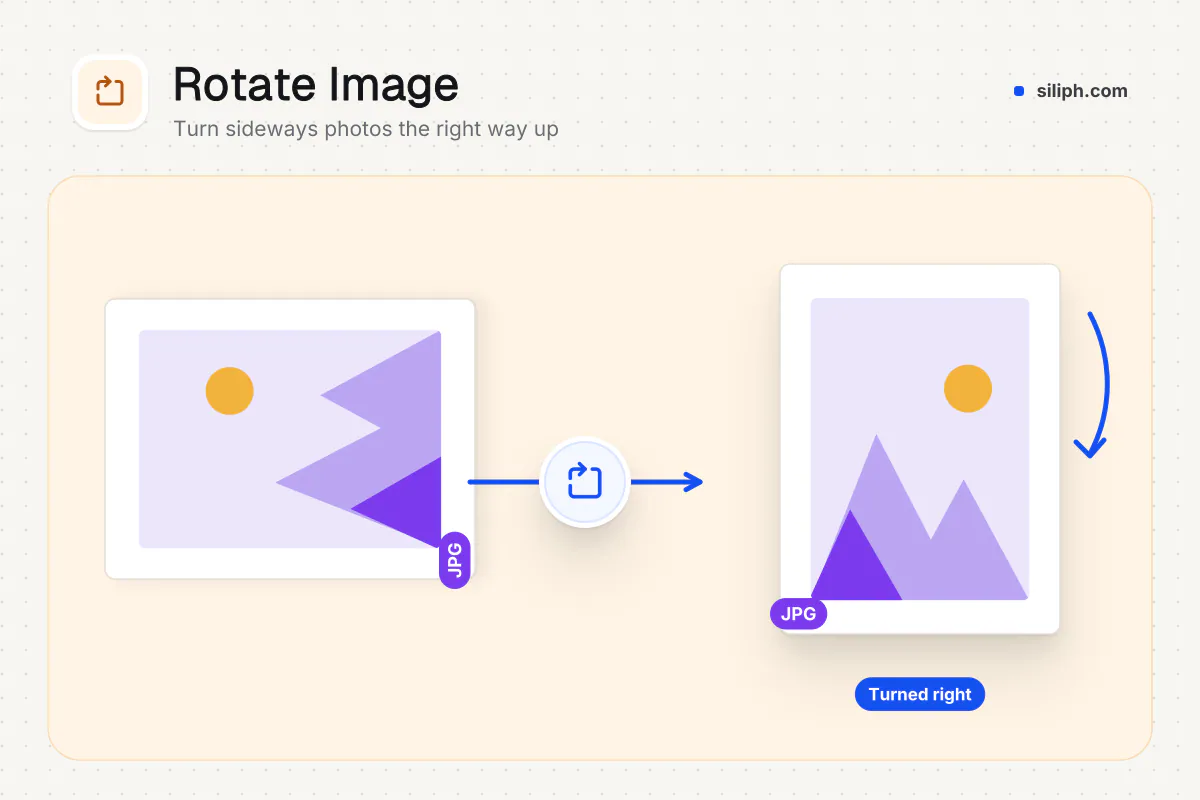
Rotate Image turns photos a quarter turn left or right, or upside down, and can mirror them left to right or top to bottom. A preview shows the result first, and every image in a batch gets the same change. Photos are turned in your browser and saved in their own format, free and without an account.
Step by step
How to rotate an image
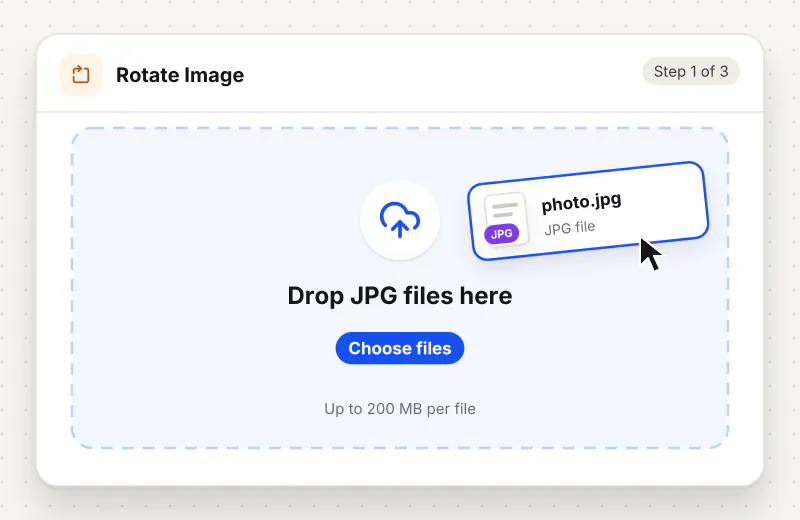
Step 1: Add your images
Drag JPG, PNG, WebP or HEIC files onto the drop zone or click Choose images to rotate. Add several if they all need the same turn.
Step 2: Turn or mirror the preview
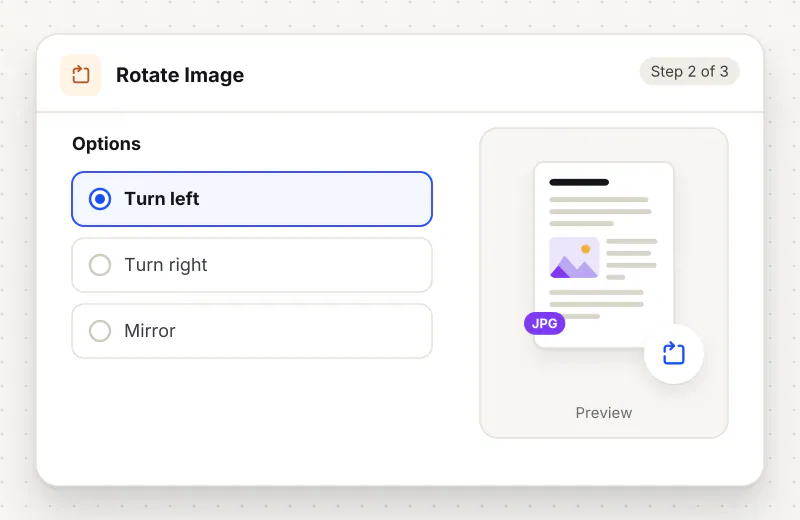
Click Turn left or Turn right once for a quarter turn and twice for upside down. Mirror flips left to right and Flip upside down flips top to bottom. The preview and a sentence below it show the result.
Step 3: Save the turned images
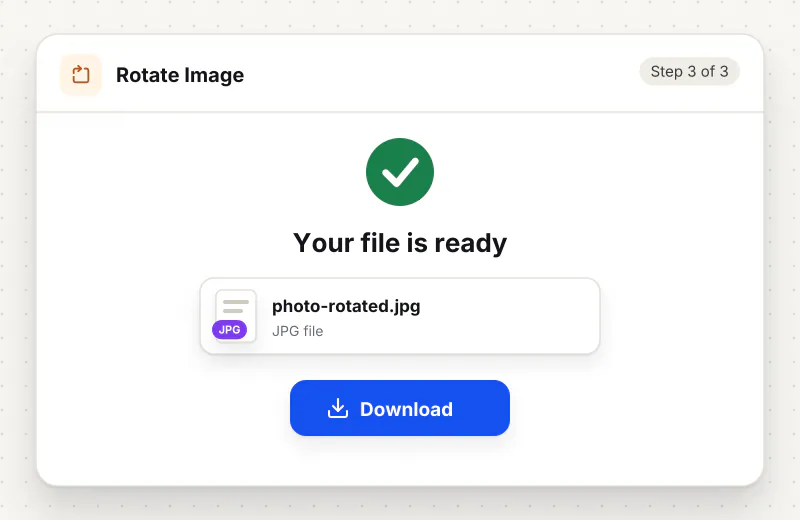
Start the task. One image downloads with -rotated added to its name; several come back together as rotated-images.zip.
Features
What Rotate Image gives you
The turn is saved in the pixels
Some apps rotate a photo only by changing a tag that upload forms and older programs ignore. Here the picture itself is redrawn, so it shows the right way up everywhere you open or send it.
Mirror as well as turn
Mirror fixes front-camera selfies where text reads backwards, and Flip upside down fixes a scan fed into the scanner the wrong way. Turns and flips can be combined before you save.
Batch with one click
Add up to 20 images, set the turn once and download them all. Each keeps its own format, and the preview shows the first image so you can check the direction.
What does Rotate Image do?
The tool redraws the picture turned or mirrored and saves it again, so the change is in the pixels themselves rather than in a hidden orientation tag that some apps ignore. A quarter turn swaps the width and height. JPG, PNG and WebP keep their format; a HEIC photo comes back as a JPG.
Phones store a photo the way the sensor sees it and add a small orientation tag that says which way is up. Gallery apps read the tag, but many upload forms, email clients and older programs do not, so the same picture appears sideways once it leaves the phone. Rotate Image applies the tag when it opens the photo, then lets you turn it further and saves the corrected picture with no tag needed.
Use Turn right for a photo whose top points left, Turn left for one whose top points right, and press either button twice for upside down. Mirror is for selfies taken with the front camera, which flips words on signs and clothes. A quarter turn swaps the width and height, so a 4000 × 3000 picture becomes 3000 × 4000.
Turning is often the first fix before others. Once the photo is upright, Crop Image removes the edges you do not need and Resize Image sets an exact size. For pages in a PDF instead of pictures, Rotate PDF turns single pages or the whole file, and Image to PDF puts the turned photos into one document.
Every step runs in your browser. The images are redrawn on your device and never leave it. The tool is free for personal use, handles up to 20 images in one task and needs no account.
Your file stays on your device.
This tool runs in your browser.
- Processed on your phone or computer, not uploaded
- No account, no sign-up
- Free for personal use
When to use Rotate Image
- A scanned page or receipt photo came out sideways
- A form preview shows your photo lying on its side even though it looks fine on the phone
- A selfie is mirrored and the writing on a shirt reads backwards
- A set of photos from a document camera all need the same quarter turn
Questions about Rotate Image
Why does my photo look upright on the phone but sideways online?
The phone saves an orientation tag instead of turning the pixels, and the site ignores that tag. Turn the photo here and save it; the new file is upright in its pixels, so every site shows it the same way.
What is the difference between rotate and mirror?
Rotating turns the whole picture around its centre, like turning a printed photo on a table. Mirroring flips it as in a mirror, so text reads backwards; use it to undo the flip of a front-camera selfie.
Does rotating a JPG lower its quality?
The JPG is saved again at quality 90, which looks the same to the eye in normal use. PNG files are saved without any loss, and WebP keeps its format where the browser can write it.
Can I rotate several photos at once?
Yes. Add all of them, set the turn or flip once and start the task. Every photo gets the same change and they download together in rotated-images.zip.
Can I turn an image by an angle such as 10 degrees?
No. The tool turns in quarter turns of 90 degrees and mirrors, which covers sideways and upside-down photos. Small tilts would need the corners filled or cropped, which this tool does not do.
Is Rotate Image free to use?
Yes, it is free for personal use and needs no account. Your images are turned in your browser and are not sent anywhere.
Is my file private and secure?
Yes. Rotate Image runs on your phone or computer, so your file stays there and never goes to our servers. You need no account, and Siliph never sells your files. How we protect your files
Embed this tool on your site
Add Rotate Image to your blog or website for free, with a credit link back to Siliph.
Get the embed code
Embed code (iframe)
<iframe src="https://siliph.com/rotate-image/?embed=1" title="Rotate Image — Siliph" width="100%" height="620" style="border:0;border-radius:12px;max-width:900px;" loading="lazy" allow="clipboard-write"></iframe>
<p style="font-size:12px;color:#666;margin-top:8px;">Free tool by <a href="https://siliph.com/rotate-image/" rel="nofollow">Siliph</a></p>
Credit link for blog posts and tool lists
<p style="font-size:12px;color:#666;margin-top:8px;">Free tool by <a href="https://siliph.com/rotate-image/" rel="nofollow">Siliph</a></p>
Direct link: siliph.com/rotate-image/