

PNG to WebP Converter
Shrink PNG logos, cut-outs and screenshots into WebP files that keep their transparent background.
Turn PNG images into WebP files with transparency kept and a much smaller size. Pick the quality and convert a whole batch. Siliph is free for personal use and needs no account. Many tools work right on your device; the others use secure servers in Europe and India and delete your files within 2 hours.
- Transparency kept
- Quality slider from 10 to 100
- Images stay on your device
- Sent over an encrypted connection
- Files deleted after 2 hours
- Free, no signup, no watermark
Loading the PNG to WebP workspace… Files are processed securely and deleted automatically.
PNG to WebP Converter in short
PNG to WebP converts PNG images into WebP files in your browser, keeping transparent backgrounds while cutting the file size, often by a large margin. Set the quality from 10 to 100, convert a whole batch of graphics, and download one WebP or a ZIP. Free for personal use, no account needed.
Step by step
How to convert PNG to WebP
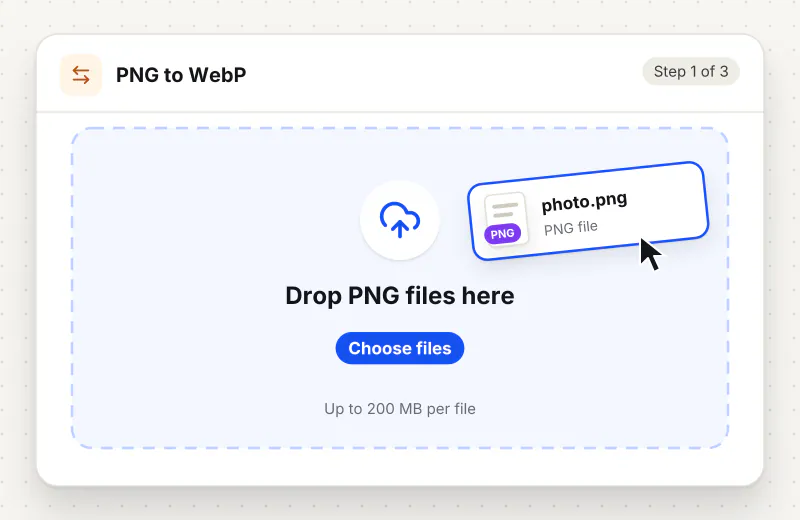
Step 1: Add the PNG images
Drop PNG files on the page or click Choose PNG images. You can keep adding files; nothing starts until you press the button.
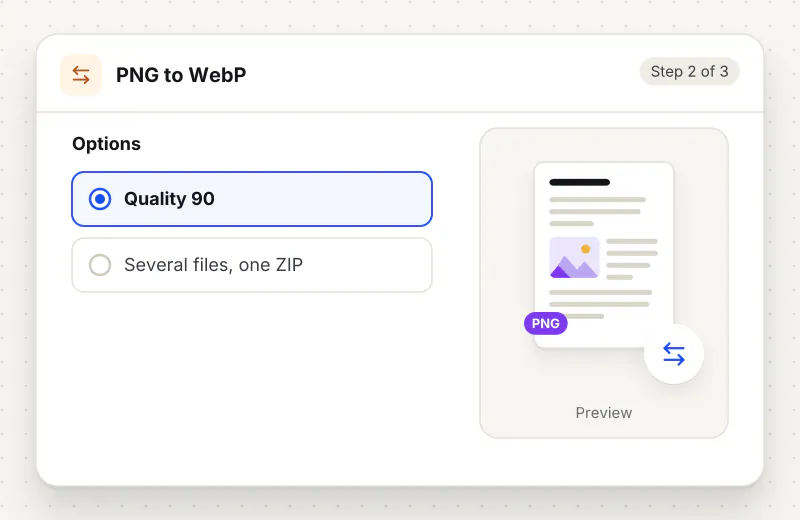
Step 2: Choose a WebP quality
Under WebP quality, 90 keeps edges and text crisp. For large photos saved as PNG, 75 to 85 cuts the size further with little visible change.
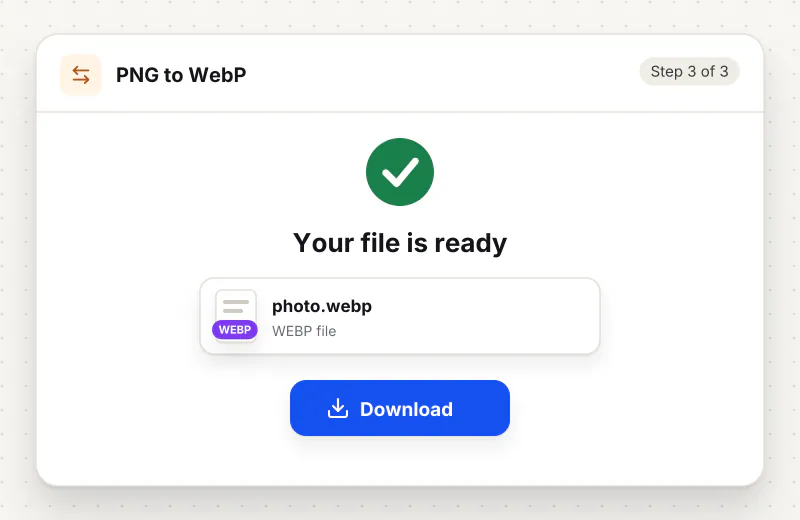
Step 3: Convert and download
Press Convert to WebP. A single file downloads straight away; several come back in webp-images.zip with their names kept.
Features
What PNG to WebP Converter gives you
Cut-outs stay cut out
Transparent backgrounds and soft shadows survive the conversion, so a product photo or logo still sits cleanly on any page colour, unlike a conversion to JPG.
Big savings on photo-like PNGs
PNGs that hold photos or detailed screenshots are often several megabytes. As WebP they typically shrink to a small part of that, which helps page speed scores.
Batch for a whole site
Convert a folder of graphics in one task, up to 20 at a time. Each keeps its name with a .webp ending, so updating your page links stays simple.
What does PNG to WebP Converter do?
Each PNG is opened by your browser and saved as a WebP at the quality on the slider, with its transparent and half-transparent areas kept. The width and height stay the same. Because the WebP is saved with lossy compression, very fine pixel art or tiny text can soften at low settings, so keep the slider high for those.
PNG became the standard for web graphics because it supports transparency, but it never throws away detail, so photo-like PNGs and full screenshots get heavy. WebP supports transparency too and compresses far harder. Swapping the format is one of the easiest ways to speed up a page full of product cut-outs or interface screenshots.
Watch the content type. Smooth photos and soft shadows convert beautifully even at 80. Pixel art, tiny labels and thin lines are the hard case: at low quality the edges blur. Keep the slider at 90 or above for those, or keep them as PNG. To go back to a lossless copy later, WebP to PNG converts the other way, though it cannot restore detail already dropped.
Large graphics also benefit from a smaller pixel size; Resize Image sets an exact width before you convert. If your target does not need transparency at all, PNG to JPG is the most widely accepted option, and photos from a camera can go straight through JPG to WebP.
Chrome, Edge and Firefox save WebP; when a browser cannot, such as some Safari versions, the tool says so instead of saving the wrong file. Conversion runs in your browser on your device, and your images stay there. Free for personal use, no account.
Your file stays on your device.
This tool runs in your browser.
- Processed on your phone or computer, not uploaded
- No account, no sign-up
- Free for personal use
When to use PNG to WebP Converter
- Product cut-outs on a transparent background make your shop pages slow
- A website builder flags large PNG files in its speed report
- You want lighter screenshots for a help article or online course
- Icons and logos for a web app need to stay see-through but load quickly
Questions about PNG to WebP Converter
Does WebP keep the transparent background of my PNG?
Yes. Fully transparent and partly transparent pixels are kept, so logos, icons and product cut-outs look the same on any background colour.
How much smaller will my PNG get?
Photo-like PNGs and screenshots often shrink to a small part of their size. Simple graphics with a few flat colours are already compact as PNG and shrink less. Convert one file first to see.
Why does small text look soft after converting?
The WebP is saved with lossy compression, which smooths very fine detail at lower quality. Raise the Quality slider to 90 or 100 for screenshots with small text or for pixel art.
Can every browser open the WebP files?
Yes, all current versions of Chrome, Safari, Edge and Firefox display WebP. Creating WebP is different: some Safari versions cannot, and the tool tells you to switch browser.
Should I use PNG to WebP or PNG to JPG?
Choose WebP for websites and whenever transparency must stay. Choose JPG when a form, printer or older program accepts only JPG; transparent parts then turn white.
Are my graphics uploaded during conversion?
No. Your browser converts each PNG on your own computer or phone, so design files and screenshots stay with you.
Is my file private and secure?
Yes. PNG to WebP Converter runs on your phone or computer, so your file stays there and never goes to our servers. You need no account, and Siliph never sells your files. How we protect your files
Embed this tool on your site
Add PNG to WebP to your blog or website for free, with a credit link back to Siliph.
Get the embed code
Embed code (iframe)
<iframe src="https://siliph.com/png-to-webp/?embed=1" title="PNG to WebP — Siliph" width="100%" height="620" style="border:0;border-radius:12px;max-width:900px;" loading="lazy" allow="clipboard-write"></iframe>
<p style="font-size:12px;color:#666;margin-top:8px;">Free tool by <a href="https://siliph.com/png-to-webp/" rel="nofollow">Siliph</a></p>
Credit link for blog posts and tool lists
<p style="font-size:12px;color:#666;margin-top:8px;">Free tool by <a href="https://siliph.com/png-to-webp/" rel="nofollow">Siliph</a></p>
Direct link: siliph.com/png-to-webp/