

Extract Images From PDF
Pull every photo, logo and scanned picture out of a PDF as separate JPG files, without screenshots.
Export photos and graphics from PDF pages as separate image files. Siliph is free for personal use and needs no account. Many tools work right on your device; the others use secure servers in Europe and India and delete your files within 2 hours.
- Layout preserved
- Batch convert up to 20 files
- Free with no watermarks
- Sent over an encrypted connection
- Files deleted after 2 hours
- Free, no signup, no watermark
Loading the Extract Images from PDF workspace… Files are processed securely and deleted automatically.
Extract Images From PDF in short
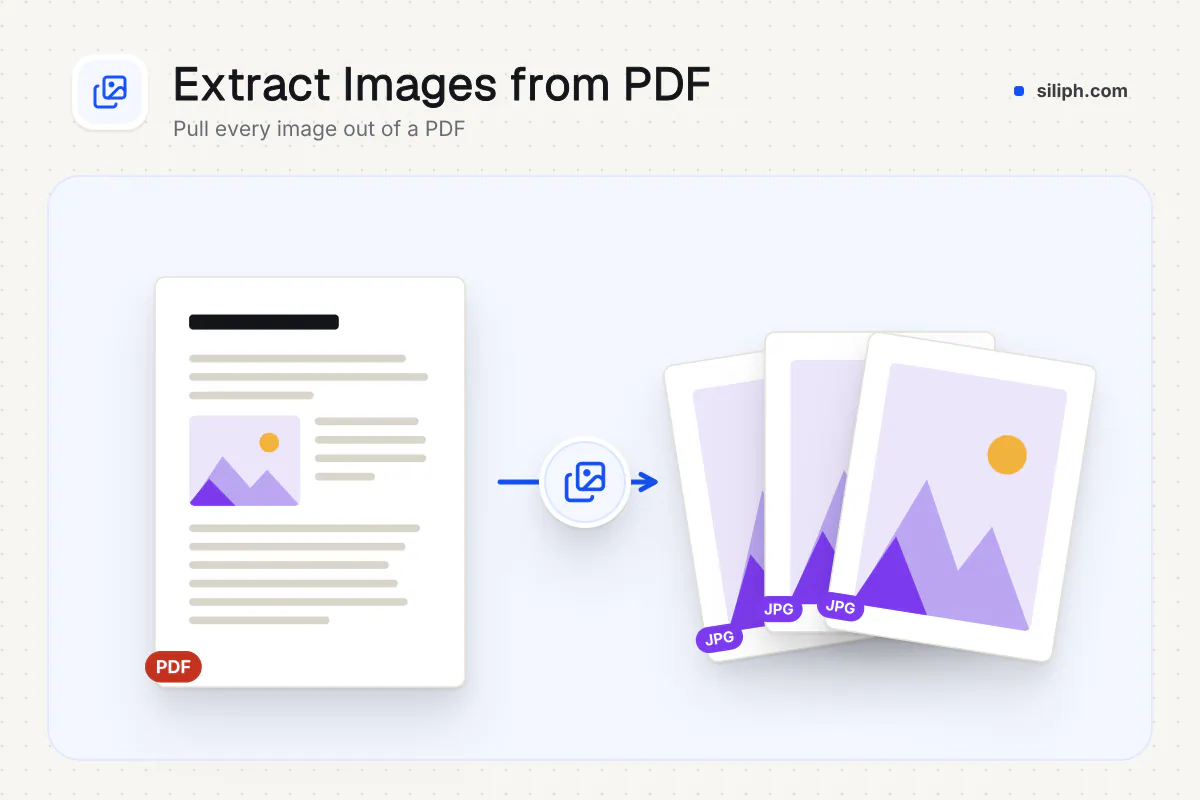
Extract images from PDF documents in one step: the tool finds every picture embedded in the pages, such as photos, logos and scanned pages, and saves each one as a JPG at the pixel size stored in the file. Several images download together as a ZIP. It is free with no account and deletes uploads within 2 hours.
Step by step
How to extract images from a PDF
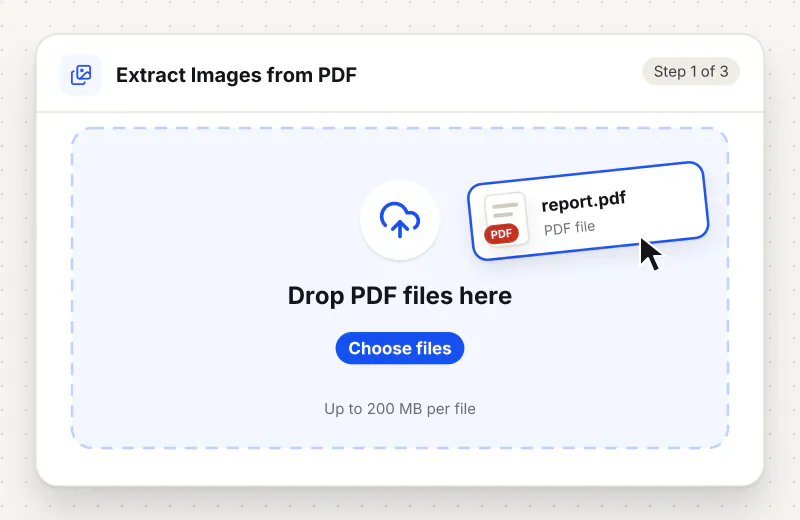
Step 1: Add the PDF
Drag the PDF into the drop zone or click Choose a PDF file. Add several PDFs to pull images from all of them; each can be up to 2 GB.
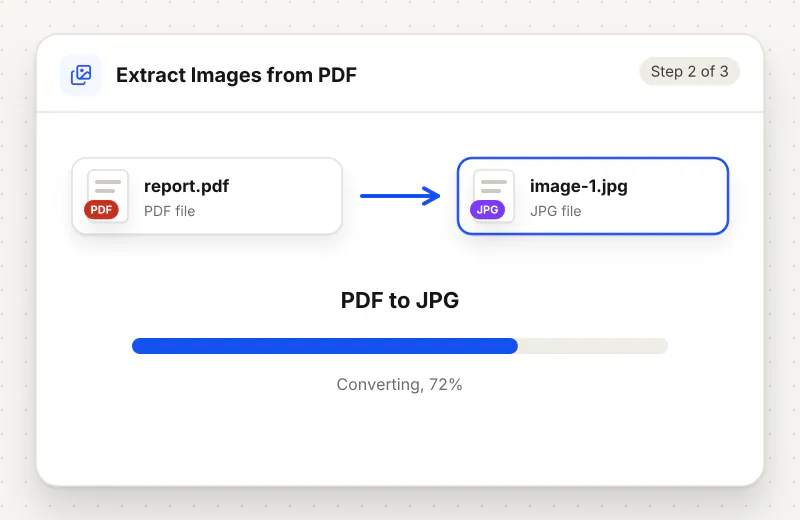
Step 2: Extract the pictures
There are no settings. Start the task and the tool reads the PDF page by page, showing which page it has reached, and collects every embedded picture it finds.
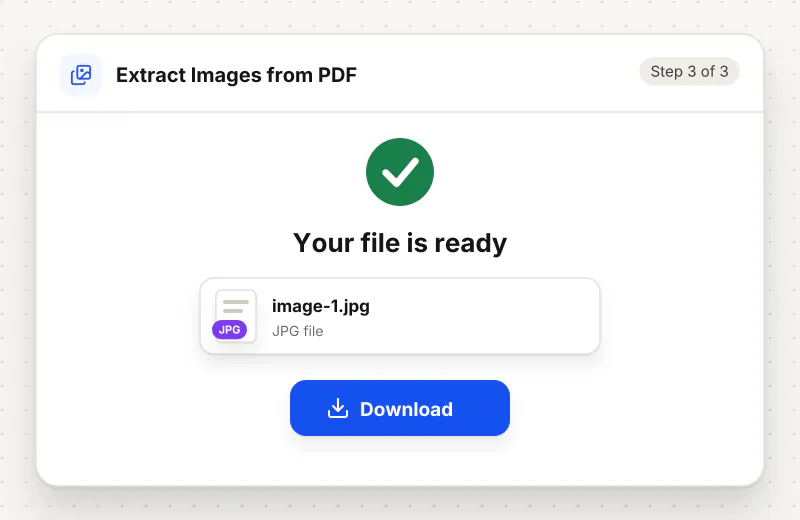
Step 3: Download the JPG files
A single picture downloads as a JPG. Several pictures arrive in one ZIP named after your PDF; unzip it and sort the files by name to see them in page order.
Features
What Extract Images From PDF gives you
Stored resolution, not screen resolution
Images are taken from the file at the pixel size they were embedded with, which is usually sharper than a screenshot of the page at your screen zoom.
Page numbers in every file name
Names such as catalogue-p12-img31.jpg tell you which page each picture came from, so you can match a photo to its product or caption without opening the PDF again.
Everything in one ZIP
When a PDF holds more than one picture, all of them are packed into a single ZIP, so a 100-image catalogue is one download instead of a hundred.
What does Extract Images From PDF do?
A PDF keeps its pictures as separate image objects that the pages point to. The tool goes through each page, collects those objects and writes each one out as a JPG, named after the PDF with the page number and a running count, for example report-p4-img7.jpg. Text, tables and drawings made of lines and shapes are not pictures, so they are not exported.
Screenshots of a PDF page capture the picture at whatever zoom your screen shows, plus the page around it. Extracting the image objects directly gives you the picture as it was embedded, often at a higher resolution and without the surrounding text. The Extract Images From PDF page leads to the same tool.
Know what counts as an image. Charts and diagrams drawn in Word, PowerPoint or a design app are often vector shapes, not pictures, and will not appear in the ZIP; render those pages with PDF to JPG or PDF to PNG instead. Pictures with transparent backgrounds come out as JPG, which has no transparency. An image that repeats on every page, like a logo in the header, is saved once for each page it appears on. If the tool reports that no embedded images were found, the PDF contains only text and vector graphics.
Once you have the JPG files, Compress Image to KB shrinks a photo for an upload form, and JPG to PDF puts a selection back into a new PDF. For the words rather than the pictures, use PDF to Text. More export options are on the PDF converter page.
Smaller PDFs are processed in your browser. Larger ones use an encrypted upload to our servers, are handled automatically with no human access, and are deleted within 2 hours. It is free for personal use and needs no account.
Small files stay on your device.
Bigger files use an encrypted upload.
- No account, no sign-up
- Larger files go over HTTPS and are deleted automatically within 2 hours
- Never sold, never viewed by a person
When to use Extract Images From PDF
- You need the product photos from a supplier catalogue that only came as a PDF
- A logo or chart is embedded in a brochure and the original file is lost
- A scanned PDF should be split back into one image per scanned page
- You want to reuse pictures from a report in slides without taking blurry screenshots
At a glance
Extract Images From PDF: free at a glance
What you get on the free plan, and when a paid plan applies.
| Price | Free for personal use, up to 30 tasks in any 24 hours |
|---|---|
| File size | Up to 2 GB per task |
| Files per task | Up to 20 on the free plan (up to 100 on paid plans) |
| Account | Not needed |
| Where it runs | On your phone or computer for files up to 300 MB on a computer or 100 MB on a phone; bigger files go to our servers over a secure connection |
| File deletion | Files sent to our servers are deleted automatically within 2 hours |
| Watermark | None |
| Business use | Paid plans from ₹399 a week |
Why Siliph
Extract Images From PDF on Siliph and on typical free PDF sites
The right-hand column sums up 5 popular free PDF sites we checked in October 2026.
| Feature | Siliph | Typical free PDF sites |
|---|---|---|
| Account for personal use | Not needed | Some sites ask you to sign in to finish or repeat a task |
| Free use | Up to 30 tasks in any 24 hours, 20 files a task | Some sites stop you after a few tasks an hour |
| Where your file goes | Small files stay in your browser; larger ones are uploaded over HTTPS and deleted within 2 hours | Usually uploaded, then deleted after 1 to 2 hours |
Checked October 2026. Other sites change their plans; check before you rely on a limit.Side-by-side comparisons
Questions about Extract Images From PDF
Why does it say no embedded images were found?
The PDF has no picture objects. Its graphics are made of text, lines and shapes, as in most charts exported from office apps. Use PDF to JPG to turn whole pages into images instead.
Are the extracted images full quality?
They keep the pixel size stored in the PDF, which is usually what the author embedded. They are saved as high-quality JPG, so a picture that was a PNG with sharp edges may show slight compression.
Why is the same logo in the ZIP many times?
A header logo or background graphic that appears on every page is collected once per page. Sort the files by name and delete the copies you do not need.
Does it keep transparent backgrounds?
No. Every image is saved as JPG, and JPG cannot store transparency, so transparent areas are filled in. If you need a clear background, recreate the graphic from its original source.
How do I get one image per scanned page?
In a scanned PDF each page is usually a single embedded picture, so extracting gives one JPG per page, named with its page number. PDF to JPG also works and lets you choose output options.
Is Extract Images From PDF free?
Yes. Extracting images is free for personal use, with no account. Files that reach our servers are deleted within 2 hours.
Is my file private and secure?
Yes. Extract Images From PDF runs on your phone or computer, so your file usually stays there. Only a file too big to handle on your device goes to our servers: it travels over HTTPS, is stored encrypted, is processed by machines with no person looking at it, and is deleted automatically within 2 hours. Siliph never sells your files. How we protect your files
Guides for Extract Images From PDF
Walk-throughs for common jobs, such as hitting an upload limit or preparing an application.
Embed this tool on your site
Add Extract Images from PDF to your blog or website for free, with a credit link back to Siliph.
Get the embed code
Embed code (iframe)
<iframe src="https://siliph.com/extract-images/?embed=1" title="Extract Images from PDF — Siliph" width="100%" height="620" style="border:0;border-radius:12px;max-width:900px;" loading="lazy" allow="clipboard-write"></iframe>
<p style="font-size:12px;color:#666;margin-top:8px;">Free tool by <a href="https://siliph.com/extract-images/" rel="nofollow">Siliph</a></p>
Credit link for blog posts and tool lists
<p style="font-size:12px;color:#666;margin-top:8px;">Free tool by <a href="https://siliph.com/extract-images/" rel="nofollow">Siliph</a></p>
Direct link: siliph.com/extract-images/