

HEIC to JPG Converter
Turn iPhone HEIC photos into JPG files that Windows, Android, email and upload forms all accept.
Turn HEIC and HEIF photos from an iPhone or iPad into JPG files that open on Windows, Android and upload forms. Pick the quality and convert a whole batch at once. Siliph is free for personal use and needs no account. Many tools work right on your device; the others use secure servers in Europe and India and delete your files within 2 hours.
- Many photos at once, one ZIP back
- Quality slider from 10 to 100
- Photos stay on your device
- Sent over an encrypted connection
- Files deleted after 2 hours
- Free, no signup, no watermark
Loading the HEIC to JPG workspace… Files are processed securely and deleted automatically.
HEIC to JPG Converter in short
HEIC to JPG converts photos taken on an iPhone or iPad into standard JPG files in your browser. Pick a quality from 10 to 100, add several photos at once and download one JPG or a ZIP. Width and height stay the same. It is free for personal use and needs no account.
Step by step
How to convert HEIC to JPG
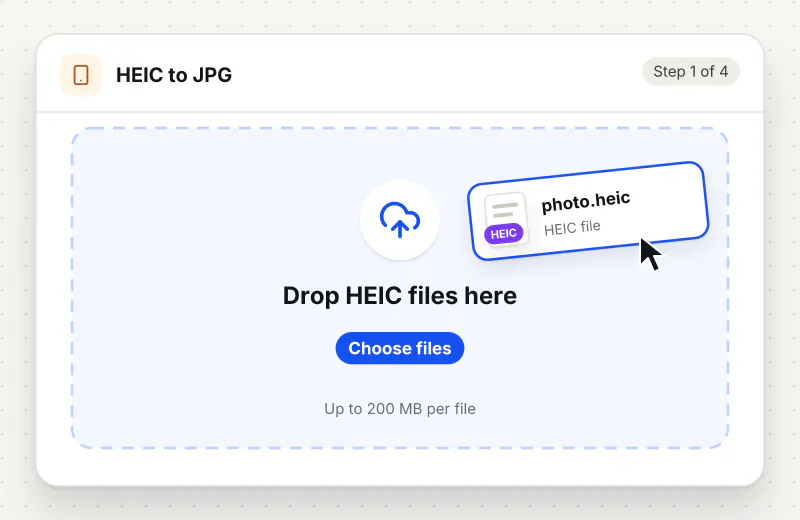
Step 1: Add your HEIC photos
Drag HEIC or HEIF photos into the drop zone or click Choose HEIC photos. You can add more before you start; the tool waits for you.
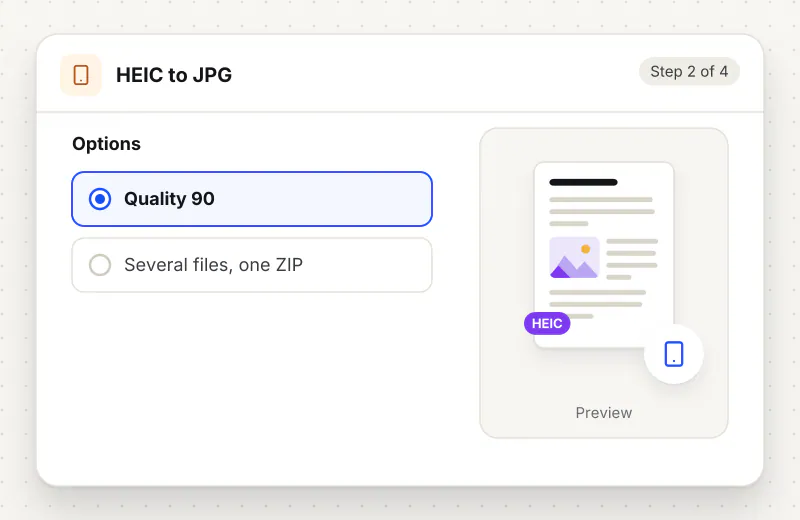
Step 2: Set the JPG quality
Under JPG quality, move the Quality slider. 90 is the default and looks the same as the original; lower numbers give smaller files with softer detail.
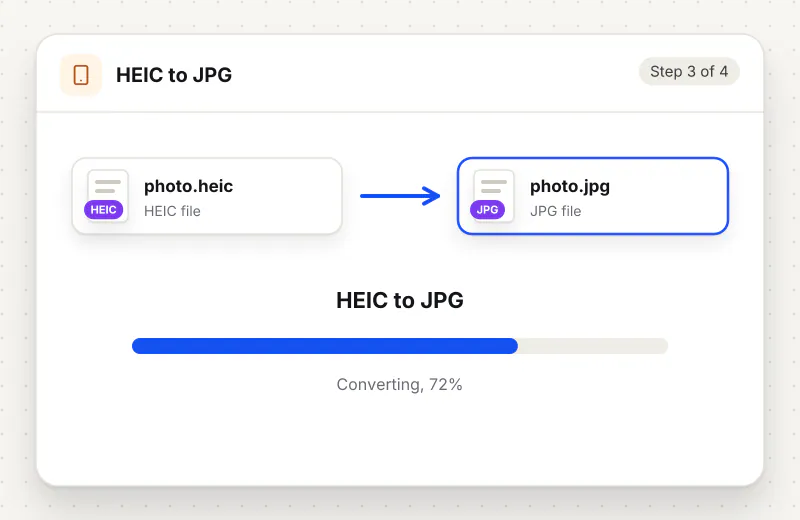
Step 3: Convert the photos
Press Convert to JPG. Each photo is decoded on your device, which can take a few seconds per photo on an older phone.
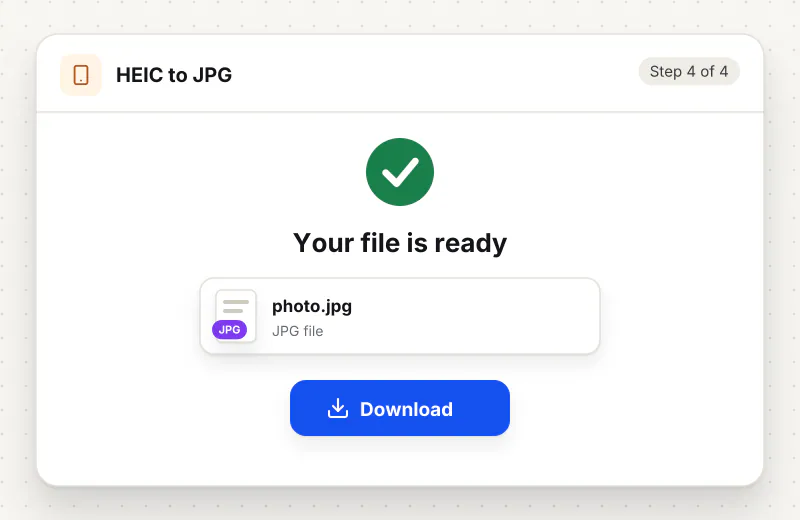
Step 4: Download the JPG files
One photo downloads as a JPG with the same name, such as IMG_0001.jpg. Several photos arrive together in jpg-images.zip.
Features
What HEIC to JPG Converter gives you
Decoded on your device
The HEIC decoder runs inside your browser, so your photos are converted without leaving your phone or computer. It works the same on Windows, Mac, Android and iPhone.
Right way up, location left out
The rotation your iPhone stored is applied, so portrait photos stay upright. The new JPG is saved fresh, so GPS location and camera details are not copied into it.
Whole albums in one go
Add up to 20 photos per task and get them back in a single ZIP with their original names, ready to copy to a USB stick or attach to an email.
What does HEIC to JPG Converter do?
Each HEIC or HEIF photo is decoded on your device, turned the right way up using its rotation tag, and saved again as a JPG at the quality you pick. The pixel size does not change. Because the photo is redrawn, camera details and location data are left out of the new file. A burst file gives its first picture.
iPhones save photos as HEIC because the files are about half the size of a JPG at the same look. The catch is that many Windows computers, older Android phones and online forms still do not open HEIC. Converting to JPG fixes that in one step, and at quality 90 the result is hard to tell apart from the original. Expect each JPG to be larger than its HEIC file; that is the price of the older format.
If a form also limits the file size, run the JPG through Compress Image to KB next, or set an exact pixel size with Resize Image. Sideways scans can be fixed in Rotate Image. When the photos must arrive as one document instead, HEIC to PDF places each picture on its own page. More photo helpers sit in the image and photo tools hub.
Very large photos, such as 48-megapixel shots, can be more than a phone browser is able to hold in memory. In that case the JPG is saved at the largest size your device manages, and a note after the task gives the new width and height. On a computer the same photo usually keeps its full size.
Everything happens in your browser: the photos are decoded and saved on your device and never leave it. The tool is free for personal use, up to 20 photos per task, with no account.
Your file stays on your device.
This tool runs in your browser.
- Processed on your phone or computer, not uploaded
- No account, no sign-up
- Free for personal use
When to use HEIC to JPG Converter
- A Windows laptop shows HEIC photos from your iPhone as files it cannot open
- A school, job or visa portal accepts only JPG or JPEG uploads
- You want to email holiday photos to someone on an Android phone
- A photo printing kiosk or website rejects HEIC files
- You need to drop iPhone pictures into slides or a document editor
Questions about HEIC to JPG Converter
Why can my Windows PC not open iPhone photos?
iPhones save pictures in HEIC, a newer format that Windows only opens with an extra codec. Converting them to JPG gives files that every Windows app, browser and photo viewer can show.
Will the JPG look worse than the HEIC photo?
At the default quality of 90 the difference is very hard to see. Lower settings shrink the file but soften fine detail such as hair and leaves. Width and height stay exactly the same at every setting.
Why is the JPG bigger than the HEIC file?
HEIC packs the same picture into roughly half the space of JPG. When the photo is saved as JPG it grows. Lower the quality slider, or use Compress Image afterwards, if you need a smaller file.
Does the JPG keep my location and camera details?
No. The photo is redrawn and saved as a new JPG, so GPS location, camera model and other photo details are not copied. The rotation is applied first, so the picture still shows the right way up.
What happens with Live Photos and burst shots?
A Live Photo is converted as its still picture; the short video part is not included. A HEIC file that holds a burst of several shots gives you the first one.
Can I convert HEIC to JPG on my iPhone?
Yes. Open the page in Safari or Chrome on the iPhone, choose the photos from your library and convert them. Large 48-megapixel photos may be saved a little smaller on a phone, and a note tells you the new size.
Are my photos sent anywhere?
No. The HEIC decoder runs in your browser, so the photos are read and saved on your own device and never leave it.
Is my file private and secure?
Yes. HEIC to JPG Converter runs on your phone or computer, so your file stays there and never goes to our servers. You need no account, and Siliph never sells your files. How we protect your files
Embed this tool on your site
Add HEIC to JPG to your blog or website for free, with a credit link back to Siliph.
Get the embed code
Embed code (iframe)
<iframe src="https://siliph.com/heic-to-jpg/?embed=1" title="HEIC to JPG — Siliph" width="100%" height="620" style="border:0;border-radius:12px;max-width:900px;" loading="lazy" allow="clipboard-write"></iframe>
<p style="font-size:12px;color:#666;margin-top:8px;">Free tool by <a href="https://siliph.com/heic-to-jpg/" rel="nofollow">Siliph</a></p>
Credit link for blog posts and tool lists
<p style="font-size:12px;color:#666;margin-top:8px;">Free tool by <a href="https://siliph.com/heic-to-jpg/" rel="nofollow">Siliph</a></p>
Direct link: siliph.com/heic-to-jpg/