

WebP to PNG Converter
Turn WebP logos, icons and cut-out pictures into PNG files with the transparent background still in place.
Turn WebP images into PNG files with transparency kept and no quality lost. Convert one image or a whole batch. Siliph is free for personal use and needs no account. Many tools work right on your device; the others use secure servers in Europe and India and delete your files within 2 hours.
- Transparency kept
- Same width and height
- Images stay on your device
- Sent over an encrypted connection
- Files deleted after 2 hours
- Free, no signup, no watermark
Loading the WebP to PNG workspace… Files are processed securely and deleted automatically.
WebP to PNG Converter in short
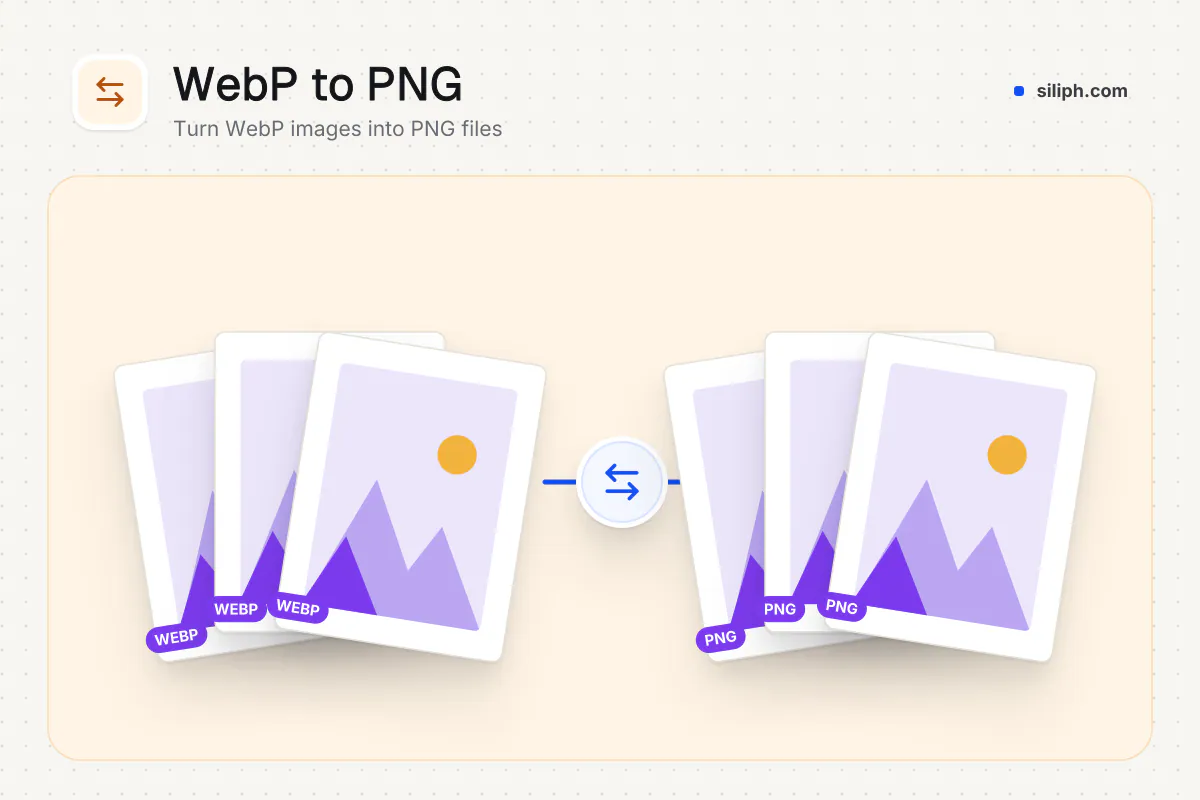
WebP to PNG saves WebP images as PNG files in your browser, keeping transparent backgrounds and the exact width and height. PNG is lossless, so there is no quality setting and nothing more is lost. Convert one image or a batch and get a PNG or a ZIP back, free for personal use without an account.
Step by step
How to convert WebP to PNG
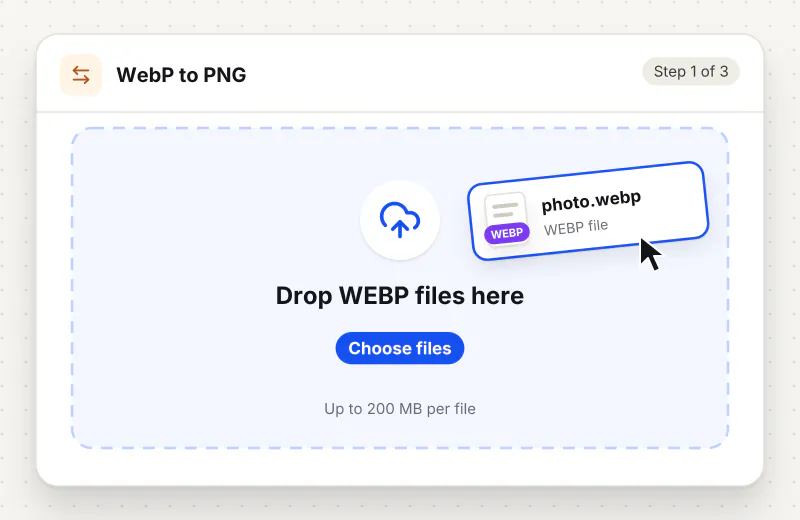
Step 1: Add your WebP files
Drop .webp images onto the page or click Choose WebP images. Add more files from other folders before you start; nothing runs until you press the button.
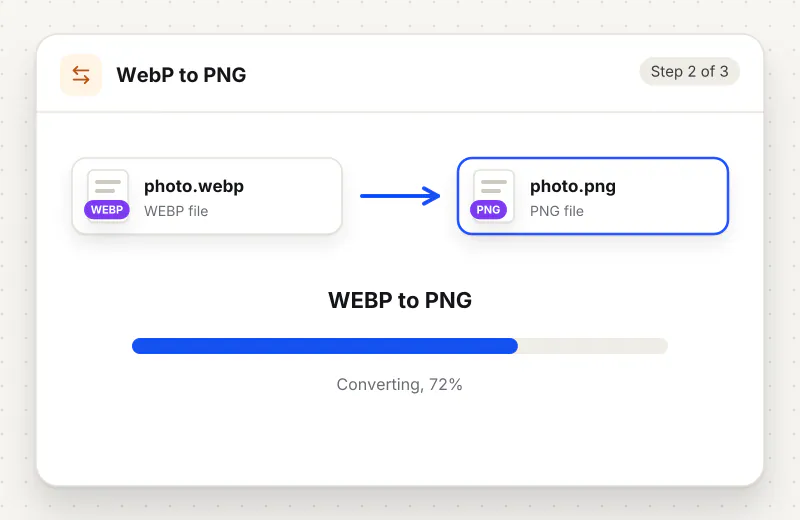
Step 2: Convert to PNG
The Convert to PNG panel has nothing to set, because PNG keeps every pixel. Press Convert to PNG to start.
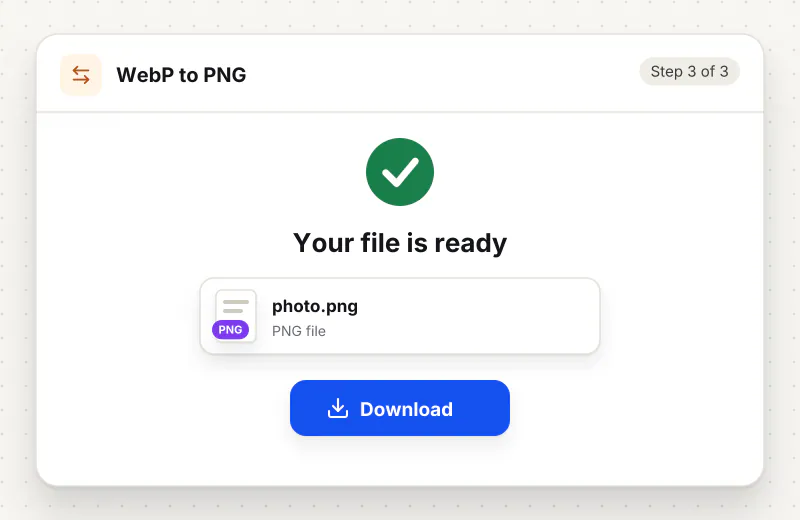
Step 3: Download the PNG files
One image downloads as a PNG with the same name. Several images come back in png-images.zip, with -2 added when two files share a name.
Features
What WebP to PNG Converter gives you
Transparency kept exactly
Soft shadows and smooth edges around a logo or cut-out stay partly see-through, so the image sits cleanly on a coloured slide or web page background.
Lossless from here on
PNG stores every pixel as it is. You can open, edit and save the result as often as you like without the picture getting softer each time.
Batch in one go
Convert a whole set of icons or product cut-outs in one task. Names are kept, so shoe-side.webp becomes shoe-side.png and the set stays easy to match.
What does WebP to PNG Converter do?
Each WebP picture is opened by your browser and written out again as a PNG, pixel for pixel. See-through parts stay see-through, which matters for logos, icons and product cut-outs. PNG files are usually larger than the WebP they came from, because PNG never throws detail away to save space.
WebP can hold transparency, and so can PNG, which makes PNG the right target for logos, icons and product shots on a clear background. Many design tools, slide programs and older editors import PNG happily but stumble on WebP. Converting keeps the look exactly and gives you a file every program knows.
There is one thing a conversion cannot do: if the WebP was saved with lossy compression, detail it lost back then does not come back. The PNG is a faithful copy of what the WebP shows, not a sharper version. Expect a bigger file, sometimes several times bigger, because PNG never discards pixels.
For a smaller file without transparency, WebP to JPG is the better pick. To bring a PNG back to a light web format later, use PNG to WebP. Trim spare edges with Crop Image, or set a new pixel size with Resize Image.
Your images are read and saved by your browser on your device and are never sent anywhere, so unreleased logos and brand graphics stay with you. The tool is free for personal use, converts up to 20 images per task and needs no account.
Your file stays on your device.
This tool runs in your browser.
- Processed on your phone or computer, not uploaded
- No account, no sign-up
- Free for personal use
When to use WebP to PNG Converter
- A logo you downloaded as WebP needs a transparent background in your slides
- A design or video app imports PNG but not WebP
- You want to keep editing a web graphic without adding more blur each save
- A sticker or icon saved from a chat app should become a normal image file
Questions about WebP to PNG Converter
Does WebP to PNG keep a transparent background?
Yes. Fully and partly see-through areas stay exactly as they are in the WebP, so soft shadows and smooth logo edges look right on any background.
Why is there no quality slider?
PNG is a lossless format: it stores every pixel as it is, so there is nothing to trade. The panel just confirms that the size and transparency are kept.
Why is my PNG so much bigger than the WebP?
WebP often uses lossy compression that drops fine detail to save space. PNG keeps every pixel it is given, so the same picture needs more bytes. Use WebP to JPG if size matters more than transparency.
Will converting make a blurry WebP sharper?
No. The PNG copies what the WebP shows. Any blur or blocky patches from the original compression stay, but no new loss is added when you save the PNG again later.
Can I convert many WebP files at once?
Yes. Add up to 20 images in one task. They come back together in png-images.zip, each with its original name and the .png ending.
Is anything uploaded when I convert?
No. Your browser opens each WebP and writes the PNG on your own device; the images never leave it.
Is my file private and secure?
Yes. WebP to PNG Converter runs on your phone or computer, so your file stays there and never goes to our servers. You need no account, and Siliph never sells your files. How we protect your files
Embed this tool on your site
Add WebP to PNG to your blog or website for free, with a credit link back to Siliph.
Get the embed code
Embed code (iframe)
<iframe src="https://siliph.com/webp-to-png/?embed=1" title="WebP to PNG — Siliph" width="100%" height="620" style="border:0;border-radius:12px;max-width:900px;" loading="lazy" allow="clipboard-write"></iframe>
<p style="font-size:12px;color:#666;margin-top:8px;">Free tool by <a href="https://siliph.com/webp-to-png/" rel="nofollow">Siliph</a></p>
Credit link for blog posts and tool lists
<p style="font-size:12px;color:#666;margin-top:8px;">Free tool by <a href="https://siliph.com/webp-to-png/" rel="nofollow">Siliph</a></p>
Direct link: siliph.com/webp-to-png/