

PNG to JPG Converter
Turn large PNG screenshots and photos into lighter JPG files that portals, email and chat apps take without fuss.
Turn PNG screenshots and graphics into smaller JPG files. Transparent areas become white; pick the quality and convert many at once. Siliph is free for personal use and needs no account. Many tools work right on your device; the others use secure servers in Europe and India and delete your files within 2 hours.
- Transparent areas turn white
- Quality slider from 10 to 100
- Images stay on your device
- Sent over an encrypted connection
- Files deleted after 2 hours
- Free, no signup, no watermark
Loading the PNG to JPG workspace… Files are processed securely and deleted automatically.
PNG to JPG Converter in short
PNG to JPG converts PNG images into JPG files in your browser, which for photos and busy screenshots usually means a far smaller file. Set the quality between 10 and 100, convert one picture or a batch, and download a JPG or a ZIP. Free for personal use and no account is needed.
Step by step
How to convert PNG to JPG
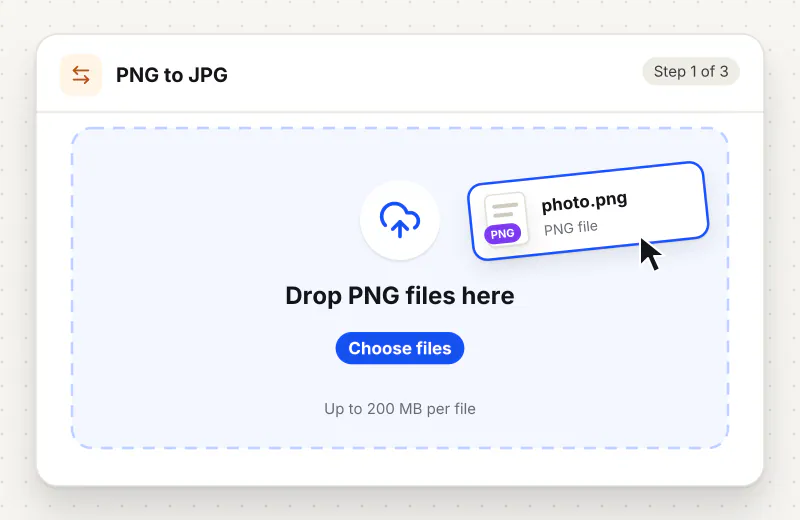
Step 1: Add the PNG files
Drag PNG images into the drop zone or click Choose PNG images. The tool waits for you, so you can add more files first.
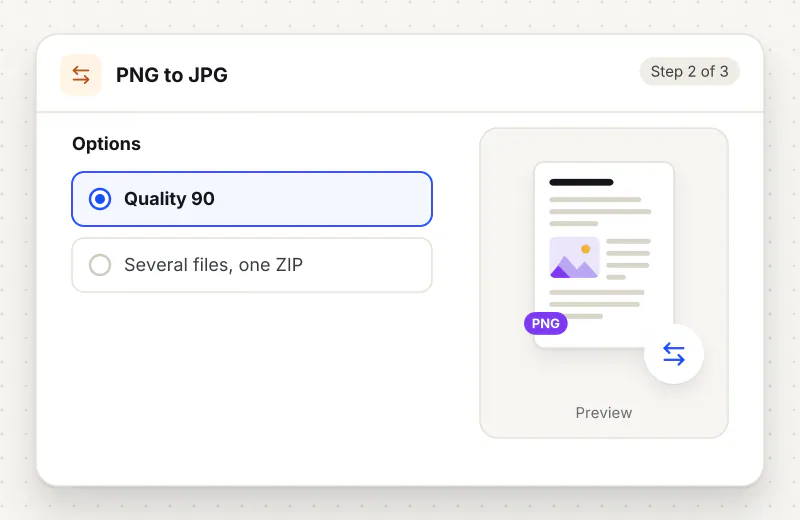
Step 2: Choose the JPG quality
Under JPG quality, 90 keeps the picture looking the same. For screenshots you only need to read, 70 to 80 gives a much smaller file.
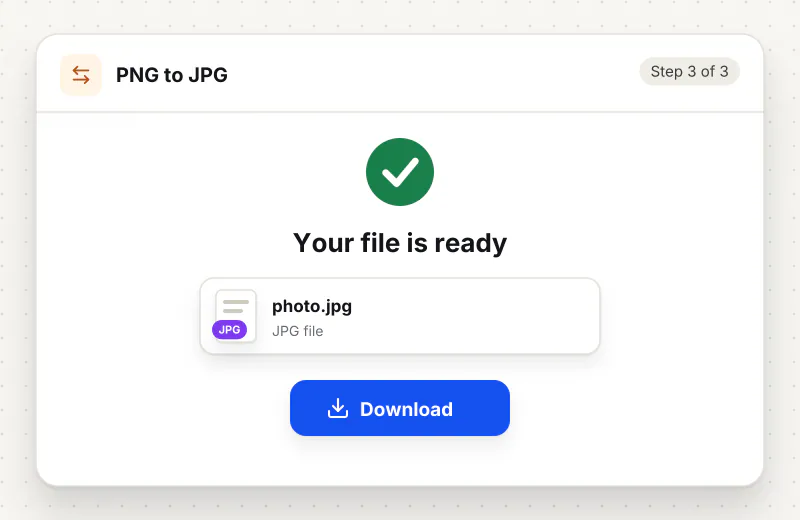
Step 3: Convert and save
Press Convert to JPG. One image downloads as a JPG with the same name; several come back together in jpg-images.zip.
Features
What PNG to JPG Converter gives you
Smaller files for photos and screenshots
PNG stores every pixel, so a full-screen capture or a camera photo saved as PNG can weigh several megabytes. As a JPG the same picture is usually a fraction of that.
Clean white instead of black
Transparent areas are painted white before saving, so rounded screenshot corners and logo edges do not turn into black blocks in the JPG.
Names you can recognise
Screenshot 2026-10-01.png becomes Screenshot 2026-10-01.jpg. In a batch, repeated names get -2 and -3 so no file overwrites another inside the ZIP.
What does PNG to JPG Converter do?
The tool places each PNG on a white background and saves it as a JPG at the quality on the slider. Width and height do not change. Any transparent parts, such as the corners of a rounded screenshot or the area around a logo, become white, because JPG has no way to store transparency.
PNG is perfect for sharp graphics with few colours, but it is a poor fit for photos and detailed screenshots, where it keeps millions of slightly different pixels without any compression trick. That is why a single phone screenshot can be larger than a whole camera photo. Saving it as a JPG lets the file drop to a size forms and email accept.
Text in screenshots stays readable at quality 70 and above; below 50 you may see faint smudges around letters. If you need a strict limit such as 100 KB, convert first and then use Compress Image to KB, which finds the best quality under the limit for you. To change the width and height as well, open Resize Image.
Keep the PNG if the image has a transparent background you still need, such as a logo for a slide; PNG to WebP shrinks it while keeping transparency. To go back to PNG later, JPG to PNG does that, though it cannot restore detail the JPG left out. A set of pages can also become one document with PNG to PDF.
Conversion runs in your browser on your device, and the images are never sent anywhere, which suits screenshots of bank pages, chats or private documents. The tool is free for personal use, takes up to 20 images per task and needs no account.
Your file stays on your device.
This tool runs in your browser.
- Processed on your phone or computer, not uploaded
- No account, no sign-up
- Free for personal use
When to use PNG to JPG Converter
- A phone screenshot saved as PNG is too large to attach to a form
- An application portal lists JPG or JPEG as the only allowed format
- A scanned page saved as PNG takes several megabytes for one sheet
- You are sending a batch of photos exported as PNG over a chat app
Questions about PNG to JPG Converter
Why is my PNG screenshot so large?
PNG keeps every pixel exactly and only shrinks files well when there are large flat areas of one colour. Photos, gradients and busy screens have many colours, so the PNG ends up big. JPG handles those far better.
What happens to the transparent parts of my PNG?
They become white, because JPG cannot be see-through. If the transparency matters, keep the PNG or convert it with PNG to WebP instead.
Will text in a screenshot stay readable?
Yes at quality 70 and above. Lower settings blur the edges of small letters and can leave faint marks around them, so keep the slider higher for documents and code.
How do I get a PNG under a set size like 200 KB?
Convert it to JPG here, then open Compress Image to KB and pick the limit. That tool tries quality levels until the file fits, and only reduces the pixel size when it has to.
Does converting change the width and height?
No. The JPG has exactly the same number of pixels as the PNG. Use Resize Image if you also want a different size.
Can I use this on a phone?
Yes. It works in the browser on Android and iPhone. Pick screenshots from your gallery, convert them and save the JPG files back to your phone.
Is my file private and secure?
Yes. PNG to JPG Converter runs on your phone or computer, so your file stays there and never goes to our servers. You need no account, and Siliph never sells your files. How we protect your files
Embed this tool on your site
Add PNG to JPG to your blog or website for free, with a credit link back to Siliph.
Get the embed code
Embed code (iframe)
<iframe src="https://siliph.com/png-to-jpg/?embed=1" title="PNG to JPG — Siliph" width="100%" height="620" style="border:0;border-radius:12px;max-width:900px;" loading="lazy" allow="clipboard-write"></iframe>
<p style="font-size:12px;color:#666;margin-top:8px;">Free tool by <a href="https://siliph.com/png-to-jpg/" rel="nofollow">Siliph</a></p>
Credit link for blog posts and tool lists
<p style="font-size:12px;color:#666;margin-top:8px;">Free tool by <a href="https://siliph.com/png-to-jpg/" rel="nofollow">Siliph</a></p>
Direct link: siliph.com/png-to-jpg/