

Embed PDF in a Website
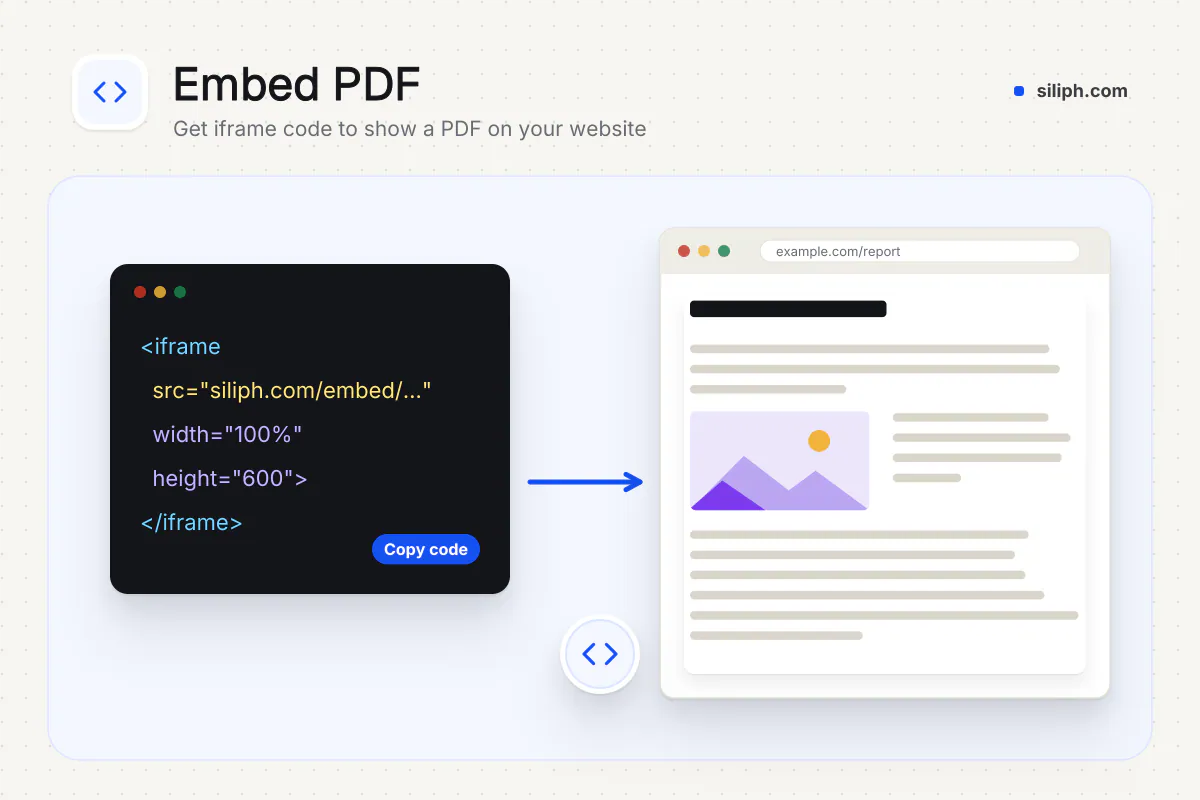
Preview a PDF, paste the link where it is hosted and copy an iframe that shows it on your website.
Embed PDF in a Website in short
Embed PDF gives you an iframe snippet that shows a PDF inside your web page, with page thumbnails, zoom, search, print and download. Paste the public link to your PDF, pick the size and copy the code into your site. It is free, needs no account and the preview runs in your browser.
Step by step
How to embed a PDF in a website
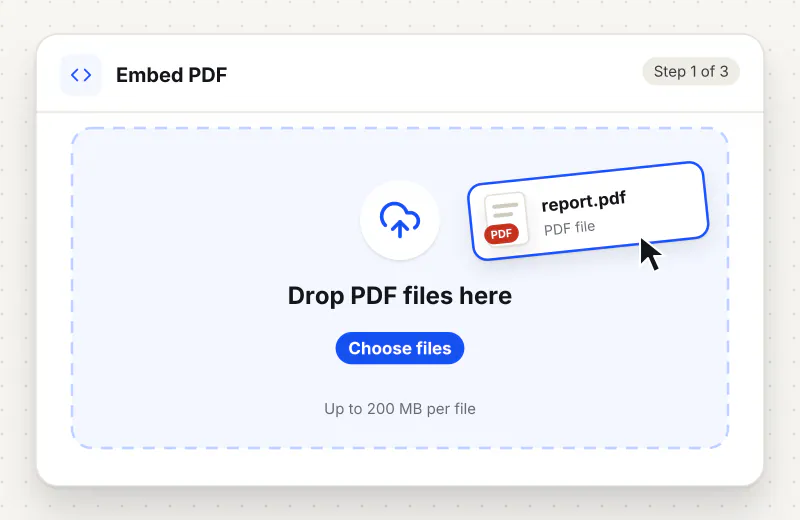
Step 1: Open your PDF to preview it
Click Open a PDF or drop the file in step 1 to see it in the viewer. This preview runs in your browser and is optional.
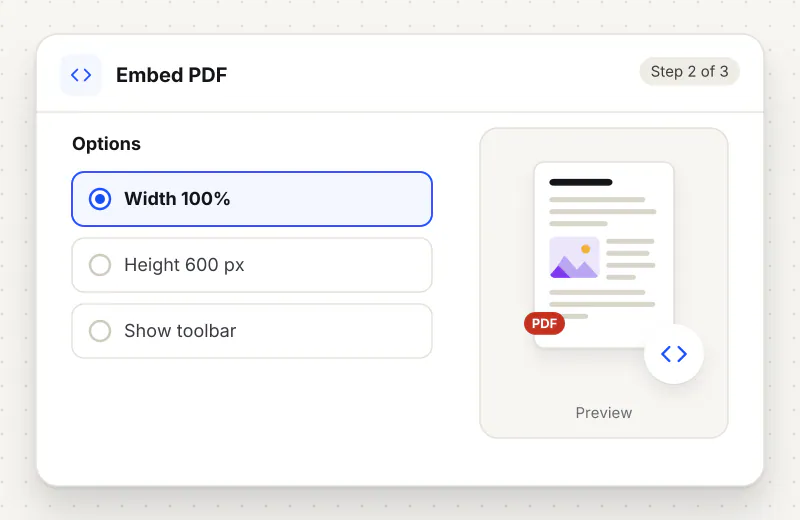
Step 2: Paste the public link to the file
Upload the PDF to your own site, a CDN or cloud storage, then paste its https link in step 2. Use Show live preview to check that the host lets the viewer read it.
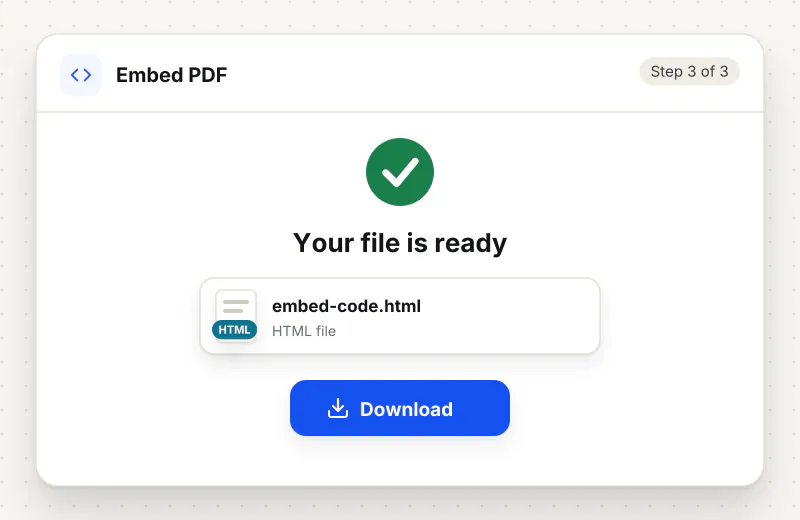
Step 3: Copy the iframe code
Pick full width or a fixed width, set the height and a title for screen readers, then click Copy code and paste it into your page’s HTML.
Features
What Embed PDF in a Website gives you
A real viewer, not a download link
Visitors page through the document inside your site with thumbnails, fit to width, zoom, search and rotation, and can still print or save it. Phones and desktops get the same viewer.
Your file stays on your host
The snippet only carries the link to your PDF. Replace the file at that address and every page that embeds it shows the new version, with no new code to paste.
Checks before you publish
The link must be https and public, and the live preview loads it exactly as a visitor would, so a host that blocks cross-site reads shows up before the code goes live.
What does Embed PDF in a Website do?
The tool builds an iframe that loads a small Siliph viewer page with your PDF link in its address. When a visitor opens your page, the viewer downloads the PDF from your host straight into their browser and renders it with page navigation, fit to width, zoom, text search, rotation, print and download. Siliph keeps no copy of the PDF, so the file stays wherever you host it, and updating that file updates the embed.
Linking to a PDF sends readers away from your page, and on phones the file often lands in the downloads folder where it is forgotten. Embedding keeps the document in context: the menu sits on the menu page, the brochure sits next to the product photos. A plain iframe pointing at the PDF file depends on each browser’s own viewer, which some phones do not show at all. The Siliph viewer behaves the same way in every modern browser.
The viewer needs a public https link, and the host must allow other websites to read the file, a setting called CORS. Files on your own domain, on most CDNs and on storage buckets with CORS turned on work well. Many file-sharing links point to a preview page instead of the PDF itself, so use the direct file link. The live preview tells you straight away if the file cannot be read.
Prepare the file before you publish it: a smaller file loads faster for visitors, so run large scans through Compress PDF first. To read a PDF yourself without embedding it, use the PDF Reader. If the document has private details, black them out with Redact PDF, and remove the author and title fields with Edit Metadata before it goes public.
The preview in step 1 is processed in your browser, and the PDF you open there never leaves your device. The embed itself reads your file from the link you give, in each visitor’s browser. The tool is free and needs no sign-up.
Your file stays on your device.
This tool runs in your browser.
- Processed on your phone or computer, not uploaded
- No account, no sign-up
- Free for personal use
When to use Embed PDF in a Website
- A restaurant wants its PDF menu readable on the website without a download
- A school posts a timetable or newsletter PDF inside a news article
- A product page should show the brochure or spec sheet next to the photos
- A blog post quotes a report and readers should flip through the source
At a glance
Embed PDF in a Website: free at a glance
What you get on the free plan, and when a paid plan applies.
| Price | Free for personal use, up to 30 tasks in any 24 hours |
|---|---|
| File size | Up to 300 MB on a computer, 100 MB on a phone |
| Files per task | Up to 20 on the free plan (up to 100 on paid plans) |
| Account | Not needed |
| Where it runs | On your phone or computer: the file never goes to our servers |
| File deletion | Your file never reaches our servers, so we keep nothing |
| Watermark | None |
| Business use | Paid plans from ₹399 a week |
Why Siliph
Embed PDF in a Website on Siliph and on typical free PDF sites
The right-hand column sums up 5 popular free PDF sites we checked in October 2026.
| Feature | Siliph | Typical free PDF sites |
|---|---|---|
| Account for personal use | Not needed | Some sites ask you to sign in to finish or repeat a task |
| Free use | Up to 30 tasks in any 24 hours, 20 files a task | Some sites stop you after a few tasks an hour |
| Where your file goes | Stays on your device: this tool runs in your browser | Usually uploaded, then deleted after 1 to 2 hours |
Checked October 2026. Other sites change their plans; check before you rely on a limit.Side-by-side comparisons
Questions about Embed PDF in a Website
Where do I host the PDF?
On any public https address: your own website, a CDN or a cloud storage bucket. The host must allow cross-site reads (CORS). The live preview shows whether it does before you publish.
Why does the viewer say the host does not let other websites load the file?
The server holding the PDF blocks reads from other sites. Turn on CORS for that file or folder, or move the PDF to your own domain or a CDN that allows it. The viewer then offers a direct link as a fallback.
Can I use a Google Drive or Dropbox sharing link?
Sharing links usually open a preview page rather than the PDF file, and those services do not allow other sites to read the file. Host the PDF on your website or a CDN instead.
Does the embed work on WordPress, Wix and similar site builders?
Yes, wherever you can add an HTML or embed block. Paste the iframe code into that block. Some builders show embeds only on the published page, not in the editor.
Is there a size limit for embedded PDFs?
The viewer loads PDFs as large as 100 MB. Large files take longer to open on phones, so compress scans before you publish them.
What happens if I replace the PDF on my host?
Visitors see the new file the next time they open the page, because the embed reads whatever file is at that link. Browser caching can delay the change for a short while.
Is my file private and secure?
Yes. Embed PDF in a Website runs on your phone or computer, so your file stays there and never goes to our servers. You need no account, and Siliph never sells your files. How we protect your files
Embed this tool on your site
Add Embed PDF to your blog or website for free, with a credit link back to Siliph.
Get the embed code
Embed code (iframe)
<iframe src="https://siliph.com/embed-pdf/?embed=1" title="Embed PDF — Siliph" width="100%" height="620" style="border:0;border-radius:12px;max-width:900px;" loading="lazy" allow="clipboard-write"></iframe>
<p style="font-size:12px;color:#666;margin-top:8px;">Free tool by <a href="https://siliph.com/embed-pdf/" rel="nofollow">Siliph</a></p>
Credit link for blog posts and tool lists
<p style="font-size:12px;color:#666;margin-top:8px;">Free tool by <a href="https://siliph.com/embed-pdf/" rel="nofollow">Siliph</a></p>
Direct link: siliph.com/embed-pdf/