

Image to Text Converter
Copy the words out of a photo, screenshot or scanned page, in English and 18 other languages, without retyping them.
Image to Text Converter in short
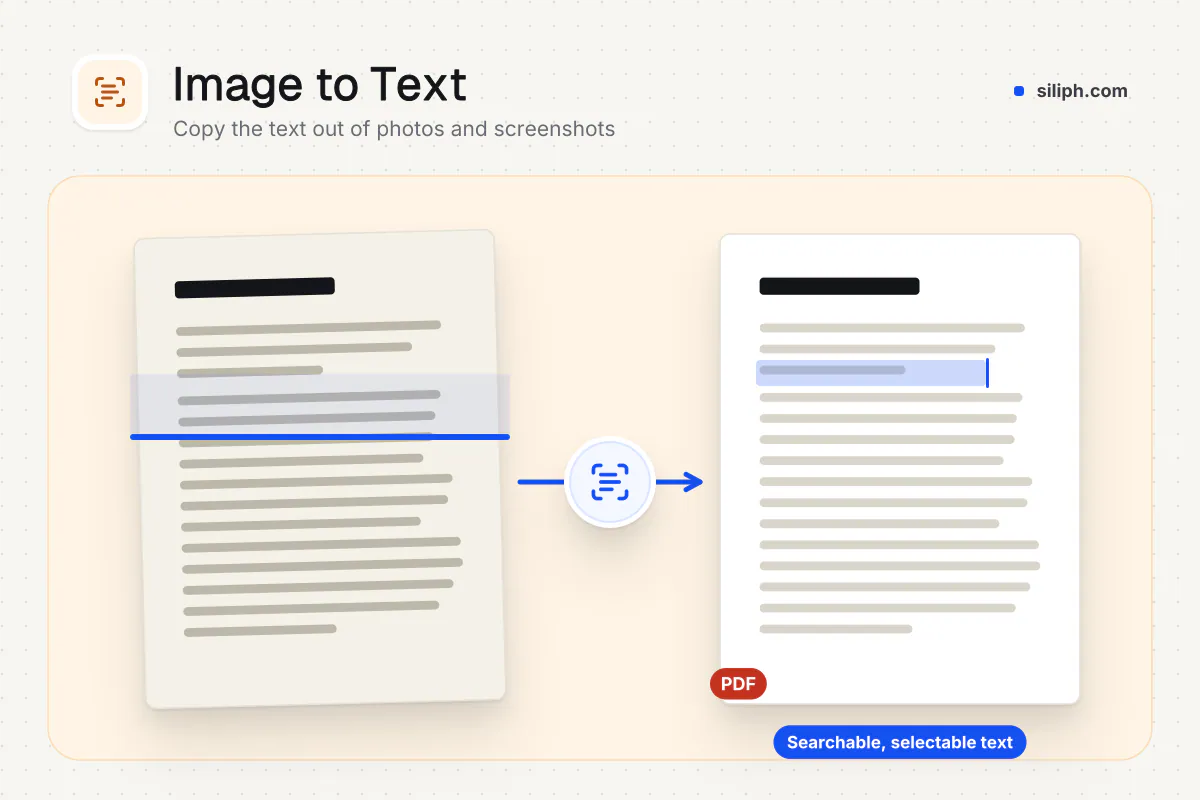
Image to Text reads the printed words in a photo, screenshot or scan with text recognition (OCR) and puts them in a box you can copy or save as a TXT file. It handles English and 18 other languages and several images in one go. The images are read in your browser, free and without an account.
Step by step
How to convert an image to text
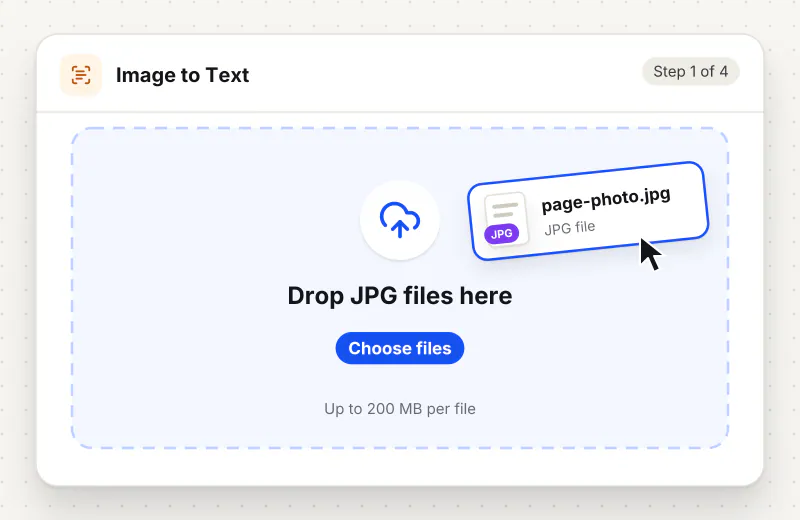
Step 1: Add your images
Drag JPG, PNG, WebP, BMP, GIF or HEIC images onto the drop zone, or click it to pick them. Add several to read them one after another.
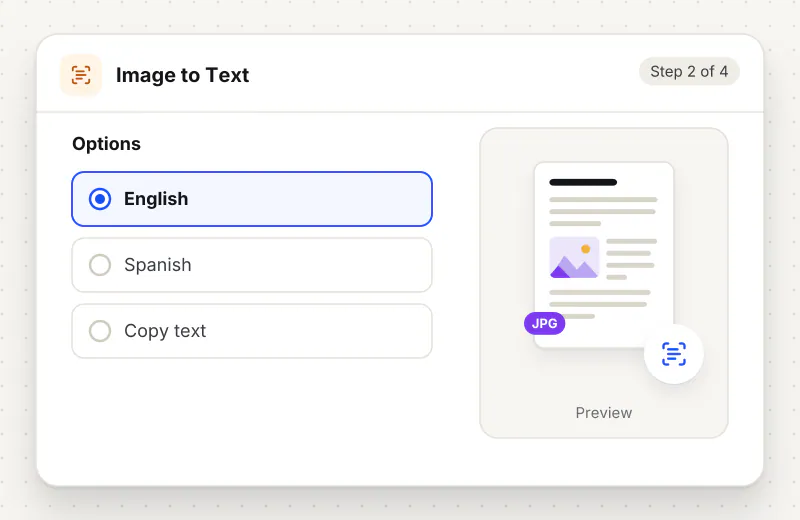
Step 2: Pick the language
Choose the language of the text, such as English, Spanish, Arabic or Japanese. The first time you use a language its reading data, a few MB, is downloaded once and kept by your browser.
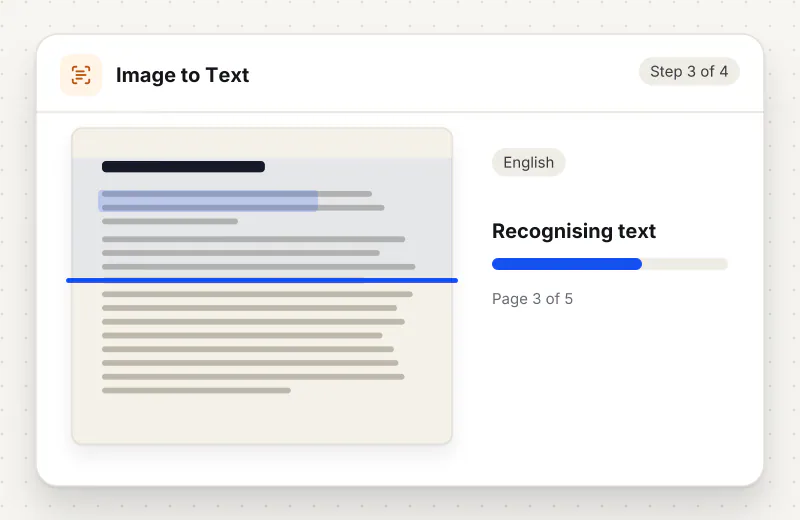
Step 3: Read the text
Press Read text. Each image gets its own box with the words it found, which you can correct right there before copying.
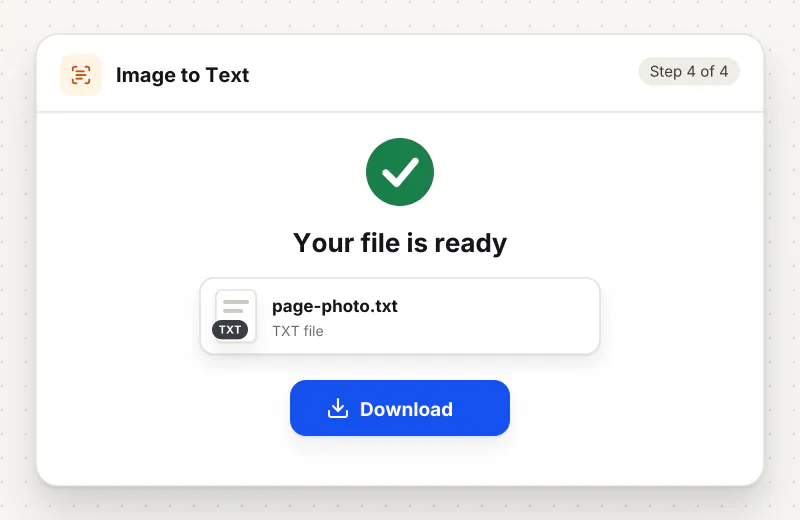
Step 4: Copy or download
Click Copy text for one result, or Download TXT to save every result in one text file with each file name as a heading.
Features
What Image to Text Converter gives you
Nineteen languages, loaded on demand
Pick English, Spanish, French, German, Portuguese, Arabic, Hindi, Chinese, Japanese, Korean and more. Only the language you pick is downloaded, once, so the page itself stays light.
Read on your own device
Recognition runs in your browser. The picture is never sent anywhere, which matters for screenshots of bank messages, letters and other private text.
Several images, one text file
Add a batch of screenshots or page photos and they are read in turn. Download TXT puts all the results in one file, each under the name of the image it came from.
What does Image to Text Converter do?
The tool finds lines of letters in the picture and turns them into plain text, one result box per image. Layout, fonts and pictures are not kept, only the words. The text recognition engine and the language you pick are loaded only when you press Read text, and the image itself never leaves your device.
Text in a picture looks like words to you but is only coloured dots to a computer, which is why you cannot select it. Text recognition, or OCR, finds the shapes of letters and turns them back into characters. It works best on printed text that is sharp, straight and dark on a light background, such as screenshots, typed letters and book pages.
Good input gives good results. Take the photo square to the page, in even light, and fill the frame with the text; crop away everything else with Crop Image and turn a sideways shot upright with Rotate Image first. Handwriting, very small print, curved pages and decorative fonts are often misread, so read the result before you use it.
For documents rather than single pictures, other tools fit better. A scanned PDF can be made searchable, or saved as Word, with OCR PDF. A PDF that already has selectable text needs no recognition: PDF to Text copies it out exactly. To count the words you extracted, paste them into Word Counter.
Everything runs in your browser. Your images are read on your device and are never sent anywhere; only the language data is downloaded, the first time you use a language. The tool is free for personal use and needs no account.
Your file stays on your device.
This tool runs in your browser.
- Processed on your phone or computer, not uploaded
- No account, no sign-up
- Free for personal use
When to use Image to Text Converter
- A screenshot of an error message or a chat holds text you want to paste somewhere
- You photographed a printed recipe, notice or page of a book and need it as text
- A colleague sent a photo of a table of names and numbers that you need in a document
- A poster or sign in another language needs copying into a translator
Questions about Image to Text Converter
How do I copy text from a screenshot?
Add the screenshot, keep English or pick the language it is in, and press Read text. The words appear in a box under the image; click Copy text and paste them where you need them.
Which languages can it read?
English, Spanish, French, German, Portuguese, Italian, Dutch, Polish, Turkish, Russian, Indonesian, Vietnamese, Filipino, Arabic, Hindi, Bengali, Chinese (Simplified), Japanese and Korean. Pick one language per run.
Can it read handwriting?
Only neat, printed-style handwriting, and even then with mistakes. The engine is trained on printed text, so joined-up writing and notes usually come out garbled. Check every line before you rely on it.
Why does the first run take longer?
The text recognition engine and the language data are downloaded the first time, a few MB in total. Your browser keeps them, so later runs in the same browser start almost at once.
Why is some of the text wrong?
Blur, low light, shadows, tilted pages, tiny letters and fancy fonts all confuse recognition. Retake the photo straight on in good light, crop to the text, or pick the right language, then read it again.
Does it keep the layout and formatting?
No. You get plain text, line by line, without fonts, colours, columns or pictures. For a scanned document where layout matters, OCR PDF can save the result as a Word file instead.
Is Image to Text free, and are my images sent anywhere?
It is free for personal use with no account. The images are read in your browser on your device; only the language data is downloaded, and nothing you add is sent out.
Is my file private and secure?
Yes. Image to Text Converter runs on your phone or computer, so your file stays there and never goes to our servers. You need no account, and Siliph never sells your files. How we protect your files
Embed this tool on your site
Add Image to Text to your blog or website for free, with a credit link back to Siliph.
Get the embed code
Embed code (iframe)
<iframe src="https://siliph.com/image-to-text/?embed=1" title="Image to Text — Siliph" width="100%" height="620" style="border:0;border-radius:12px;max-width:900px;" loading="lazy" allow="clipboard-write"></iframe>
<p style="font-size:12px;color:#666;margin-top:8px;">Free tool by <a href="https://siliph.com/image-to-text/" rel="nofollow">Siliph</a></p>
Credit link for blog posts and tool lists
<p style="font-size:12px;color:#666;margin-top:8px;">Free tool by <a href="https://siliph.com/image-to-text/" rel="nofollow">Siliph</a></p>
Direct link: siliph.com/image-to-text/