

Add Text to PDF
Click anywhere on a page to add text, then pick the font, size and colour.
Add Text to PDF in short
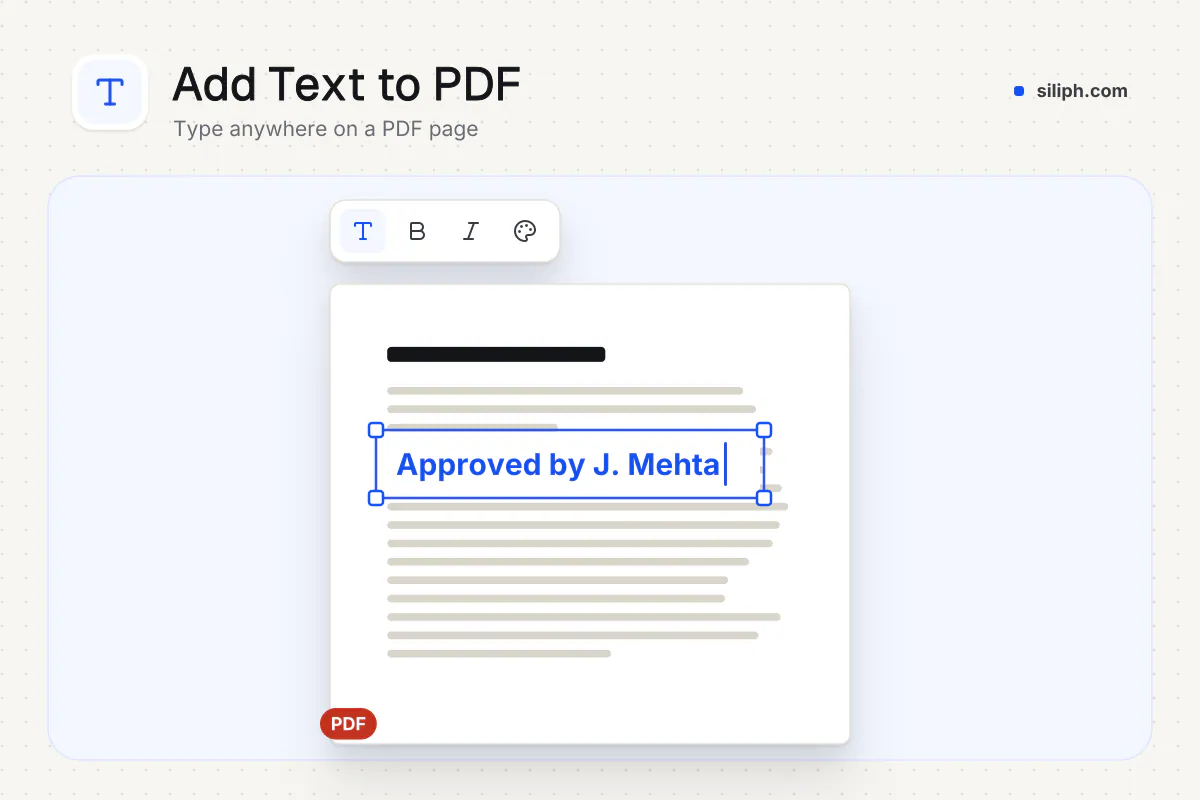
Add Text to PDF opens your file with the Text tool selected, so one click on a page starts a text box where you can type. Choose the font, size and colour, drag the box into place and save. It is free, needs no account, takes files up to 150 MB and deletes them within two hours.
Step by step
How to add text to a PDF
Step 1: Open your PDF
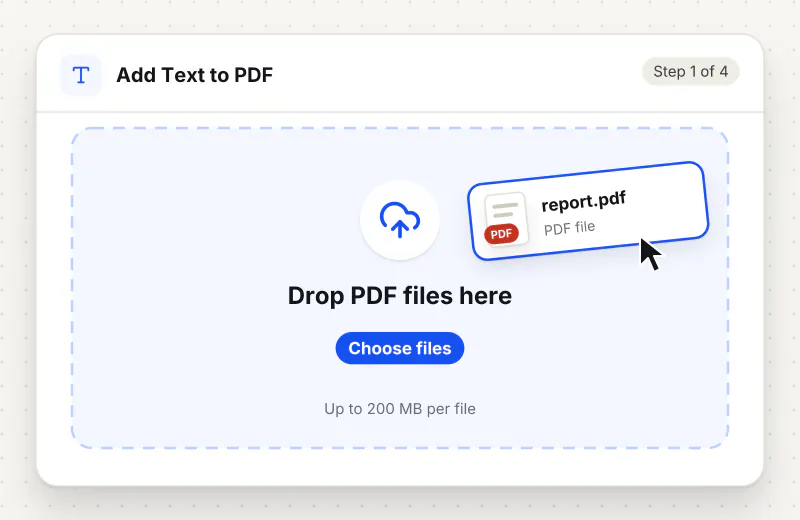
Drag the PDF into the drop zone or click Choose a PDF. The editor opens it with the Text tool selected and page thumbnails down the side.
Step 2: Click where the text goes
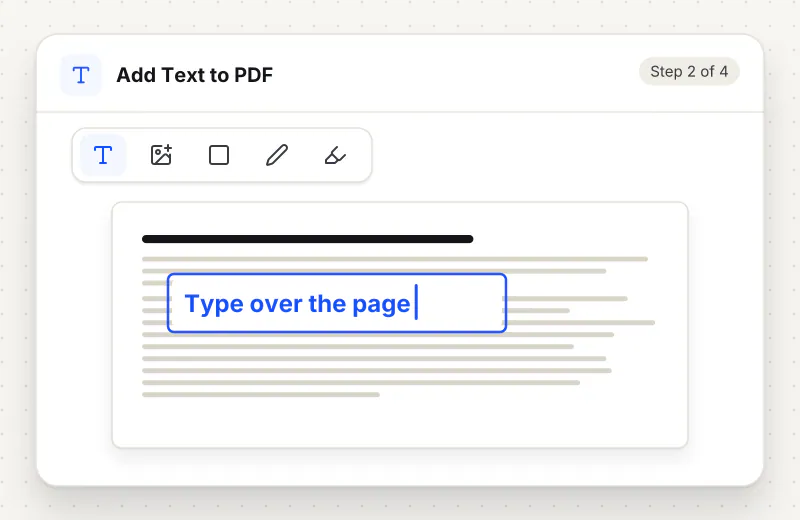
Click on the page and start typing; a text box appears at that spot. Use Multiline text from the Text menu for a longer note that wraps over several lines.
Step 3: Set the font, size and colour
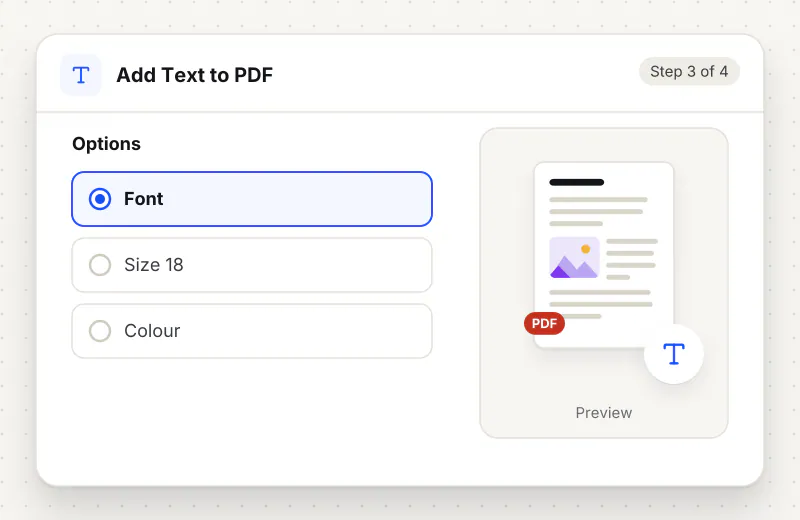
With the box selected, choose a font such as Arial, Times New Roman or Helvetica, or Noto Sans for Hindi, Bengali and Tamil and Amiri for Arabic, then set the size and colour. Drag the box to line it up.
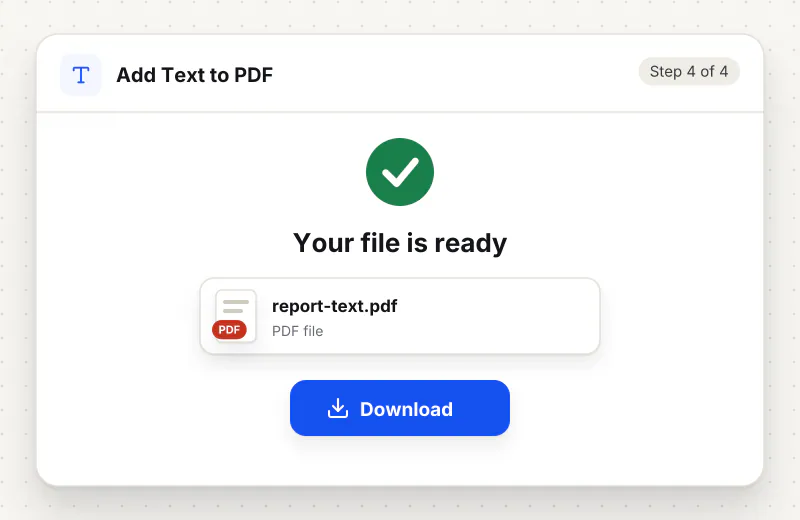
Step 4: Apply changes and download
Click Apply changes. The text is written into the PDF; then click Download PDF to save the edited file. Undo and Redo work until you apply.
Features
What Add Text to PDF gives you
Text where you click
There is no need to find a form field: a click anywhere on the page creates a text box at that spot, which you can drag, resize and restyle until it sits exactly on the line.
Fonts for several scripts
Pick Arial, Times New Roman or Helvetica for English, Noto Sans for Hindi, Bengali and Tamil, or Amiri for Arabic, so added lines match the language of the document.
Real text, not a picture
Added text is saved as text in the font you picked, so it stays crisp when zoomed, prints sharply and can be selected and copied by whoever receives the file.
What does Add Text to PDF do?
Each click with the Text tool creates a text box at that point on the page. Add text gives a single line for a date, name or label, and Multiline text gives a box that wraps for a paragraph. The box can be moved, resized and restyled at any time before saving. On save the text is written into the PDF as real text in the font you chose, so it stays sharp when zoomed and prints cleanly.
Adding a line to a finished PDF used to mean going back to the source document, which is often gone. Here the PDF opens with the Text tool already active, and a click anywhere on a page drops a text box under the pointer. That suits short additions best: a date beside a signature line, a reference number in a header, a caption under a photo, or an answer written into the gap on a worksheet.
Pick Add text for one line and Multiline text for a note that wraps. Font choice matters when the addition sits next to printed text: Times New Roman blends with formal letters, Arial and Helvetica with forms and reports, and Noto Sans or Amiri with documents in Indian scripts or Arabic. To change words that are already printed rather than add new ones, PDF Editor lets you click an existing block and retype it in its original font.
Typed text is often one step of a bigger job. A form with real fields is easier in Fill PDF Form, a signature goes on with Sign PDF, and review notes belong in Annotate PDF. For a page number on every page rather than a one-off label, Add Page Numbers does it in one pass.
The edited PDF is saved on our servers, processed automatically with no human access, and deleted within 2 hours. Adding text is free for personal use, with no account; each PDF can be up to 150 MB.
Every file is encrypted.
On the way to us and while stored.
- Sent over HTTPS
- Deleted automatically within 2 hours
- Never sold, never viewed by a person
When to use Add Text to PDF
- A printed-style letter needs a date, reference number or reply added before it is sent
- A worksheet or exam paper needs typed answers in the spaces provided
- A plan or drawing needs a caption or a label next to a detail
- A Hindi or Tamil document needs a line added in the same script
At a glance
Add Text to PDF: free at a glance
What you get on the free plan, and when a paid plan applies.
| Price | Free for personal use, up to 30 tasks in any 24 hours |
|---|---|
| File size | Up to 150 MB per task |
| Files per task | Up to 20 on the free plan (up to 100 on paid plans) |
| Account | Not needed |
| Where it runs | On our servers, over an encrypted connection |
| File deletion | Deleted automatically within 2 hours |
| Watermark | None |
| Business use | Paid plans from ₹399 a week |
Why Siliph
Add Text to PDF on Siliph and on typical free PDF sites
The right-hand column sums up 5 popular free PDF sites we checked in October 2026.
| Feature | Siliph | Typical free PDF sites |
|---|---|---|
| Account for personal use | Not needed | Some sites ask you to sign in to finish or repeat a task |
| Free use | Up to 30 tasks in any 24 hours, 20 files a task | Some sites stop you after a few tasks an hour |
| Where your file goes | Uploaded over HTTPS and deleted within 2 hours | Usually uploaded, then deleted after 1 to 2 hours |
Checked October 2026. Other sites change their plans; check before you rely on a limit.Side-by-side comparisons
Questions about Add Text to PDF
How do I type on a PDF that has no form fields?
Click on the page where the text should go and start typing. The Text tool is selected when the PDF opens, so the first click creates a text box you can then drag and resize.
Which fonts can I use for added text?
Arial, Times New Roman and Helvetica cover English documents, Noto Sans covers Hindi, Bengali and Tamil, and Amiri covers Arabic. You can also set the size and colour of each text box.
Can I change the text already printed in the PDF?
This page is set up for adding new text. To retype words that are already in the file, open PDF Editor, choose Text and click the block you want to change; it keeps the original font.
Can I add text to a scanned PDF?
Yes. A scan is an image of the page, but a text box can be placed on top of it anywhere you click. The added text is real text, so it stays sharp even if the scan is blurry.
Can I move or edit the text after typing it?
Yes, until you save. Select a text box to drag it, resize it, change the wording, font, size or colour, or delete it. Undo and Redo step back and forth through your changes.
Can I type on a PDF without installing software, on a Mac or Chromebook?
Yes. Add Text to PDF runs in the browser on Mac, Chromebook, Windows and Linux, so there is nothing to install. The download is a standard PDF, and the text you typed shows the same in Acrobat Reader, Preview and Chrome.
Is adding text to a PDF free?
Yes, it is free for personal use, with no account. Each file can be up to 150 MB, and the copy on our servers is deleted within 2 hours.
Is my file private and secure?
Yes. Your file travels over HTTPS, is stored encrypted, is processed by machines with no person looking at it, and is deleted automatically within 2 hours. You need no account, and Siliph never sells your files. How we protect your files
Embed this tool on your site
Add Add Text to PDF to your blog or website for free, with a credit link back to Siliph.
Get the embed code
Embed code (iframe)
<iframe src="https://siliph.com/add-text-to-pdf/?embed=1" title="Add Text to PDF — Siliph" width="100%" height="620" style="border:0;border-radius:12px;max-width:900px;" loading="lazy" allow="clipboard-write"></iframe>
<p style="font-size:12px;color:#666;margin-top:8px;">Free tool by <a href="https://siliph.com/add-text-to-pdf/" rel="nofollow">Siliph</a></p>
Credit link for blog posts and tool lists
<p style="font-size:12px;color:#666;margin-top:8px;">Free tool by <a href="https://siliph.com/add-text-to-pdf/" rel="nofollow">Siliph</a></p>
Direct link: siliph.com/add-text-to-pdf/