

Resize Image
Change a photo to an exact size in pixels, a percentage, or centimetres and inches for printing, one image or a batch.
Change the width and height of JPG, PNG, WebP or HEIC photos by pixels, percent, or centimetres and inches at a DPI. Keep proportions, cap the size in KB, or start from a social media, email or print preset. Siliph is free for personal use and needs no account. Many tools work right on your device; the others use secure servers in Europe and India and delete your files within 2 hours.
- Social media, email and print presets
- Optional limit in KB
- Photos stay on your device
- Sent over an encrypted connection
- Files deleted after 2 hours
- Free, no signup, no watermark
Loading the Resize Image workspace… Files are processed securely and deleted automatically.
Resize Image in short
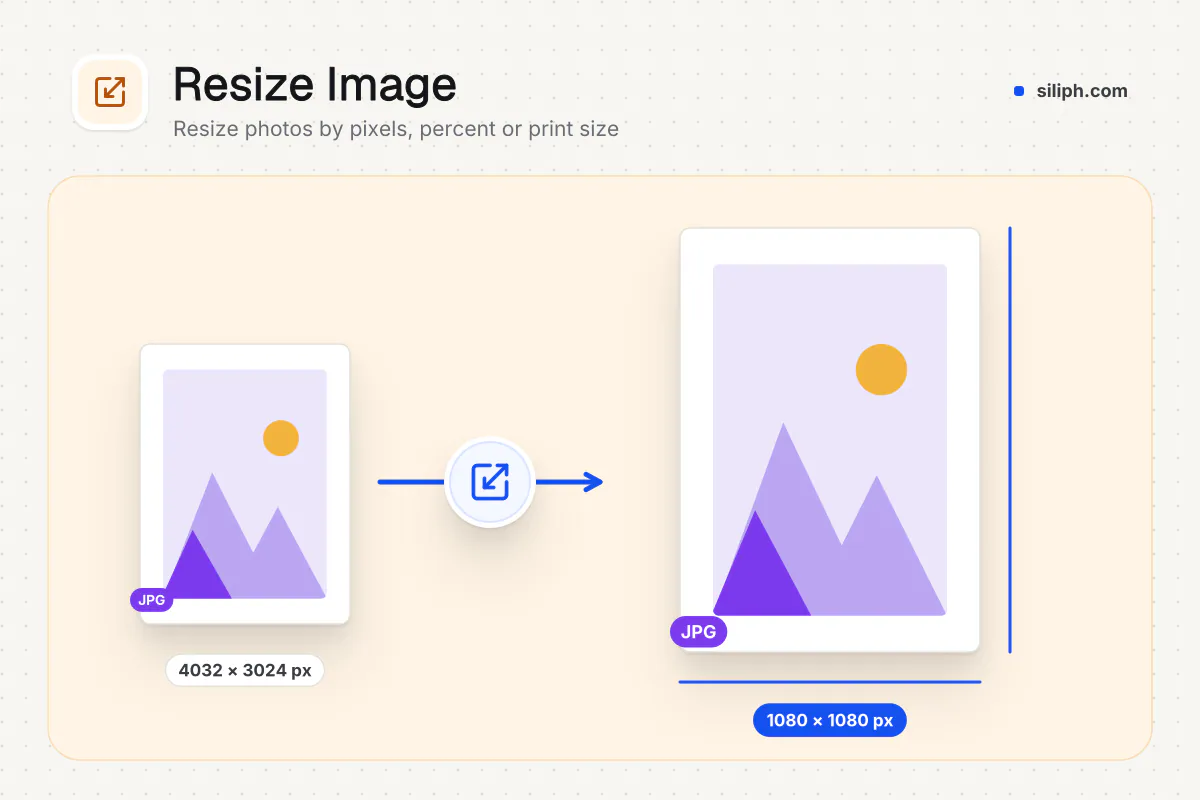
Resize Image changes the width and height of JPG, PNG, WebP and HEIC photos by pixels, by percent or by print size in centimetres, millimetres or inches. Presets cover social posts, email and photo prints, and an optional KB limit keeps the file small. Images are resized in your browser, free and without an account.
Step by step
How to resize an image
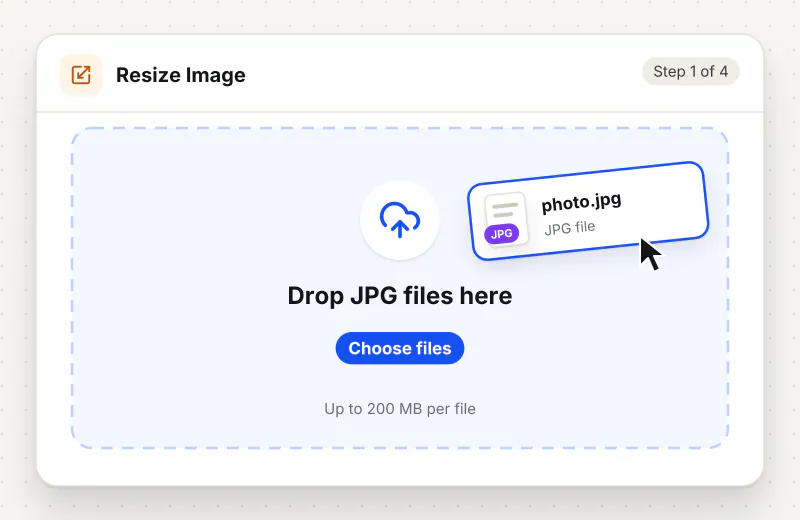
Step 1: Add your images
Drag JPG, PNG, WebP or HEIC photos onto the drop zone or click Choose images to resize. Add several to resize them all with the same settings.
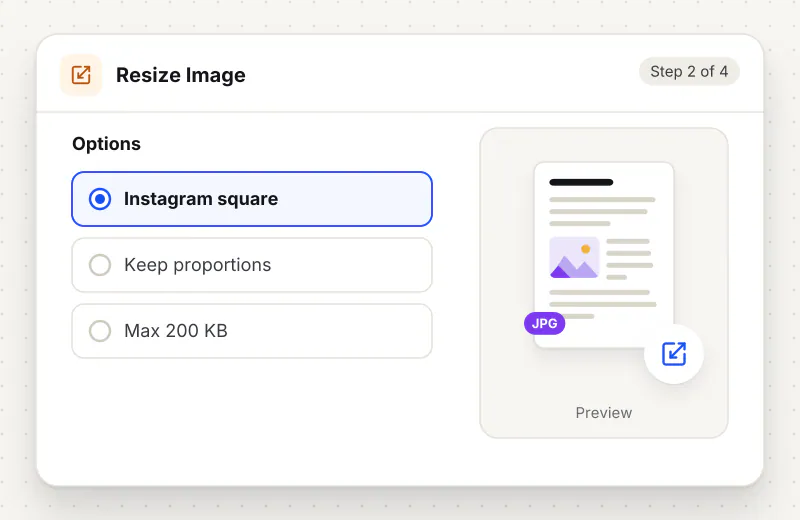
Step 2: Pick a preset or a size
Choose a preset such as Instagram post, Email attachment or 4 × 6 in photo, or set it yourself under Resize by: Pixels, Percent or Print size. A line shows the size now and after resizing.
Step 3: Set the format and a KB limit
Under Save as, keep the original format or pick JPG, PNG or WebP, and move the Quality slider. Type a Largest file size in KB if a form has a limit; the photo is then saved as JPG.
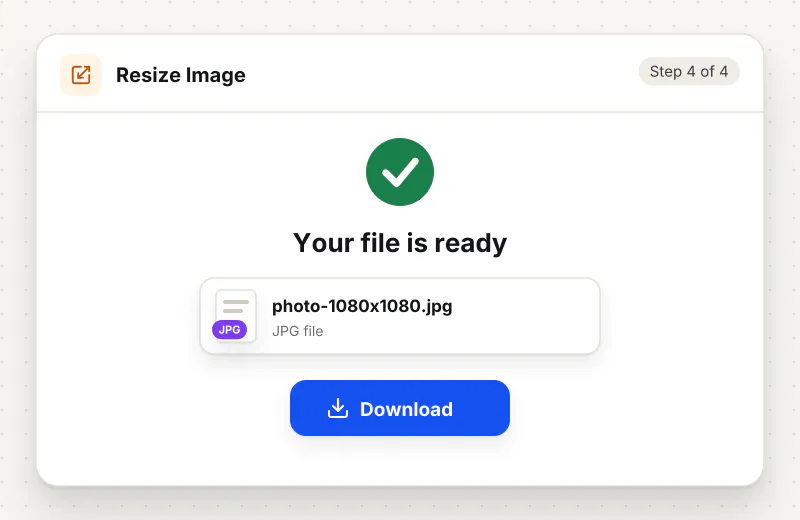
Step 4: Resize and download
Start the task. One photo downloads with its new size in the name, such as photo-1080x1080.jpg; a batch comes back as resized-images.zip.
Features
What Resize Image gives you
Three ways to set the size
Type pixels, drag a percentage from 5 to 200, or give a print size in centimetres, millimetres or inches at 72, 150, 300 or 600 dpi. The dpi is stored in the JPG or PNG so it prints at that size.
Presets that fill the frame
Social presets such as 1080 × 1080, 1280 × 720 and 1584 × 396 fill the frame and trim the edges, so nothing is stretched. Print presets turn to match a portrait or landscape photo.
A KB limit without changing pixels
Set a largest file size and the tool keeps your width and height and lowers the JPG quality only as far as needed. If the size is too much for that many pixels, a note tells you to pick a smaller size.
What does Resize Image do?
Each photo is drawn again at the new size on your device. With Keep proportions on, you type one side and the other follows. When both sides are set, you choose to fit the whole photo inside the box, fill it and trim the edges, or add white borders. Print sizes are turned into pixels at the dpi you pick, and that dpi is saved in JPG and PNG files.
Phone cameras save photos of 12 to 48 megapixels, far more than a screen, an email or a social post needs. Shrinking the pixel size is the cleanest way to make such a photo lighter, because detail is removed evenly instead of being smudged by heavy compression. Resize Image does that on your device and puts the final width and height in the file name, so you can check it before you send it.
The shape matters as much as the size. With both width and height set and proportions kept, Fit inside the box keeps the whole picture, Fill the box and trim the edges gives the exact frame a social network wants, and white borders keep everything while filling the frame. Turn Keep proportions off only when stretching is acceptable, such as for a plain banner or a texture.
Some jobs need more than a new size. When a form gives a KB limit but no pixels, Compress Image to KB finds the size for you, and passport or visa photos with official rules are easier in Exam & Passport Photo Resizer. To keep only part of a picture, use Crop Image first. iPhone photos can also be changed to JPG without resizing in HEIC to JPG, and the Exam and photo tools hub lists the rest.
Resizing runs in your browser. The photos are read and drawn again on your device and never leave it, which matters for ID scans and family pictures. It is free for personal use, with up to 20 files in one task and no account.
Your file stays on your device.
This tool runs in your browser.
- Processed on your phone or computer, not uploaded
- No account, no sign-up
- Free for personal use
When to use Resize Image
- A 4000-pixel phone photo is too large to attach to an email or a chat
- An Instagram post or story needs exactly 1080 × 1350 or 1080 × 1920 pixels
- A print shop asks for a 4 × 6 inch photo at 300 dpi
- A website form asks for a picture no wider than 800 pixels and under 200 KB
Questions about Resize Image
How do I resize a photo without stretching it?
Leave Keep proportions on and type only the width or only the height; the other side follows. If you type both, pick Fit inside the box, Fill the box and trim the edges, or Fill the box with white borders.
How do I resize an image in centimetres or inches?
Choose Print size, type the width and height, and pick cm, mm or inches with a print resolution. At 300 dpi, 10 cm becomes 1181 pixels. The dpi is written into JPG and PNG files so printers use the right size.
Which preset should I use for Instagram?
Use Instagram post, square for 1080 × 1080, Instagram post, portrait for 1080 × 1350, and the story or reel preset for 1080 × 1920. All three fill the frame and trim the edges so the photo is not squashed.
Can I resize an image to under a certain number of KB?
Yes. Type the limit in Largest file size in KB. The photo keeps the pixel size you chose and is saved as JPG at the highest quality that fits. If it still cannot fit, a note says so and suggests fewer pixels.
Does making an image bigger add detail?
No. Enlarging spreads the same detail over more pixels, so a small photo looks soft at a large size. For a sharp print, start from the original full-size photo rather than a copy taken from a chat app.
Can I resize many photos at once?
Yes. Add up to 20 images in one task and they all get the same settings. One photo downloads on its own; several come back in a ZIP file called resized-images.zip.
Is Resize Image free to use?
Yes, it is free for personal use and needs no account. Your photos are resized in your browser and stay on your device.
Is my file private and secure?
Yes. Resize Image runs on your phone or computer, so your file stays there and never goes to our servers. You need no account, and Siliph never sells your files. How we protect your files
Embed this tool on your site
Add Resize Image to your blog or website for free, with a credit link back to Siliph.
Get the embed code
Embed code (iframe)
<iframe src="https://siliph.com/resize-image/?embed=1" title="Resize Image — Siliph" width="100%" height="620" style="border:0;border-radius:12px;max-width:900px;" loading="lazy" allow="clipboard-write"></iframe>
<p style="font-size:12px;color:#666;margin-top:8px;">Free tool by <a href="https://siliph.com/resize-image/" rel="nofollow">Siliph</a></p>
Credit link for blog posts and tool lists
<p style="font-size:12px;color:#666;margin-top:8px;">Free tool by <a href="https://siliph.com/resize-image/" rel="nofollow">Siliph</a></p>
Direct link: siliph.com/resize-image/