

QR Code Reader
Upload a photo or screenshot of a QR code and read what it holds, with the link destination shown before you open it.
QR Code Reader in short
The QR code reader decodes a code from a photo or screenshot and shows what it holds. It names the kind, whether a link, Wi-Fi details, a contact card, an email, a phone number or text, lets you copy the result, and for a link shows the destination first. Images are read in your browser, free and with no account.
Step by step
How to read a QR code from an image
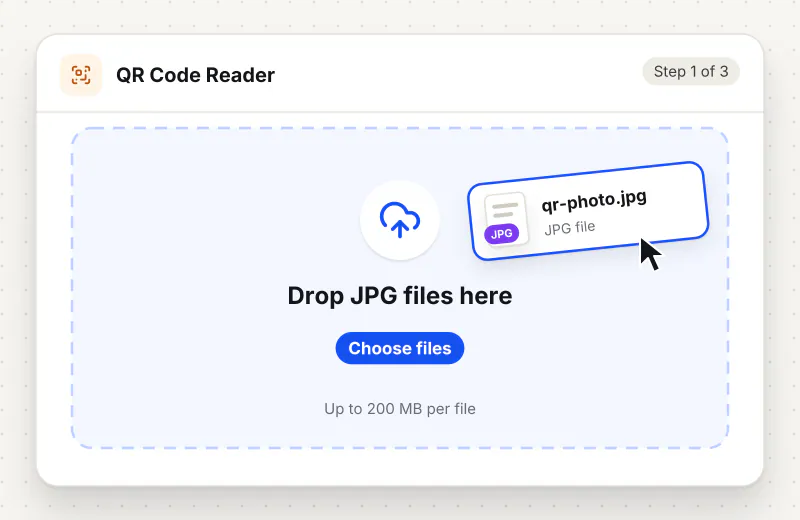
Step 1: Add the image
Drag a photo or screenshot of a QR code onto the drop zone, or click Choose a QR code image. Add several images to read them all. JPG, PNG, WebP, GIF and BMP work.
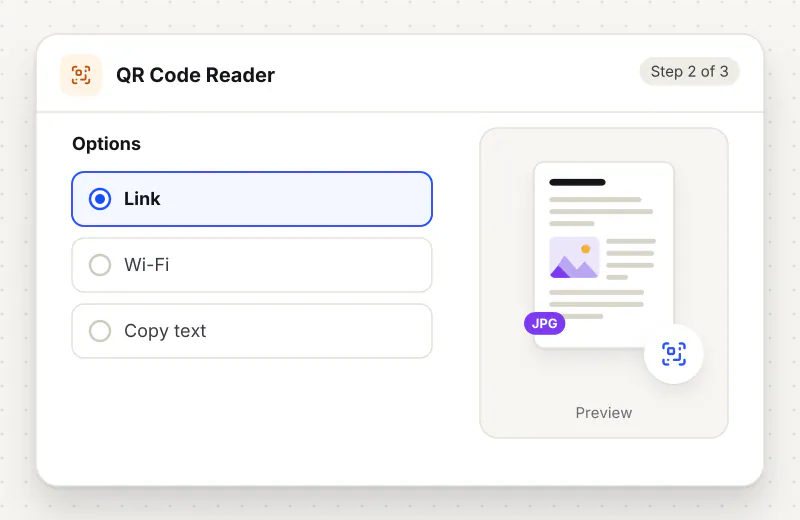
Step 2: Let it decode
The tool reads the pixels on your device and finds the code. Each image shows a label for the kind of content, such as a website link, Wi-Fi network or contact card.
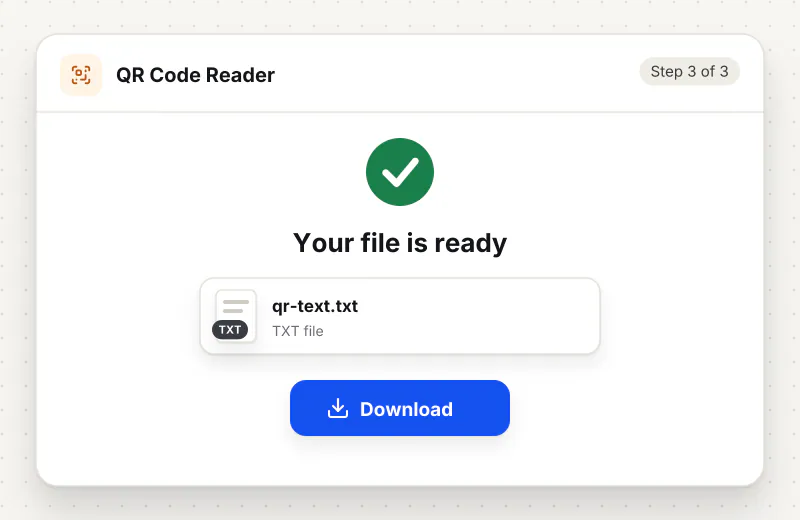
Step 3: Check and copy
Read the decoded text in the box. For a link, the destination host is shown so you can see where it goes. Use Copy text to put the content on your clipboard.
Features
What QR Code Reader gives you
Knows what it found
The reader labels each result by the kind of content it holds, from a website link, Wi-Fi join or contact card to an email, phone number, SMS, map point or plain text, so you know what the code is for at a glance.
Safe with links
A decoded web address is never opened on its own. The tool shows the destination host first and opens the link in a new tab only when you choose to, so a code cannot send you somewhere without your say.
Several images at once
Drop a batch of photos or screenshots and each one is read in turn, with a clear note on any image where no code could be found. Every result keeps its own copy button.
What does QR Code Reader do?
You add an image and the tool finds the QR code in it and turns it back into its original text on your device. It works out what the text is from how it starts, so a web address is shown as a link, a WIFI entry as a network, a vCard as a contact, and a mailto or tel as an email or phone number. For a link it shows the host, such as the site name, and never opens it on its own; you tap to open it in a new tab only if you trust it. Read several images in one go.
Reading a QR code usually means pointing a second phone at a screen, which does not work when the code is already a picture on the device you are using. This reader takes that image, a screenshot, a saved poster or a photo, and turns the code back into its text. The pixels are read on your device with a small decoder, so the image is never uploaded and whatever the code holds stays private.
Codes carry more than links. A Wi-Fi code stores a network name and password, a contact code stores a name, phone and email, and others hold an email, a phone number, an SMS or a map point. The reader recognises each from how the text begins and labels it, so you are not left guessing what a bare string of characters means. The full text is always shown so you can copy it exactly as stored.
Links deserve care, because a code gives no hint of where it leads until it is read. The reader shows the destination host and waits for you to tap before opening anything, so you can judge a link first. To go the other way and build your own code from a link, Wi-Fi or contact, use the QR Code Generator. For reading printed words rather than codes, Image to Text copies text out of a photo.
If a code will not read, the image is usually too small, blurred or cut off. Crop closer to the code with Crop Image so it fills more of the frame, or enlarge a tiny image with Resize Image, then try again. A clear, square photo of the code with a little white space around it reads best, and a batch of images is handled one after another.
Your file stays on your device.
This tool runs in your browser.
- Processed on your phone or computer, not uploaded
- No account, no sign-up
- Free for personal use
When to use QR Code Reader
- A screenshot has a QR code and you want the link without a second phone
- You want to see where a code points before trusting it
- A saved poster or flyer image holds Wi-Fi or contact details you need
- You need to copy the exact text stored in a printed code
- Several images each hold a code and you want every result at once
Questions about QR Code Reader
What image types can I read a code from?
A JPG, PNG, WebP, GIF or BMP works, whether it is a screenshot, a saved image or a photo of a printed code. Add one image or several and each is read in turn.
Does the link open on its own?
No. A decoded web address is shown with its destination host and is only opened when you tap Open link, in a new tab. This lets you check where a code points before you trust it.
What does it say when there is no code?
Each image that holds no readable code shows a clear note asking you to crop closer to the code or try a sharper photo, so you always know which image failed and why.
Can it read Wi-Fi and contact codes?
Yes. It recognises Wi-Fi joins, contact cards, emails, phone numbers, SMS messages and map points, labels each one, and shows the full stored text for you to copy.
Why can my code not be read?
The usual causes are an image that is too small, blurred, at a steep angle or cut off. Crop closer to the code and leave a little white space around it, then read it again.
Is the QR code reader free, and is the image private?
It is free for personal use with no account. The code is read in your browser on your own device, so the image and whatever it holds stay with you.
Is my file private and secure?
Yes. QR Code Reader runs on your phone or computer, so your file stays there and never goes to our servers. You need no account, and Siliph never sells your files. How we protect your files
Embed this tool on your site
Add QR Code Reader to your blog or website for free, with a credit link back to Siliph.
Get the embed code
Embed code (iframe)
<iframe src="https://siliph.com/qr-code-reader/?embed=1" title="QR Code Reader — Siliph" width="100%" height="620" style="border:0;border-radius:12px;max-width:900px;" loading="lazy" allow="clipboard-write"></iframe>
<p style="font-size:12px;color:#666;margin-top:8px;">Free tool by <a href="https://siliph.com/qr-code-reader/" rel="nofollow">Siliph</a></p>
Credit link for blog posts and tool lists
<p style="font-size:12px;color:#666;margin-top:8px;">Free tool by <a href="https://siliph.com/qr-code-reader/" rel="nofollow">Siliph</a></p>
Direct link: siliph.com/qr-code-reader/