
JPG to PDF Converter
Turn phone photos, scans and screenshots into one PDF with the page size and margin you choose.
- Free: Free to use. No signup requiredFree to useNo signup required
- On device: Stays on your device. Only very large files are uploadedStays on your deviceOnly very large files are uploaded
- Fast: Fast processing. Optimized for speedFast processingOptimized for speed
- All devices: Works on all devices. Desktop, tablet and mobileWorks on all devicesDesktop, tablet and mobile
Loading the JPG To PDF workspace… Files are processed securely and deleted automatically.
Why use this tool
Your files are safe
Your file stays on your device; only a file too big for your browser is sent over an encrypted connection to our servers, deleted within 2 hours, and never viewed by a person.
Up to 20 files
Add several files to one task, 150 MB in total for this tool.
Works everywhere
Use Siliph on desktop, tablet and mobile. No installation required.
Step by step
How to convert JPG to PDF
Get it done in 4 simple steps.
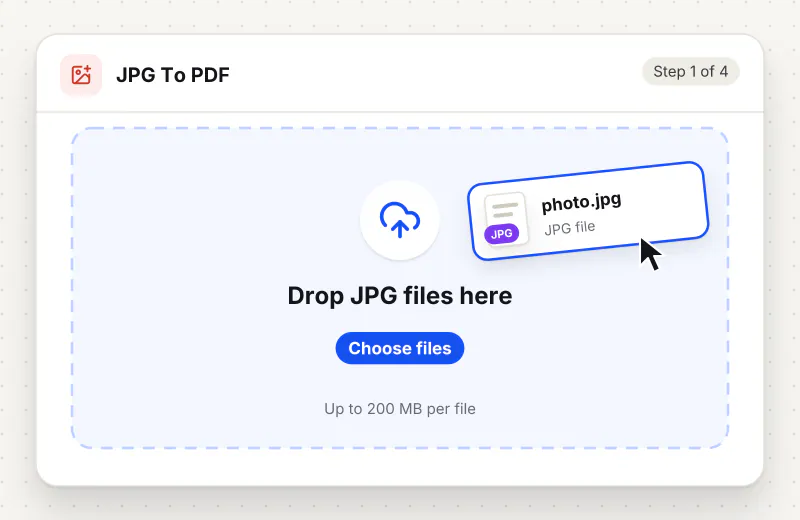
Step 1: Upload your images
Drag your JPG, PNG, WebP, GIF or TIFF files into the drop zone, or click Choose images. You can add up to 20 images and 150 MB in one task.
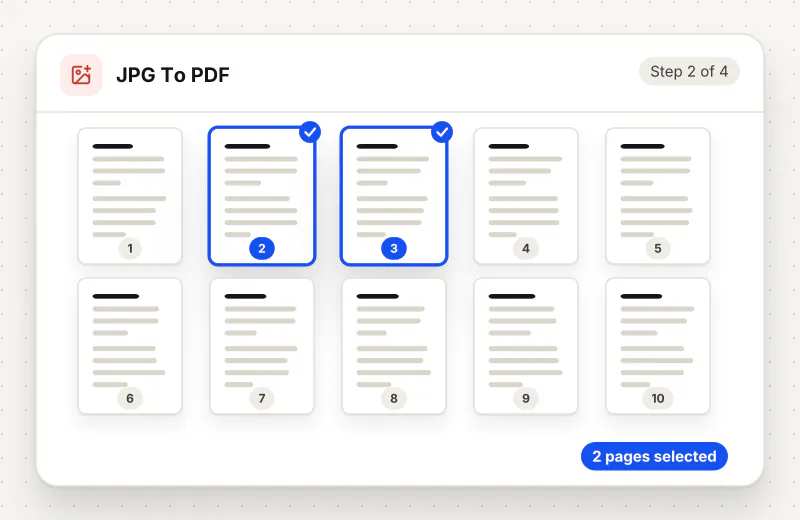
Step 2: Arrange the page order
Drag the thumbnails so the images sit in the order you want them to appear. The first thumbnail becomes page one of the PDF.
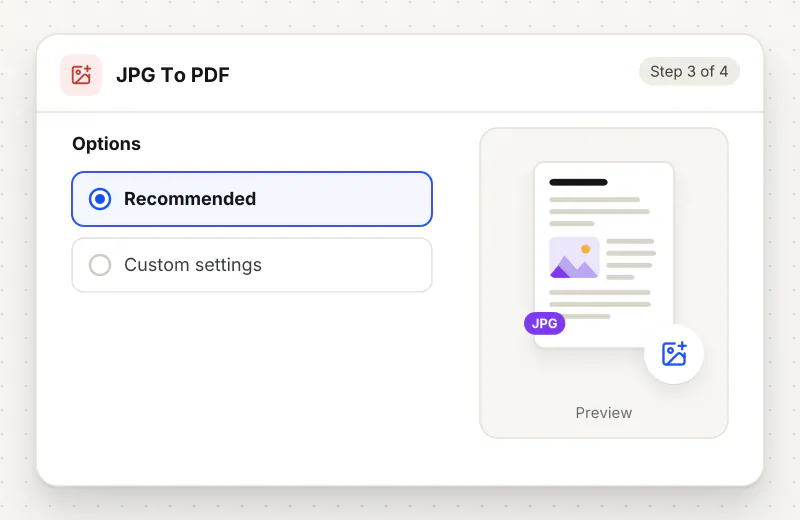
Step 3: Pick page size, orientation and margin
Choose A4, Letter, Legal, A3 or Fit to image under Page size, then Portrait, Landscape or Match each image under Orientation. Margin (mm) sets the white border around each image; 0 removes it. Switch on One PDF per image for separate files.
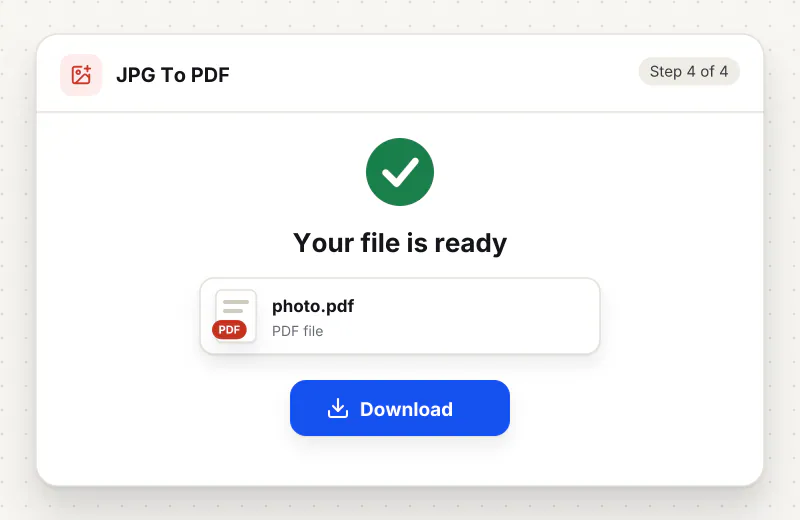
Step 4: Convert and download
Click Convert to PDF and wait for the progress bar to finish. Download the PDF, with every image as its own page, or the ZIP of separate PDFs if you chose One PDF per image.
Convert Images to PDF
- Accepts JPG, PNG, WebP, GIF and TIFF images
- A4, Letter, Legal, A3 or Fit to image, portrait or landscape
- Up to 20 images and 150 MB per task, with no watermark
In short
JPG to PDF places each image on its own page of a single PDF, in the order you arrange them, or makes one PDF per image. Pick A4, Letter, Legal, A3 or Fit to image, portrait or landscape. It accepts JPG, PNG, WebP, GIF and TIFF, is free with no account or watermark, and takes up to 20 images.
Features
What you get
Five image formats, one PDF
JPG, PNG, WebP, GIF and TIFF go in and a standard PDF comes out. Mix formats in a single task, so a phone photo, a PNG screenshot and an office TIFF scan can sit in the same document.
Page size and margin control
Page size sets the sheet every image is placed on: A4, Letter, Legal or A3, or Fit to image to keep each picture at its own size. Margin (mm) sets the white border around each picture, so a photo taken edge to edge still prints with room for a hole punch or a staple.
Batch of up to 20 images
Add up to 20 images and 150 MB to one task, and get them back as the pages of one PDF in the order you set. There is no account and no daily limit.
What does JPG To PDF do?
The converter reads each image, places it on a page of the size you picked and writes the pages out as one PDF, so a 12-photo upload becomes a 12-page document. It does not sharpen, crop or retouch the picture: a clear photo stays clear and a blurry one stays blurry. The Margin (mm) field controls the white space around every image, and the thumbnail order decides the page order.
Most of the images people need as PDFs are phone photos of paper: certificates, ID cards, receipts and signed forms. Cameras save them as JPG, often at odd sizes, and portals built for office documents refuse anything that is not a PDF. Converting puts every photo on a page of a known size, so the reviewer opens one file, sees the pages in order and can print them on ordinary paper. The tool does not crop or retouch the picture, so what you see in the photo is what appears on the page.
Pick the page size that matches the paper the recipient uses: A4 for applications in India, the UK and Europe, Letter or Legal for US forms, and A3 when the source is a drawing or a poster. Match each image turns the sheet sideways for wide photos, so landscape shots fill the page. The Margin (mm) field adds white space around each image; 0 removes the border. The same converter sits behind PNG to PDF for screenshots, WebP to PDF Converter for images saved from the web and Scan to PDF Online for phone photos of paper, and a mixed folder can go through Images to PDF Converter.
If the finished PDF has to fit an upload cap, send it through Compress PDF next; photo pages are the heaviest part of any PDF and lose the most weight. To add the new pages to a document you already have, open Merge PDF and drop both files in. iPhone photos saved as HEIC are not accepted here, so use HEIC to PDF for those, and when you need to go the other way, PDF to JPG turns each page back into an image.
Small images are converted in your browser. Larger or more complex batches use an encrypted upload, are handled automatically with no human access, and are deleted from our servers within 2 hours. The tool is free, needs no account and has no daily limit; each task takes up to 20 images and 150 MB.
Small files stay on your device.
Bigger files use an encrypted upload.
- No account, no sign-up
- Larger files go over HTTPS and are deleted automatically within 2 hours
- Never sold, never viewed by a person
When to use it
- A job, visa or university portal accepts one PDF per upload field and you have several photos of a certificate
- You photographed a multi-page contract with your phone and need the pages in one file, in order
- A client wants the invoices or receipts you scanned as JPG delivered as a single PDF attachment
- PNG or WebP screenshots need to go into a document that prints cleanly on A4 or Letter
- A TIFF scan from an office scanner will not open on a phone and needs a format everyone can view
At a glance
Free plan at a glance
What you get on the free plan, and when a paid plan applies.
| Price | Free for personal and business use, with no daily limit |
|---|---|
| File size | Up to 150 MB per task for this tool |
| Files per task | Up to 20 |
| Where it runs | On your phone or computer; a task too big for your browser (for example over 100 MB on a phone) goes to our servers over a secure connection |
| File deletion | Files sent to our servers are deleted automatically within 2 hours |
Questions about JPG To PDF
How do I put several JPG files into one PDF?
Add all the images to the same task, then drag the thumbnails into the order you want. Every image becomes one page and the result is a single PDF. For a separate PDF per image, switch on One PDF per image and they download together as a ZIP.
Will part of my photo be cut off on the page?
No. The full image is placed on the page with the Margin (mm) value as white space around it. For wide photos, choose Match each image under Orientation, or Fit to image to keep each picture at its own size, so they do not look small on a portrait page.
Which page size should I pick?
A4 matches paperwork in India, the UK and most of Europe; Letter and Legal match US forms; A3 suits drawings and posters. Choose Fit to image to keep every page the size of its picture. If you are not sure, A4 prints well almost anywhere.
Why is the PDF bigger than my JPG files?
A PDF adds page structure and metadata around each image, so the result is usually a little larger than the images added together. If you need to meet a size cap, run the result through Compress PDF; photo pages shrink a great deal.
Can I turn photos on my phone into a PDF, including iPhone pictures?
Yes. Open the page in your phone browser and pick photos from the gallery; JPG, PNG, WebP, GIF and TIFF can sit in one task in any mix. iPhones often save HEIC files, which this tool does not take, so use HEIC to PDF for those or set the camera to Most Compatible.
Does converting a JPG to PDF lower the photo quality?
No. Each image is placed on its page as it is; the tool does not resample, crop or retouch it, so the photo looks the same in the PDF as in the original file. Only the page around it changes. If the PDF then has to be smaller, Compress PDF re-encodes the photos.
How do I scan a document with my phone for an application?
Photograph each page flat, in good light, then pick the photos here from your gallery. Choose A4 or Letter so the pages print at a normal size, and the finished PDF lands in your phone's downloads, ready to attach to the form.
Can I put the front and back of my ID card in one PDF?
Yes. Add both photos to one task with the front first; each becomes its own page in a single PDF. Crop the photos close to the card in your phone's photo editor first, so the card fills the page and stays readable.
Is JPG to PDF free online, with no watermark?
Yes. JPG to PDF is free, with no account needed and no watermark added to the PDF. Each task can hold up to 150 MB of images, and uploaded files are deleted within 2 hours.
Is my file private and secure?
Yes. JPG to PDF Converter runs on your phone or computer, so your file usually stays there. Only a file too big to handle on your device goes to our servers: it travels over HTTPS, is stored encrypted, is processed by machines with no person looking at it, and is deleted automatically within 2 hours. Siliph never sells your files. How we protect your files
Guides and how-tos
Walk-throughs for common jobs, such as hitting an upload limit or preparing an application.
- Step by stepScan to PDF OnlinePhotograph documents with your phone and compile them into a single PDF.
- Step by stepImages to PDF ConverterStack photos or scans into a single PDF in the order you choose.
- Step by stepJPG to PDF in A4 SizePut each photo on its own A4 page, fitted and centred inside a 10 mm margin, so the PDF prints at the right size anywhere. The A4 page size is preset here.
- Step by stepJPG to PDF Without MarginsMake a PDF where each page is exactly the size of its picture, with no white border. Fit to image and a zero margin are preset here.
- Use casePDF tools for studentsConvert photos of pages or documents into a PDF the portal accepts.
- Use casePDF tools for real estate agents and landlordsTurn listing photos and floor plans into one PDF for buyers.
Embed this tool on your site
Add JPG To PDF to your blog or website for free, with a credit link back to Siliph.
Get the embed code
Embed code (iframe)
<iframe src="https://siliph.com/jpg-to-pdf/?embed=1" title="JPG To PDF — Siliph" width="100%" height="620" style="border:0;border-radius:12px;max-width:900px;" loading="lazy" allow="clipboard-write"></iframe>
<p style="font-size:12px;color:#666;margin-top:8px;">Free tool by <a href="https://siliph.com/jpg-to-pdf/" rel="nofollow">Siliph</a></p>
Credit link for blog posts and tool lists
<p style="font-size:12px;color:#666;margin-top:8px;">Free tool by <a href="https://siliph.com/jpg-to-pdf/" rel="nofollow">Siliph</a></p>
Direct link: siliph.com/jpg-to-pdf/