

PDF to JPG
Turn each PDF page into a JPG, PNG or WebP image at the resolution you choose.
Get PDF pages converted to JPG, PNG or TIFF images Siliph is free for personal use and needs no account. Many tools work right on your device; the others use secure servers in Europe and India and delete your files within 2 hours.
- Pick screen or print sharpness
- Convert whole pages or extract images
- All images delivered in one ZIP
- Sent over an encrypted connection
- Files deleted after 2 hours
- Free, no signup, no watermark
Loading the PDF To JPG workspace… Files are processed securely and deleted automatically.
PDF to JPG in short
PDF to JPG renders every page as its own image and returns one JPG, or a ZIP of numbered images for longer files. Choose JPG, PNG or WebP output, set the DPI between 72 and 600 and the JPG quality from 1 to 100. It is free with no account, for files up to 2 GB and 2000 pages.
Step by step
How to convert PDF to JPG
Step 1: Upload your PDF
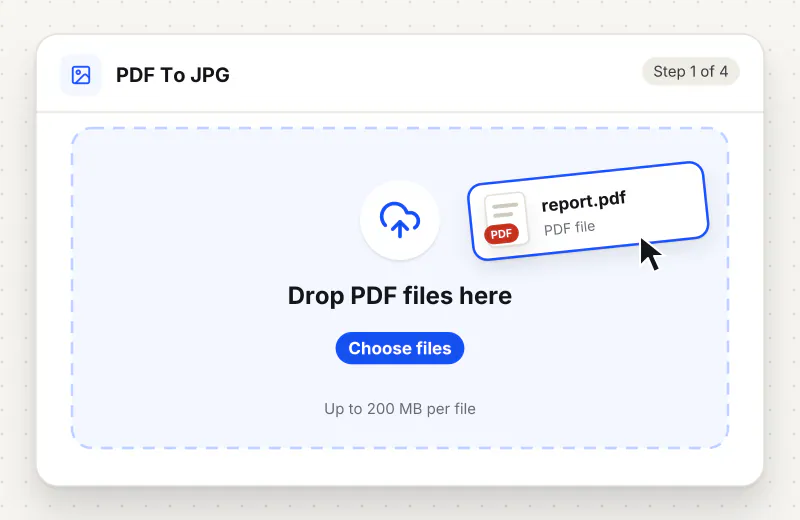
Drop up to 20 PDFs into the upload area, or click Choose PDF files to browse for them. A task can hold up to 2 GB in total.
Step 2: Pick the image format
Under Image format, choose JPG for photos and general sharing, PNG for crisp text and diagrams with no compression artefacts, or WebP for smaller files on the web.
Step 3: Set the DPI and quality
Type a DPI between 72 and 600; 150 is the default and suits screens, while 300 is the usual choice for print. For JPG output, set Quality (1-100); 85 is the default and keeps text readable.
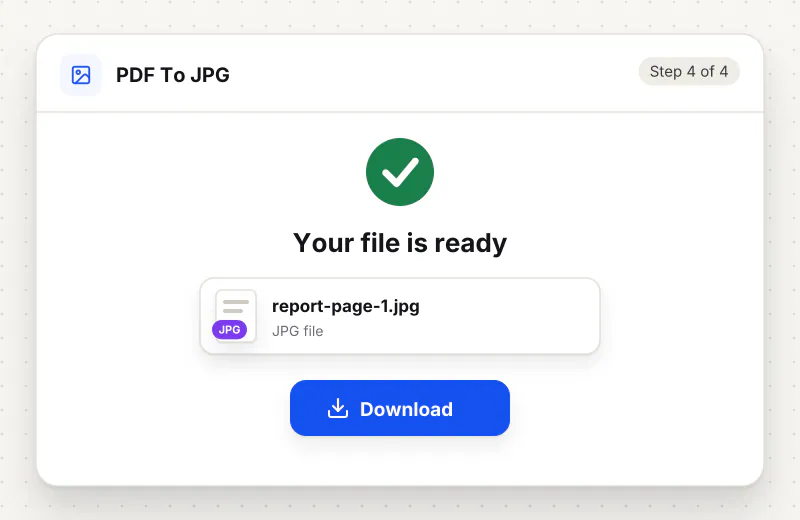
Step 4: Convert and download
Click Convert to JPG and watch the page counter as each page is rendered. A one-page PDF downloads as a single image; a longer PDF downloads as a ZIP with one numbered image per page.
Features
What PDF to JPG gives you
Three image formats from one PDF
Pick JPG when file size matters, PNG when text and line art need to stay crisp, or WebP for the smallest files that modern browsers can open. The same page renderer sits behind all three, so the layout is identical whichever you choose.
DPI control from 72 to 600
The DPI field sets how many pixels each page gets. 72 matches the PDF’s own units and suits thumbnails, 150 is the default for screens, and 300 or more gives print-ready output; at 600 DPI an A4 page is close to 5000 by 7000 pixels.
One numbered image per page, zipped
Every page becomes its own file named after the PDF and the page number, so page 7 of report.pdf is report-page-7.jpg. Multi-page files arrive as one ZIP; a single page downloads directly as an image.
What does PDF to JPG do?
The tool draws each page of the PDF onto a canvas at the DPI you set and saves that drawing as an image. Text, vector lines and embedded photos are all flattened into pixels, so the result looks exactly like the page but can no longer be searched or edited as text. At the default 150 DPI an A4 page becomes an image of about 1240 by 1754 pixels; at 300 DPI it doubles in each direction.
A PDF is a set of drawing instructions, not a picture, which is why a browser, a chat app or a slide editor cannot drop it in as an image. PDF to JPG runs those instructions and photographs the result: every page is rendered at the DPI you set and saved as a bitmap. The image shows exactly what the page looked like, including fonts the recipient does not have installed and form fields already filled in, but the text inside it is pixels, so it can no longer be selected or searched. If you need editable text rather than a picture, PDF to Word or PDF to Text are the right tools.
Match the format to the content. JPG is the smallest choice for pages with photos and the one most portals and forms expect; the Quality (1-100) field trades sharpness for size, and 85 keeps text readable at normal zoom. PNG is lossless, so thin lines, small type and screenshots stay crisp with no blocky artefacts, at the cost of a bigger file; PDF to PNG is the dedicated page for that format. WebP produces the lightest files for web pages but is not accepted everywhere. For resolution, 150 DPI suits screens and presentations, 300 DPI is the usual print setting, and anything above that is for large-format printing or zooming into fine detail. The Convert PDF to Image page covers the three formats side by side.
Rendering a page is different from pulling out the photos placed on it. If you want the original embedded pictures at their stored resolution, without page margins or surrounding text, use Extract Images from PDF instead. Once you have the page images, Compress Image to KB brings a JPG under a portal limit such as 50 KB or 100 KB, and JPG to PDF turns edited or cropped pages back into a PDF. Fax and document-management systems that ask for a single multi-page file are better served by PDF to TIFF. All of these sit in the PDF Converter hub.
A short PDF is rendered right in your browser, one page at a time, and the ZIP is built there as well, so nothing waits in a queue. Long or heavy files go through an encrypted upload instead; they are converted automatically, never opened by a person, and removed from our servers within 2 hours. There is no account and no watermark on the images. On the free plan a task can hold up to 20 files and 2 GB in total, and you can run up to 30 tasks a day.
Small files stay on your device.
Bigger files use an encrypted upload.
- No account, no sign-up
- Larger files go over HTTPS and are deleted automatically within 2 hours
- Never sold, never viewed by a person
When to use PDF to JPG
- A web form or messaging app accepts photos but refuses PDF attachments
- You need one page of a brochure or report as a picture for a slide, a post or a thumbnail
- A signed form must go out as an image because the recipient will view it on a phone
- A designer wants a preview image of every page of a catalogue without opening the PDF
- You want to crop or annotate a page in an image editor that does not open PDF files
At a glance
PDF to JPG: free at a glance
What you get on the free plan, and when a paid plan applies.
| Price | Free for personal use, up to 30 tasks in any 24 hours |
|---|---|
| File size | Up to 2 GB per task |
| Files per task | Up to 20 on the free plan (up to 100 on paid plans) |
| Account | Not needed |
| Where it runs | On your phone or computer for files up to 300 MB on a computer or 100 MB on a phone; bigger files go to our servers over a secure connection |
| File deletion | Files sent to our servers are deleted automatically within 2 hours |
| Watermark | None |
| Business use | Paid plans from ₹399 a week |
Why Siliph
PDF to JPG on Siliph and on typical free PDF sites
The right-hand column sums up 5 popular free PDF sites we checked in October 2026.
| Feature | Siliph | Typical free PDF sites |
|---|---|---|
| Account for personal use | Not needed | Some sites ask you to sign in to finish or repeat a task |
| Free use | Up to 30 tasks in any 24 hours, 20 files a task | Some sites stop you after a few tasks an hour |
| Where your file goes | Small files stay in your browser; larger ones are uploaded over HTTPS and deleted within 2 hours | Usually uploaded, then deleted after 1 to 2 hours |
Checked October 2026. Other sites change their plans; check before you rely on a limit.Side-by-side comparisons
Questions about PDF to JPG
Do I get one image or a ZIP?
A one-page PDF downloads as a single image. A PDF with two or more pages downloads as one ZIP that holds a numbered image for every page, named after the original file, so page 3 of invoice.pdf becomes invoice-page-3.jpg.
Which DPI should I use for PDF to JPG?
150 DPI, the default, is enough for screens, slides and messaging apps. Use 300 DPI when the image will be printed, and 72 DPI for small thumbnails. Higher values give larger files: at 600 DPI an A4 page is close to 5000 by 7000 pixels.
Why does the text in my JPG look blurry or blocky?
Two settings cause this. A low DPI gives too few pixels for small type, so raise it to 200 or 300. A low JPG quality adds compression noise around letters, so move Quality closer to 100, or switch the Image format to PNG, which is lossless.
Can I convert only some pages of the PDF?
The tool renders every page of the file you upload. To convert a selection, first run the PDF through Split PDF so you have a smaller file with just the pages you need, then convert that file.
What is the difference between PDF to JPG and Extract Images?
PDF to JPG photographs the whole page, including text, margins and layout. Extract Images pulls out the pictures that were placed inside the PDF at their original stored size and ignores the text around them. Use the first for page previews and the second to recover source photos.
Can I convert a PDF to JPG on my phone?
Yes. The converter runs in the browser on iPhone, Android, Windows and Mac. A one-page PDF downloads as a single JPG; longer files arrive as a ZIP that the Files app or an Android file manager opens. Each PDF can be up to 2 GB and 2000 pages.
How do I upload a PDF to a form that only accepts JPG?
Convert the PDF here with JPG as the format; each page becomes its own image. Upload the page the form wants, such as a certificate or an ID card. If the form also caps the file size, a lower DPI gives a smaller image.
Can I share a PDF page as a picture in a chat or post?
Yes. Convert the page to JPG or PNG and share the image; chat apps and social feeds show a picture straight away, while a PDF has to be opened first. PNG keeps text and line drawings sharper; JPG makes smaller files for photos.
Is PDF to JPG free?
Yes. Converting PDFs to JPG is free for personal use, with no account. The free plan covers up to 30 tasks a day, each with up to 2 GB and 20 files.
Is my file private and secure?
Yes. PDF to JPG runs on your phone or computer, so your file usually stays there. Only a file too big to handle on your device goes to our servers: it travels over HTTPS, is stored encrypted, is processed by machines with no person looking at it, and is deleted automatically within 2 hours. Siliph never sells your files. How we protect your files
Guides for PDF to JPG
Walk-throughs for common jobs, such as hitting an upload limit or preparing an application.
Embed this tool on your site
Add PDF To JPG to your blog or website for free, with a credit link back to Siliph.
Get the embed code
Embed code (iframe)
<iframe src="https://siliph.com/pdf-to-jpg/?embed=1" title="PDF To JPG — Siliph" width="100%" height="620" style="border:0;border-radius:12px;max-width:900px;" loading="lazy" allow="clipboard-write"></iframe>
<p style="font-size:12px;color:#666;margin-top:8px;">Free tool by <a href="https://siliph.com/pdf-to-jpg/" rel="nofollow">Siliph</a></p>
Credit link for blog posts and tool lists
<p style="font-size:12px;color:#666;margin-top:8px;">Free tool by <a href="https://siliph.com/pdf-to-jpg/" rel="nofollow">Siliph</a></p>
Direct link: siliph.com/pdf-to-jpg/