
Sign a PDF on Android
Open this page in Chrome on your Android phone, choose the PDF from Downloads and add your signature. Nothing to install: the signed copy downloads straight back to your phone.
- Free: Free to use. No signup requiredFree to useNo signup required
- Secure: Secure and private. Files deleted within 2 hoursSecure and privateFiles deleted within 2 hours
- Fast: Fast processing. Optimized for speedFast processingOptimized for speed
- All devices: Works on all devices. Desktop, tablet and mobileWorks on all devicesDesktop, tablet and mobile
Why use this tool
Your files are safe
Your file is sent over an encrypted connection to our servers, deleted within 2 hours, and never viewed by a person.
Files up to 150 MB
One task can be up to 150 MB for this tool. Free, with no account.
Works everywhere
Use Siliph on desktop, tablet and mobile. No installation required.
Step by step
How to sign a PDF
Get it done in 4 simple steps.
Step 1: Upload PDF
Open the document you need to sign.
Step 2: Create signature
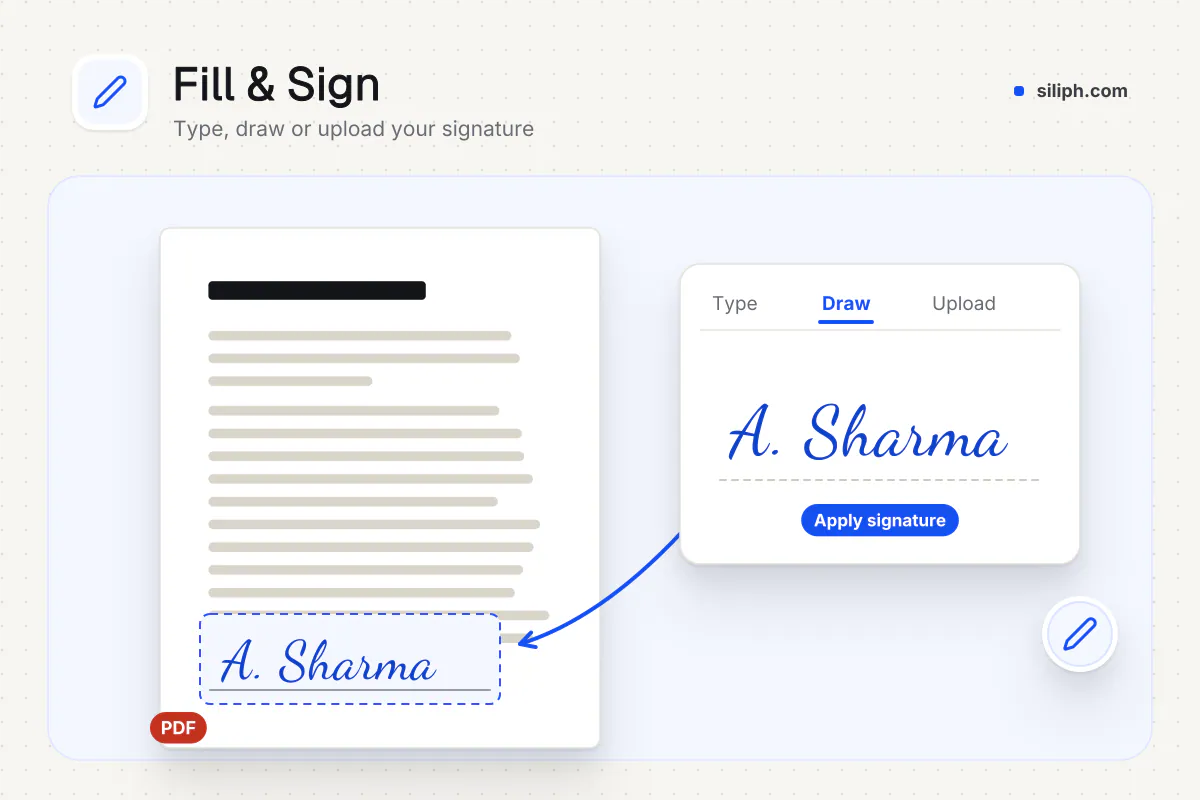
Draw, type, or upload your signature image.
Step 3: Place signature
Drag signature to the correct position on each page.
Step 4: Download signed PDF
Save the document with your signature embedded.
In short
Sign a PDF on an Android phone in Chrome: draw your signature, type it or upload a photo of it, then download the signed file. Free, with no app or account.
Every file is encrypted.
On the way to us and while stored.
- Sent over HTTPS
- Deleted automatically within 2 hours
- Never sold, never viewed by a person
When to use it
- A contract or consent form arrives on your phone and must go back signed
- You are away from a computer and the deadline is today
- Your phone has no PDF app that can add a signature
Everything else about Fill & Sign
Sign a PDF on Android is Fill & Sign with this page's settings filled in. The full feature list, the free-plan limits and the general questions about the tool are on its main page, so they are not repeated here.
Questions about Sign a PDF on Android
How do I sign a PDF I received on my Android phone?
Download the attachment first so it sits in your Downloads folder. Open this page in Chrome, choose the PDF, tap Sign, draw or type your signature, place it and tap Apply changes, then download the signed copy.
Can I use a photo of my signature?
Yes. Sign on white paper, photograph it and choose the picture under Upload. The paper background is removed, so only the ink lands on the page.
Can I fill in the form before I sign?
Yes. Type into the form's own fields or use Text to write on blank lines, then add your signature and apply all the changes at once.
Is it free, and do I need an account?
Yes. It is free, with no account to create and no daily limit. Files uploaded for processing are deleted from Siliph servers within two hours.
Is my file private and secure?
Yes. Your file travels over HTTPS, is stored encrypted, is processed by machines with no person looking at it, and is deleted automatically within 2 hours. You need no account, and Siliph never sells your files. How we protect your files
Embed this tool on your site
Add Fill & Sign to your blog or website for free, with a credit link back to Siliph.
Get the embed code
Embed code (iframe)
<iframe src="https://siliph.com/sign-pdf-on-android/?embed=1" title="Fill & Sign — Siliph" width="100%" height="620" style="border:0;border-radius:12px;max-width:900px;" loading="lazy" allow="clipboard-write"></iframe>
<p style="font-size:12px;color:#666;margin-top:8px;">Free tool by <a href="https://siliph.com/sign-pdf-on-android/" rel="nofollow">Siliph</a></p>
Credit link for blog posts and tool lists
<p style="font-size:12px;color:#666;margin-top:8px;">Free tool by <a href="https://siliph.com/sign-pdf-on-android/" rel="nofollow">Siliph</a></p>
Direct link: siliph.com/sign-pdf-on-android/