

Password Protect PDF
Encrypt your PDF with a password and optionally restrict printing, copying and editing.
Protect file with password and permissions Siliph is free for personal use and needs no account. Many tools work right on your device; the others use secure servers in Europe and India and delete your files within 2 hours.
- AES-256 encryption
- Separate open and permission passwords
- Processed securely and deleted in 2 hours
- Sent over an encrypted connection
- Files deleted after 2 hours
- Free, no signup, no watermark
Loading the Protect PDF workspace… Files are processed securely and deleted automatically.
Password Protect PDF in short
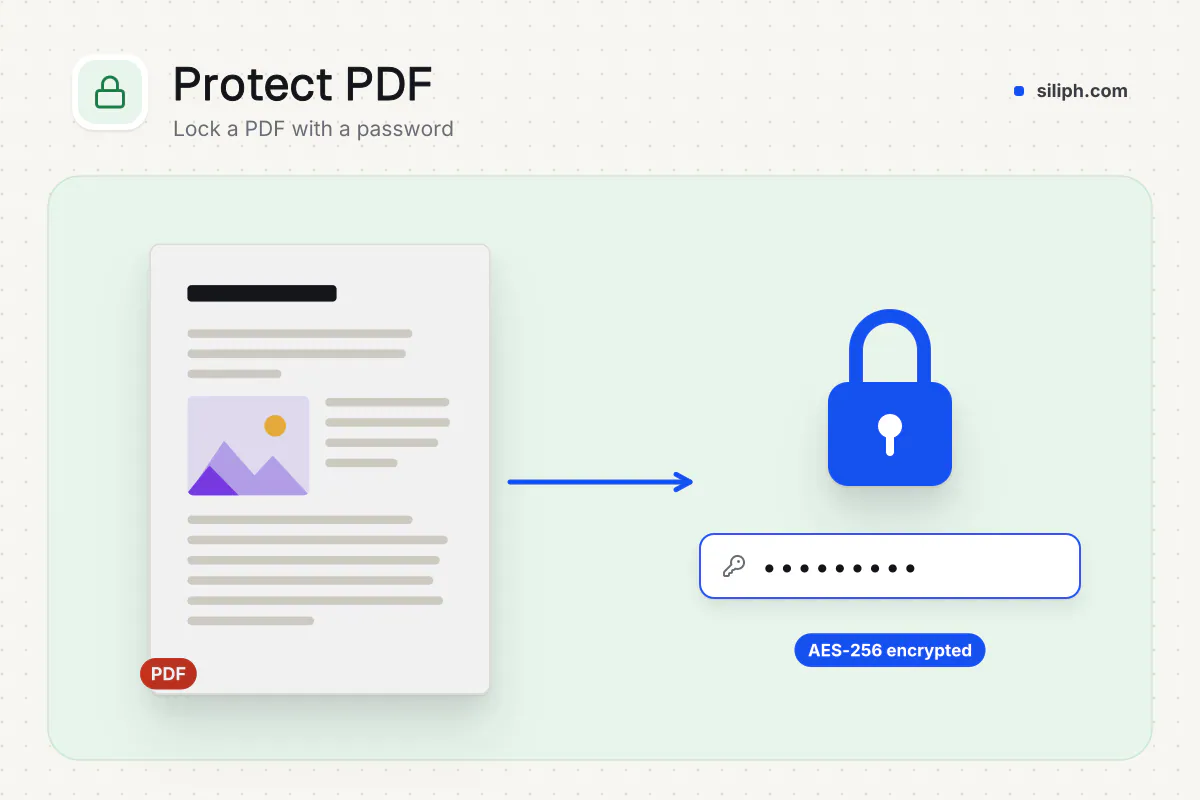
Password protect PDF locks a PDF with 256-bit AES encryption, so it only opens after the reader types the password you set. Then switch off printing, copying, editing, commenting or form filling as needed. It is free with no account, takes PDFs up to 2 GB and deletes the upload within 2 hours.
Step by step
How to password protect a PDF
Step 1: Upload PDF
Select the PDF you want to password-protect.
Step 2: Set password
Enter a strong password. Optionally restrict printing, copying, or editing.
Step 3: Encrypt
Click Protect. AES-256 encryption is applied. Download the secured PDF.
Features
What Password Protect PDF gives you
AES-256 encryption behind one password
The PDF is encrypted with a 256-bit AES key, the strongest standard PDF encryption, and stays unreadable in Acrobat Reader, browsers and phone viewers until someone types the password. Once open, it looks exactly as before.
Five separate permission switches
Allow printing, Allow copying text, Allow editing, Allow commenting and Allow filling in forms are independent, so you can hand out a PDF that prints but cannot be copied, or a form that can be filled in but not edited.
Lock up to 20 PDFs in one task
Add a whole set of statements or contracts, up to 2 GB in total, apply the same password and permissions to all of them and download the locked copies together.
What does Password Protect PDF do?
Protect PDF encrypts the file with a 256-bit AES key derived from the password you type, and writes five permission flags into it. A viewer asks for the password before showing a single page; after that it greys out printing, text copying, editing, commenting or form filling for any switch you turned off. A separate permissions password guards those flags. The pages, fonts and images are not changed, so the document looks the same once it is open.
A PDF sent as a plain attachment can be forwarded, printed and copied by anyone who receives it. Payslips, medical reports, signed contracts and exam entry tickets often need to travel by email or chat anyway. Password protection fixes the first problem: the file is encrypted with 256-bit AES and stays unreadable until someone types the password, whether they open it in Acrobat Reader, Preview, a browser tab or a phone viewer. The permission flags handle the second: once the file is open, the viewer still refuses to print, copy text, edit, comment or fill in forms if you switched that off before locking it.
For a document that should only be read, switch every permission off and set the password. For a board pack or a lease that counsel needs on paper, keep Allow printing on but turn off Allow copying text and Allow editing, so pages can be printed yet the wording cannot be lifted into another file. Keep Allow commenting on when reviewers should add notes, and Allow filling in forms when the recipient must complete a form you send. If you leave the Permissions password empty, a random one is set, so nobody, including you, can lift the limits later. The Password Protect PDF page opens the same tool.
Protection usually comes last in a workflow. Black out account numbers with Redact PDF first, because a password hides the whole file but not a line inside it from someone who holds the password. Strip author names and revision history with Remove Metadata, stamp the recipient name with Watermark PDF if the copy may be photographed, and freeze filled forms with Flatten PDF so the fields cannot change after the lock is lifted. When the password is no longer needed, Unlock PDF removes it from a file you are entitled to open. More tools are listed under Security.
Protect PDF runs on our servers. The upload travels over an encrypted HTTPS connection, the password and permission flags are written into the file automatically with no human access, and the upload is deleted from our servers within 2 hours. A locked PDF has no reset link, so keep the password somewhere you can find it and send it to the recipient by a different route than the file, such as a text message or a password manager. Every task is free for personal use, with no account.
Every file is encrypted.
On the way to us and while stored.
- Sent over HTTPS
- Deleted automatically within 2 hours
- Never sold, never viewed by a person
When to use Password Protect PDF
- You need the result quickly and cannot install desktop software
- You are working from a phone, tablet or shared computer
At a glance
Password Protect PDF: free at a glance
What you get on the free plan, and when a paid plan applies.
| Price | Free for personal use, up to 30 tasks in any 24 hours |
|---|---|
| File size | Up to 2 GB per task |
| Files per task | Up to 20 on the free plan (up to 100 on paid plans) |
| Account | Not needed |
| Where it runs | On our servers, over an encrypted connection |
| File deletion | Deleted automatically within 2 hours |
| Watermark | None |
| Business use | Paid plans from ₹399 a week |
Why Siliph
Password Protect PDF on Siliph and on typical free PDF sites
The right-hand column sums up 5 popular free PDF sites we checked in October 2026.
| Feature | Siliph | Typical free PDF sites |
|---|---|---|
| Account for personal use | Not needed | Some sites ask you to sign in to finish or repeat a task |
| Free use | Up to 30 tasks in any 24 hours, 20 files a task | Some sites stop you after a few tasks an hour |
| Where your file goes | Uploaded over HTTPS and deleted within 2 hours | Usually uploaded, then deleted after 1 to 2 hours |
Checked October 2026. Other sites change their plans; check before you rely on a limit.Side-by-side comparisons
Questions about Password Protect PDF
Is it free, and do I need an account?
Yes. It is free, with no account to create and no daily task limit. Files uploaded for processing are deleted from Siliph servers within two hours.
Do I need to install any software?
No. Siliph works in any modern browser on Windows, macOS, Linux, Android or iPhone, so there is nothing to download or install.
What is the difference between the password and the permissions?
The password decides who can open the file at all. The permission switches decide what a reader may do once it is open: print, copy text, edit, comment or fill in forms. The optional Permissions password lets you change those limits later.
How strong is the encryption on a protected PDF?
The file is encrypted with 256-bit AES, the strongest encryption the PDF format supports. In practice the weak point is the password, so use a long one, such as three or four unrelated words, rather than a name or a date of birth.
Can I let people read a PDF but stop them printing or copying it?
Yes. Set a password, switch off Allow printing and Allow copying text, and the viewer will open the pages but grey out the print and copy commands. Most readers respect these limits, though a few ignore them.
Will a protected PDF open on a phone or in a web browser?
Yes. The tool uses the password protection built into the PDF format, so Acrobat Reader, Preview, Chrome, Edge and the PDF apps on Android and iPhone all ask for the password and then show the file as normal.
What happens if I forget the password?
There is no reset or recovery. A locked PDF cannot be opened without the password you set, so store it in a password manager and keep an unprotected copy of the original in a safe place before you share the locked version.
Can I protect several PDFs with the same password at once?
Yes. Add up to 20 PDF files to one task and the password and permission choices apply to every file. A task can hold up to 2 GB in total, and you download all the locked copies when the task finishes.
Should I add a password before emailing a tax return or ID scan?
It is a good idea for anything with your ID number, bank details or salary. Email can be forwarded or opened on a shared computer, and a password limits the file to people you tell. Send the password by text message or a call, not in the same email.
Will a password-protected PDF upload to a job or government portal?
Not always. Some upload portals cannot open an encrypted PDF and reject it. Upload an unprotected copy to portals, and keep the password-protected version for email and storage.
Guides for Password Protect PDF
Walk-throughs for common jobs, such as hitting an upload limit or preparing an application.
Embed this tool on your site
Add Protect PDF to your blog or website for free, with a credit link back to Siliph.
Get the embed code
Embed code (iframe)
<iframe src="https://siliph.com/password-protect-pdf/?embed=1" title="Protect PDF — Siliph" width="100%" height="620" style="border:0;border-radius:12px;max-width:900px;" loading="lazy" allow="clipboard-write"></iframe>
<p style="font-size:12px;color:#666;margin-top:8px;">Free tool by <a href="https://siliph.com/password-protect-pdf/" rel="nofollow">Siliph</a></p>
Credit link for blog posts and tool lists
<p style="font-size:12px;color:#666;margin-top:8px;">Free tool by <a href="https://siliph.com/password-protect-pdf/" rel="nofollow">Siliph</a></p>
Direct link: siliph.com/password-protect-pdf/