
Compress PDF for Outlook
Classic Outlook for Windows (2013 and later) refuses attachments that add up to more than 20 MB on an internet email account, and Exchange mailboxes default to 10 MB. The target here is set just under 10 MB, so the PDF fits either.
- Free: Free to use. No signup requiredFree to useNo signup required
- On device: Stays on your device. Only very large files are uploadedStays on your deviceOnly very large files are uploaded
- Fast: Fast processing. Optimized for speedFast processingOptimized for speed
- All devices: Works on all devices. Desktop, tablet and mobileWorks on all devicesDesktop, tablet and mobile
Loading the Compress PDF workspace… Files are processed securely and deleted automatically.
Why use this tool
Your files are safe
Your file stays on your device; only a file too big for your browser is sent over an encrypted connection to our servers, deleted within 2 hours, and never viewed by a person.
Files up to 2 GB
One task can be up to 2 GB for this tool. Free, with no account.
Works everywhere
Use Siliph on desktop, tablet and mobile. No installation required.
Step by step
How to compress a PDF and reduce its file size
Get it done in 3 simple steps.
Step 1: Upload the PDF
Drop the PDF that Outlook refuses to attach.
Step 2: Keep or raise the target
The target is just under 10 MB; raise it towards 19,000 KB for an internet account that allows 20 MB.
Step 3: Compress and attach
Download the smaller PDF and attach it in Outlook.
In short
Classic Outlook refuses attachments over 20 MB on internet email accounts and, by default, over 10 MB on Exchange. Compress the PDF to fit and send it. Free.
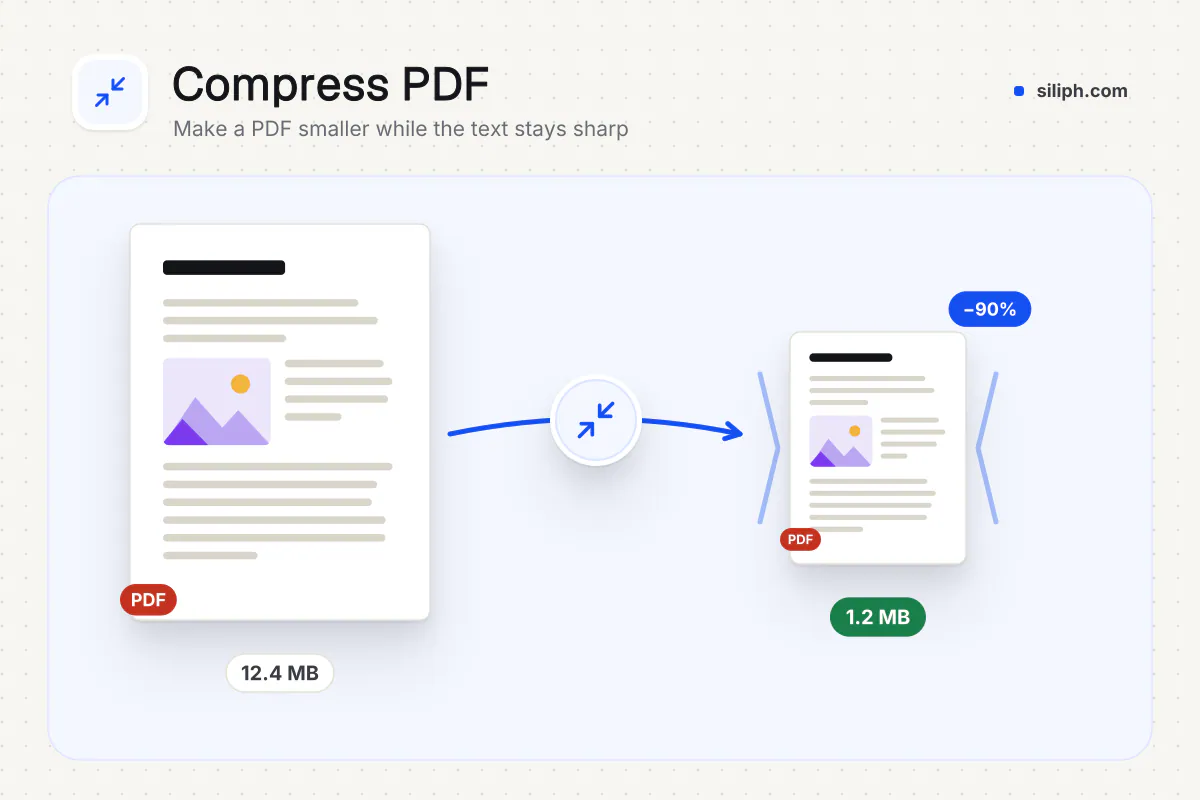
Compress PDF for Outlook: what to know
Guide for this use case
Attachment limits in classic Outlook for Windows
| Internet email accounts (POP3, IMAP, HTTP) | 20 MB (20,480 KB) by default, for one attachment or several together |
|---|---|
| Exchange Server mailboxes | 10 MB (10,240 KB) by default, set by the Exchange administrator |
| Error shown | The file you're attaching is bigger than the server allows |
9,500 KB is 9,728,000 bytes, under 10 MB however a megabyte is counted. If you send from an internet account that allows 20 MB, a target near 19,000 KB keeps more detail in scans.
An administrator can change the Exchange limit, so a work mailbox may allow less or more than 10 MB; ask your IT team if a 9.5 MB file still bounces. If the PDF cannot get small enough, split it for email. Sending through Gmail? See Compress PDF for Gmail.
Source: checked against the Microsoft Learn: Attachment size exceeds the allowable limit error - Outlook (KB 2813269) (official page, opens in a new tab) on 29 October 2026. These rules can change, so compare with the official page before you upload.
Small files stay on your device.
Bigger files use an encrypted upload.
- No account, no sign-up
- Larger files go over HTTPS and are deleted automatically within 2 hours
- Never sold, never viewed by a person
When to use it
- Outlook says the file you are attaching is bigger than the server allows
- A work mailbox on Exchange refuses a PDF over 10 MB
Everything else about Compress PDF
Compress PDF for Outlook is Compress PDF with this page's settings filled in. The full feature list, the free-plan limits and the general questions about the tool are on its main page, so they are not repeated here.
Questions about Compress PDF for Outlook
What is the attachment size limit in Outlook?
In classic Outlook for Windows, 20 MB by default for internet email accounts and 10 MB by default for Exchange mailboxes, according to Microsoft Learn (checked 29 October 2026). An Exchange administrator can set a different figure.
Why does Outlook say the file is bigger than the server allows?
The attachments add up to more than your account allows: 20 MB for an internet account or the Exchange limit, 10 MB by default. Compress the PDF under that figure and attach it again.
Can I send a larger PDF from Outlook?
An Exchange administrator can raise the limit, and Microsoft describes a registry setting for internet accounts. Without that, compress the PDF, split it into parts, or share a link to the file.
Is it free, and do I need an account?
Yes. It is free, with no account to create and no daily limit. Files uploaded for processing are deleted from Siliph servers within two hours.
Is my file private and secure?
Yes. Compress PDF runs on your phone or computer, so your file usually stays there. Only a file too big to handle on your device goes to our servers: it travels over HTTPS, is stored encrypted, is processed by machines with no person looking at it, and is deleted automatically within 2 hours. Siliph never sells your files. How we protect your files
Embed this tool on your site
Add Compress PDF to your blog or website for free, with a credit link back to Siliph.
Get the embed code
Embed code (iframe)
<iframe src="https://siliph.com/compress-pdf-for-outlook/?embed=1" title="Compress PDF — Siliph" width="100%" height="620" style="border:0;border-radius:12px;max-width:900px;" loading="lazy" allow="clipboard-write"></iframe>
<p style="font-size:12px;color:#666;margin-top:8px;">Free tool by <a href="https://siliph.com/compress-pdf-for-outlook/" rel="nofollow">Siliph</a></p>
Credit link for blog posts and tool lists
<p style="font-size:12px;color:#666;margin-top:8px;">Free tool by <a href="https://siliph.com/compress-pdf-for-outlook/" rel="nofollow">Siliph</a></p>
Direct link: siliph.com/compress-pdf-for-outlook/
Related PDF tools
Popular ways to use Compress PDF
- Compress PDF for Telegram
- Compress PDF for Email
- Compress PDF for WhatsApp
- Compress PDF for IRCC Uploads
- Compress PDF for ImmiAccount
- Compress PDF for USCIS Uploads
- Compress PDF for Ration Card
- Compress PDF for PMFBY Crop Insurance
- Compress PDF for DigiLocker
- Aswasakiranam Application Form and Documents
- Compress PDF to 200KB
- Compress PDF for PMAY Urban 2.0