

Black Out PDF Text
Cover private information with solid black boxes and download the marked copy.
Black out every match of a name, number or word. Pages with a match are rebuilt as images, so the hidden text is removed from the file, not just covered. Siliph is free for personal use and needs no account. Many tools work right on your device; the others use secure servers in Europe and India and delete your files within 2 hours.
- AES-256 encryption
- Sent over an encrypted connection
- Files auto-delete after 2 hours
- Sent over an encrypted connection
- Files deleted after 2 hours
- Free, no signup, no watermark
Loading the Redact PDF workspace… Files are processed securely and deleted automatically.
Redact PDF in short
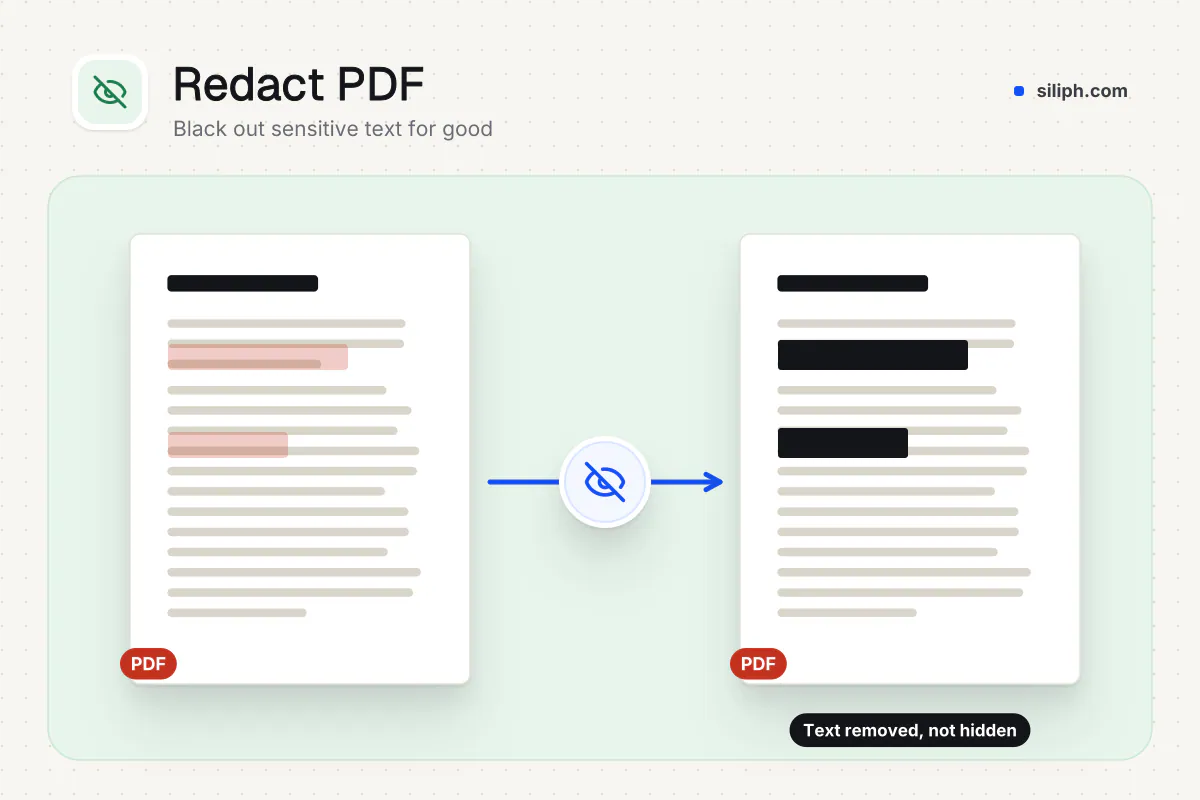
Redact PDF blacks out every match of the words, names or numbers you type, and any area you draw a box over, such as a signature or photo. Those pages are rebuilt as images, so what was hidden is removed from the file. Other pages stay as text. It is free with no account and deletes uploads within 2 hours.
Step by step
How to redact a PDF
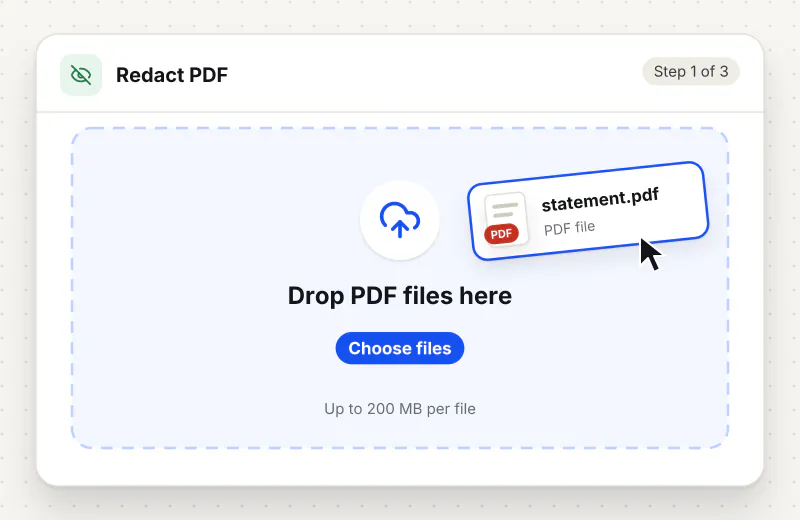
Step 1: Upload the PDF
Drag the PDF into the drop zone or click Choose a PDF file. One PDF is processed per task, up to 150 MB.
Step 2: Enter the text to black out
Type a word, name or number in the Text to redact field under Text to black out. Click Add another term to hide more than one. Capitals and spaces do not matter. Leave it empty if you only want to draw boxes.
Step 3: Draw boxes over other areas
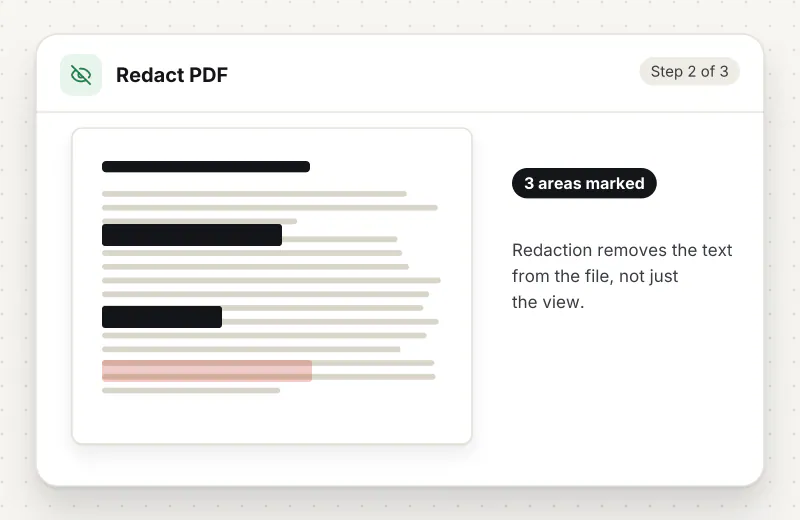
Under Areas to black out, drag across the page preview with a mouse, pen or finger to draw a box. Use the arrows to change page, Whole page to cover a page, Clear this page to start again, or the cross on a box to remove it.
Step 4: Download and check the result
Download the PDF, saved with -redacted in the name. Search it for a hidden term to confirm it is gone. Pages that had a match or a box are now images; the rest keep their text.
Features
What Redact PDF gives you
Finds every match for you
The tool searches the text of the whole document, so you do not mark each place by hand. A number written with or without spaces is found either way, and a match may run across two lines.
Removal, not just a black box
A box drawn over text in a PDF editor leaves the words in the file. Here, each page with a match or a box is rebuilt from an image with the boxes burned in, so the hidden content cannot be selected, copied or searched. Other pages keep their text.
Draw boxes over signatures, photos and scans
Drag across a page preview to black out anything typed terms cannot find: a signature, an ID photo, a stamp or a whole scanned page. It works with a mouse, a pen or a finger, and Whole page covers a page in one click.
What does Redact PDF do?
The tool reads the text of every page and finds each place your terms appear, ignoring capitals and spaces, so 1234 5678 matches 12345678, and paints a solid black box over each match. Boxes you draw on the page preview are painted the same way. Every page with a match or a box is then turned into a 200 DPI image with the boxes burned in, which deletes the text, pictures, links and comments under them. Other pages are copied unchanged. Bookmarks and document properties are not carried over.
A black rectangle drawn over a PDF only hides text from the eye. The words stay in the file and come back with a copy and paste or a search. Redact PDF removes them. It finds each match of your terms, adds any boxes you drew, burns them into an image of that page and replaces the page with the image, so the original content under them is gone. The Redact PDF Online and Blackout PDF Text pages open this same tool.
Typed terms are matched on the text layer of the PDF. A scanned page is a picture with no text, so a term finds nothing there; draw boxes over the details on the page preview instead, or run OCR PDF first and redact the searchable copy. Boxes also cover what text search cannot: a signature, a passport photo, a stamp or a handwritten note. Redacted pages lose their text, links and comments, and the document loses its bookmarks and properties, which keeps hidden data from slipping through.
Redact PDF runs on our servers. The file travels over an encrypted upload, the search and redaction run automatically with no one viewing your pages, and both the upload and the result are deleted within 2 hours. Before you share the result, add a password with Protect PDF if it still holds private details. More tools for sensitive files are in the Security hub.
Every file is encrypted.
On the way to us and while stored.
- Sent over HTTPS
- Deleted automatically within 2 hours
- Never sold, never viewed by a person
When to use Redact PDF
- You need the result quickly and cannot install desktop software
- You are working from a phone, tablet or shared computer
At a glance
Redact PDF: free at a glance
What you get on the free plan, and when a paid plan applies.
| Price | Free for personal use, up to 30 tasks in any 24 hours |
|---|---|
| File size | Up to 150 MB per task |
| Files per task | Up to 20 on the free plan (up to 100 on paid plans) |
| Account | Not needed |
| Where it runs | On our servers, over an encrypted connection |
| File deletion | Deleted automatically within 2 hours |
| Watermark | None |
| Business use | Paid plans from ₹399 a week |
Why Siliph
Redact PDF on Siliph and on typical free PDF sites
The right-hand column sums up 5 popular free PDF sites we checked in October 2026.
| Feature | Siliph | Typical free PDF sites |
|---|---|---|
| Account for personal use | Not needed | Some sites ask you to sign in to finish or repeat a task |
| Free use | Up to 30 tasks in any 24 hours, 20 files a task | Some sites stop you after a few tasks an hour |
| Where your file goes | Uploaded over HTTPS and deleted within 2 hours | Usually uploaded, then deleted after 1 to 2 hours |
Checked October 2026. Other sites change their plans; check before you rely on a limit.Side-by-side comparisons
Questions about Redact PDF
Is it free, and do I need an account?
Yes. It is free, with no account to create and no daily task limit. Files uploaded for processing are deleted from Siliph servers within two hours.
Do I need to install any software?
No. Siliph works in any modern browser on Windows, macOS, Linux, Android or iPhone, so there is nothing to download or install.
Is the hidden text really gone from the file?
Yes. Every page with a match is rebuilt from an image with the black boxes burned in, so the original text on that page is not in the new file. Search the result for a hidden term to check.
Do I have to type the number exactly as it appears?
No. Capitals and spaces are ignored, so 123456789012 also finds 1234 5678 9012. Other characters such as dashes must match, so add each form you expect as its own term.
Why can I no longer select text on some pages?
Pages that had a match are rebuilt as images to remove the hidden text. Pages without a match keep their text. Run OCR PDF on the result if you need those pages searchable again.
Why did it say nothing was found in my scan?
A scan is a picture with no text layer, so typed terms cannot be found. Draw boxes over the details under Areas to black out, which works on scans, or run OCR PDF first and redact the searchable copy.
Can I black out a photo or a signature?
Yes. Under Areas to black out, drag a box over it on the page preview. The page is rebuilt as an image with the box burned in, so the signature, photo or stamp under it is gone from the file, not just covered.
Can I redact on a phone or tablet?
Yes. The page preview takes a finger or a stylus as well as a mouse: drag across the page to draw a box, use the arrows to change page and tap the cross on a box to remove it. Typed terms work the same as on a computer.
Can I black out a whole page?
Yes. Go to the page in the preview and click Whole page. A box covering the entire page is added, and the page comes out solid black in the redacted PDF. Clear this page removes the boxes on that page again.
Can I redact a PDF without installing software?
Yes. Type the names, numbers or words to hide, or draw boxes on the page preview, and they are blacked out and taken out of the file. There is no desktop software to buy or install; it works from the browser on any computer or phone.
Guides for Redact PDF
Walk-throughs for common jobs, such as hitting an upload limit or preparing an application.
Embed this tool on your site
Add Redact PDF to your blog or website for free, with a credit link back to Siliph.
Get the embed code
Embed code (iframe)
<iframe src="https://siliph.com/blackout-pdf-text/?embed=1" title="Redact PDF — Siliph" width="100%" height="620" style="border:0;border-radius:12px;max-width:900px;" loading="lazy" allow="clipboard-write"></iframe>
<p style="font-size:12px;color:#666;margin-top:8px;">Free tool by <a href="https://siliph.com/blackout-pdf-text/" rel="nofollow">Siliph</a></p>
Credit link for blog posts and tool lists
<p style="font-size:12px;color:#666;margin-top:8px;">Free tool by <a href="https://siliph.com/blackout-pdf-text/" rel="nofollow">Siliph</a></p>
Direct link: siliph.com/blackout-pdf-text/