

Compare Two PDFs
Quickly diff two PDF files before signing or approving changes.
Upload two PDFs to see, page by page, which words were removed or added. Ideal for contract review and version checks. Siliph is free for personal use and needs no account. Many tools work right on your device; the others use secure servers in Europe and India and delete your files within 2 hours.
- No software to install
- Your files stay private
- Works on any device
- Sent over an encrypted connection
- Files deleted after 2 hours
- Free, no signup, no watermark
Loading the Compare PDF workspace… Files are processed securely and deleted automatically.
5.0 out of 5 from 1 rating
Compare PDF in short
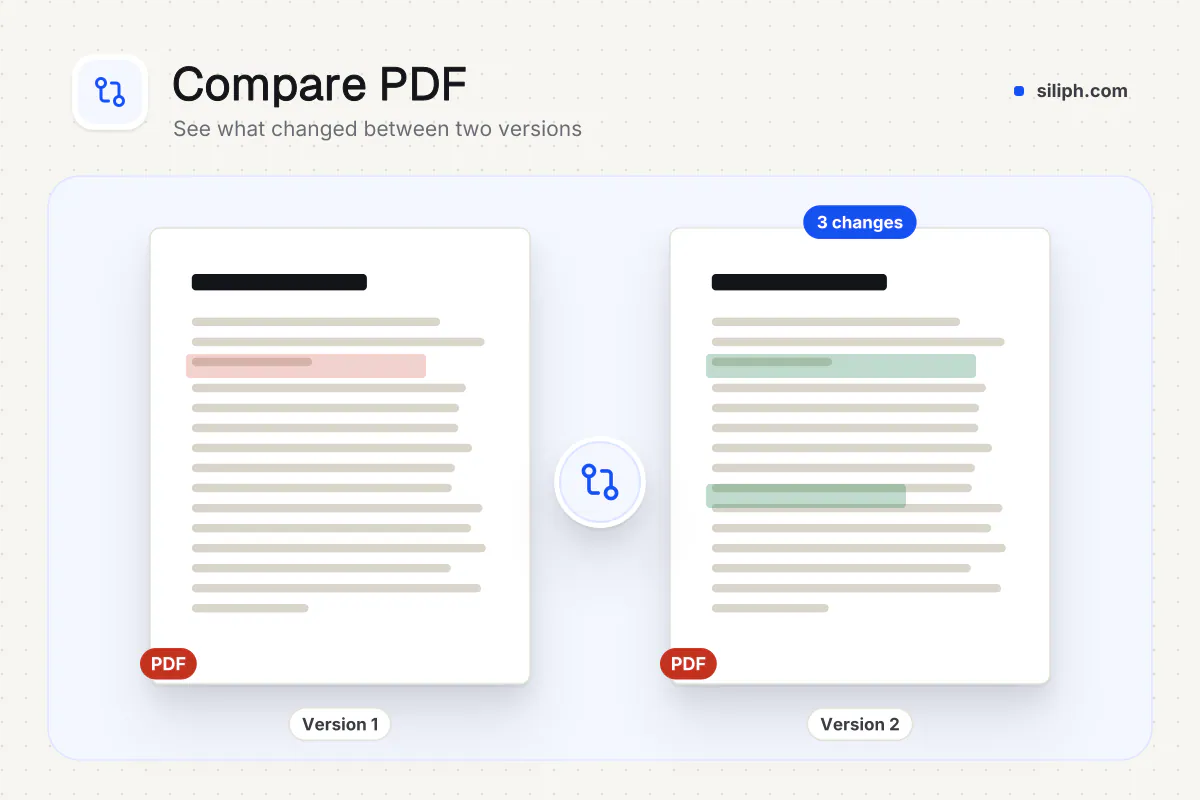
Compare PDF checks two versions of a document page by page and gives you an HTML report. Each changed line shows removed words in red and added words in green, and pages found in only one file are listed. It compares text, not design. It is free with no account and deletes both files within 2 hours.
Step by step
How to compare two PDF files
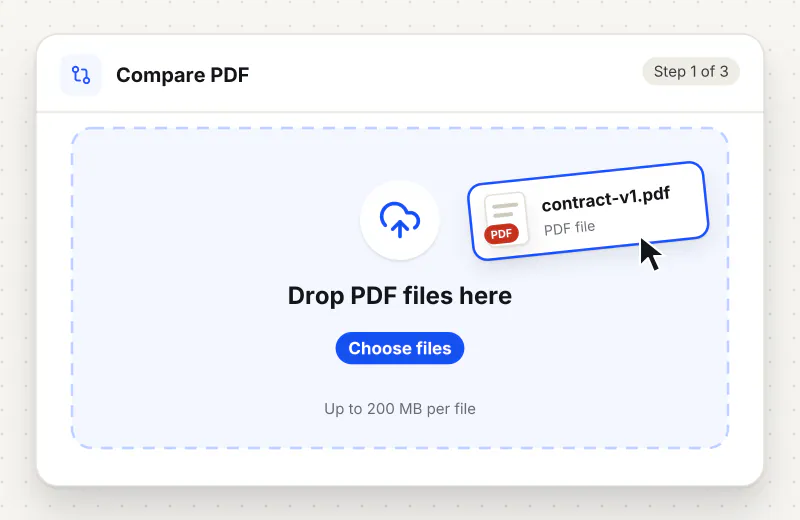
Step 1: Upload both versions
Drag the original and the revised PDF into the drop zone, or click Choose two PDF files. The tool needs exactly two files and asks again if you add one or three.
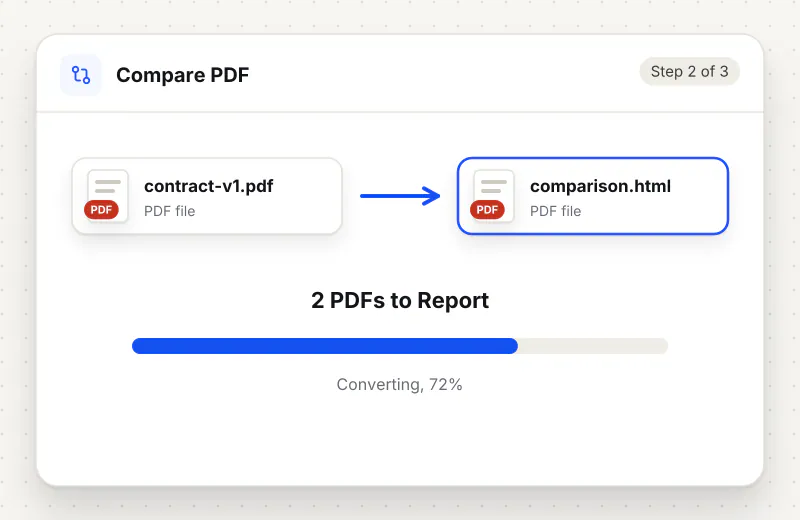
Step 2: Run the comparison
Start the task. The server reads the text of each page in both files and compares every page pair word by word; long documents take a little longer.
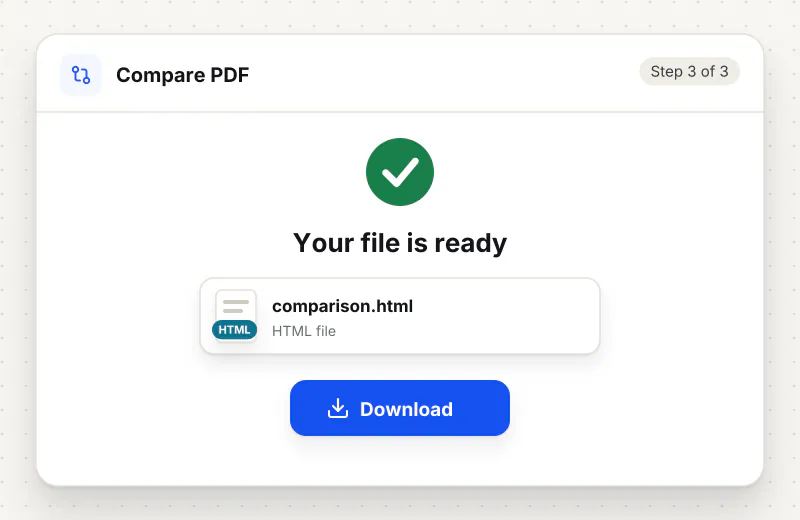
Step 3: Open the report in your browser
Download the HTML report, named after both files, and open it in any browser. The top line says how many pages differ; each changed page follows with red and green marks.
Features
What Compare PDF gives you
Word-level marks
Inside each changed line, only the words that differ are marked, so a changed figure such as 15000 to 18000 stands out instead of the whole paragraph being flagged.
Changes with context
The report shows each changed line with the line before and after it, and folds the unchanged text into a short note, so a long page reduces to the few lines that matter.
Missing pages flagged
When one version has more pages than the other, the extra pages are listed with their text as only in the first or only in the second file, which catches removed annexures and added schedules.
What does Compare PDF do?
The server reads the text of every page in both PDFs and pairs the pages by number. For each pair it finds the lines that changed and marks the exact words: struck-through red for words only in the first file, green for words only in the second. Unchanged lines are folded away, with one line of context kept around each change. Spacing differences are ignored.
Reading two versions of a 40-page agreement side by side is slow, and a changed figure on page 23 is easy to miss. Compare PDF does the reading for you: the report jumps straight to each changed line and marks the words that were taken out or put in. The Compare Two PDFs and Compare PDF Online pages open the same tool.
Pages are paired by number, so an inserted or deleted page shifts everything after it and those later pages show changes too. If that happens, look at the first flagged page; that is usually where the real edit is. The check reads text only, so a moved logo, a new colour or a swapped photo is not reported, and a scanned PDF without a text layer has nothing to compare. Run OCR PDF on scans first.
Once you know the changed pages, pull them out with Extract Pages to send them on their own, or get the full wording with PDF to Text. Other document tools are collected in the Edit and sign hub.
Compare PDF runs on our servers. Both files travel over an encrypted upload, are compared automatically with no one reading them, and are deleted within 2 hours together with the report. It is free and needs no account.
Every file is encrypted.
On the way to us and while stored.
- Sent over HTTPS
- Deleted automatically within 2 hours
- Never sold, never viewed by a person
When to use Compare PDF
- You need the result quickly and cannot install desktop software
- You are working from a phone, tablet or shared computer
At a glance
Compare PDF: free at a glance
What you get on the free plan, and when a paid plan applies.
| Price | Free for personal use, up to 30 tasks in any 24 hours |
|---|---|
| File size | Up to 500 MB per task |
| Files per task | Up to 20 on the free plan (up to 100 on paid plans) |
| Account | Not needed |
| Where it runs | On our servers, over an encrypted connection |
| File deletion | Deleted automatically within 2 hours |
| Watermark | None |
| Business use | Paid plans from ₹399 a week |
Why Siliph
Compare PDF on Siliph and on typical free PDF sites
The right-hand column sums up 5 popular free PDF sites we checked in October 2026.
| Feature | Siliph | Typical free PDF sites |
|---|---|---|
| Account for personal use | Not needed | Some sites ask you to sign in to finish or repeat a task |
| Free use | Up to 30 tasks in any 24 hours, 20 files a task | Some sites stop you after a few tasks an hour |
| Where your file goes | Uploaded over HTTPS and deleted within 2 hours | Usually uploaded, then deleted after 1 to 2 hours |
Checked October 2026. Other sites change their plans; check before you rely on a limit.Side-by-side comparisons
Questions about Compare PDF
Is it free, and do I need an account?
Yes. It is free, with no account to create and no daily task limit. Files uploaded for processing are deleted from Siliph servers within two hours.
Do I need to install any software?
No. Siliph works in any modern browser on Windows, macOS, Linux, Android or iPhone, so there is nothing to download or install.
Does Compare PDF show exactly which words changed?
Yes. In each changed line, words only in the first PDF are struck through in red and words only in the second PDF are shown in green. Unchanged lines are folded away.
Why does every page after one point show changes?
Pages are compared by number. If a page was added or removed, all later pages shift by one and no longer line up. The first flagged page is usually where the insertion or deletion happened.
Can it compare scanned PDFs?
Only if they have a text layer. A plain scan is a picture, so there is no text to compare. Run OCR PDF on both scans first, then compare the searchable copies.
Does it spot changes to images, colours or layout?
No. Only the text of each page is compared, and differences in spacing are ignored. A replaced photo, a new logo or a different font with the same words will not appear in the report.
What format is the comparison report?
An HTML file named after both PDFs that opens in any browser. It shows the two file names and page counts, how many pages differ, and each changed page with its marked lines.
Is it safe to compare confidential contracts here?
Both PDFs are sent over an encrypted upload, compared automatically without human access, and deleted from our servers within 2 hours along with the report. No account is needed.
Guides for Compare PDF
Walk-throughs for common jobs, such as hitting an upload limit or preparing an application.
Embed this tool on your site
Add Compare PDF to your blog or website for free, with a credit link back to Siliph.
Get the embed code
Embed code (iframe)
<iframe src="https://siliph.com/compare-two-pdfs/?embed=1" title="Compare PDF — Siliph" width="100%" height="620" style="border:0;border-radius:12px;max-width:900px;" loading="lazy" allow="clipboard-write"></iframe>
<p style="font-size:12px;color:#666;margin-top:8px;">Free tool by <a href="https://siliph.com/compare-two-pdfs/" rel="nofollow">Siliph</a></p>
Credit link for blog posts and tool lists
<p style="font-size:12px;color:#666;margin-top:8px;">Free tool by <a href="https://siliph.com/compare-two-pdfs/" rel="nofollow">Siliph</a></p>
Direct link: siliph.com/compare-two-pdfs/