

XLSX to PDF
Upload your XLSX spreadsheet and download a clean PDF.
Turn Excel workbooks into print-ready PDFs. Preserves sheets, tables, and layout using LibreOffice conversion. Siliph is free for personal use and needs no account. Many tools work right on your device; the others use secure servers in Europe and India and delete your files within 2 hours.
- Looks exactly like the original
- Batch convert up to 20 files
- Searchable, selectable output
- Sent over an encrypted connection
- Files deleted after 2 hours
- Free, no signup, no watermark
Loading the Excel To PDF workspace… Files are processed securely and deleted automatically.
Excel to PDF Converter in short
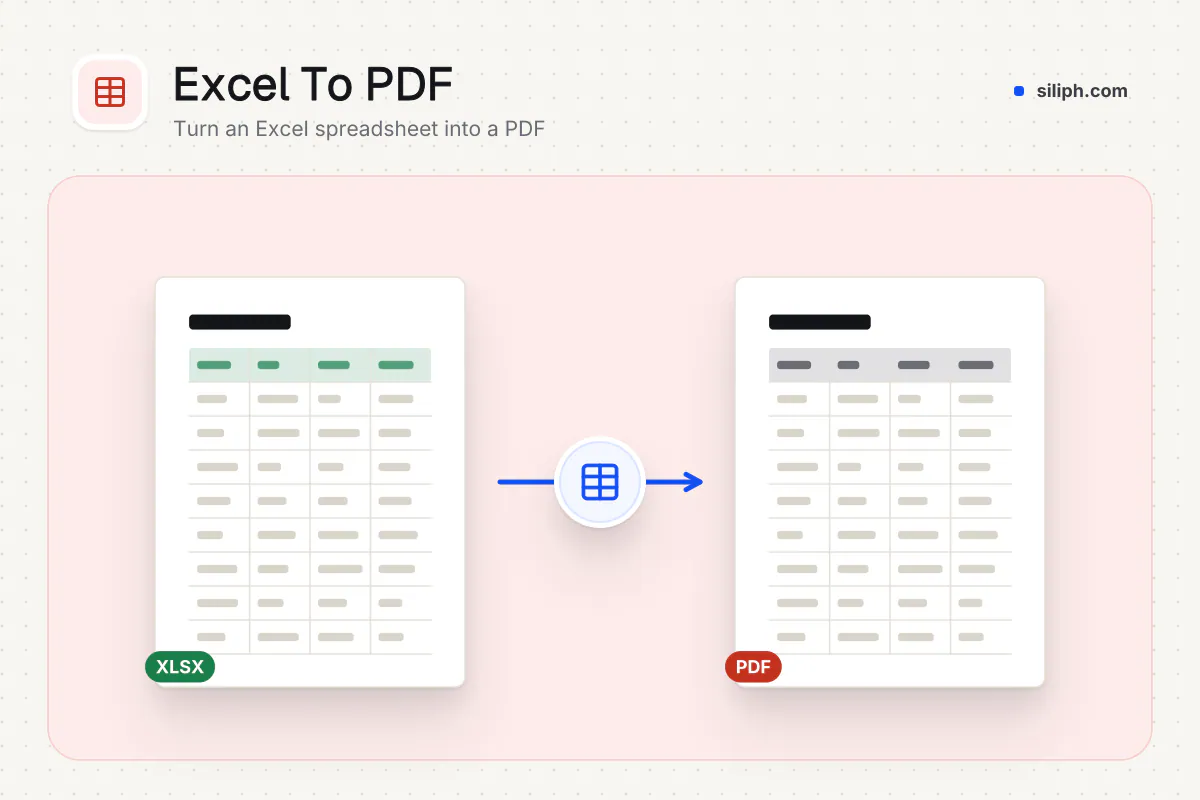
The Excel to PDF converter turns XLSX and XLS workbooks into one PDF. By default it follows the page setup saved in the workbook. Switch on Put each sheet on one page to export every sheet whole, with no columns or rows split. It is free with no account and deletes uploads within 2 hours.
Step by step
How to convert Excel to PDF
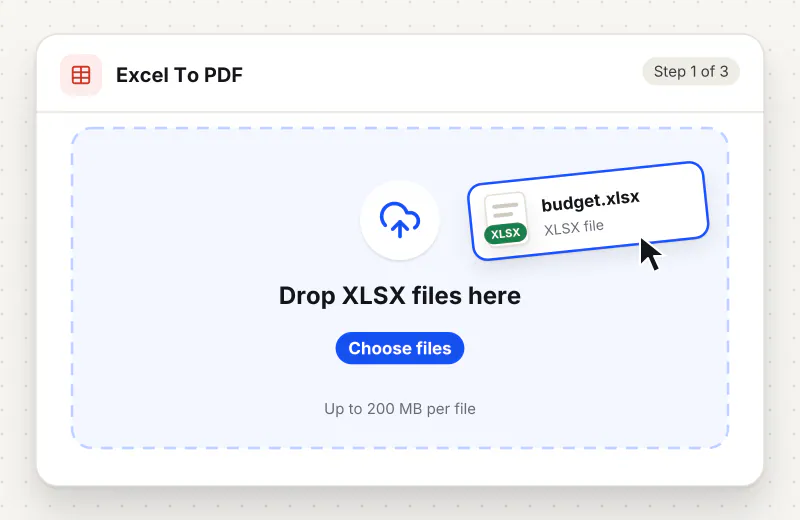
Step 1: Upload the workbook
Set paper size, orientation and margins in Excel Page Setup and save. Then drag the XLSX or XLS file into the drop zone or click Choose an Excel file. Files can be up to 200 MB.
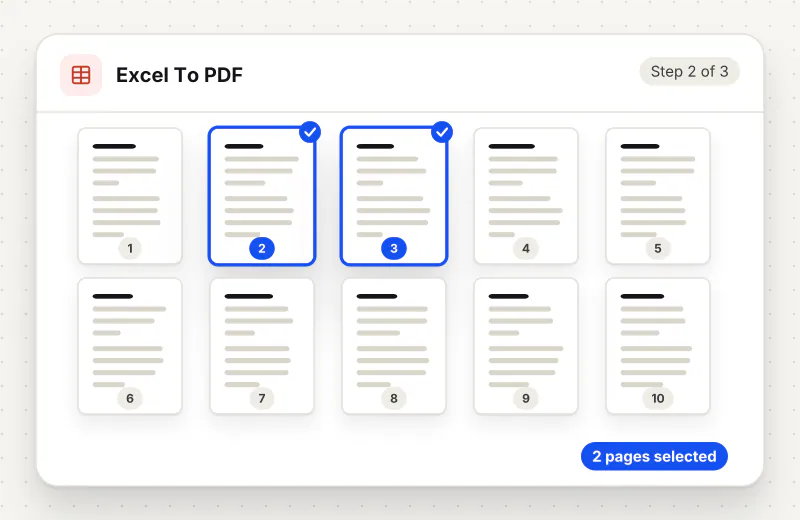
Step 2: Choose one page per sheet if needed
Leave Put each sheet on one page off to keep your Excel page setup. Switch it on when each sheet should be a single page with no columns or rows split.
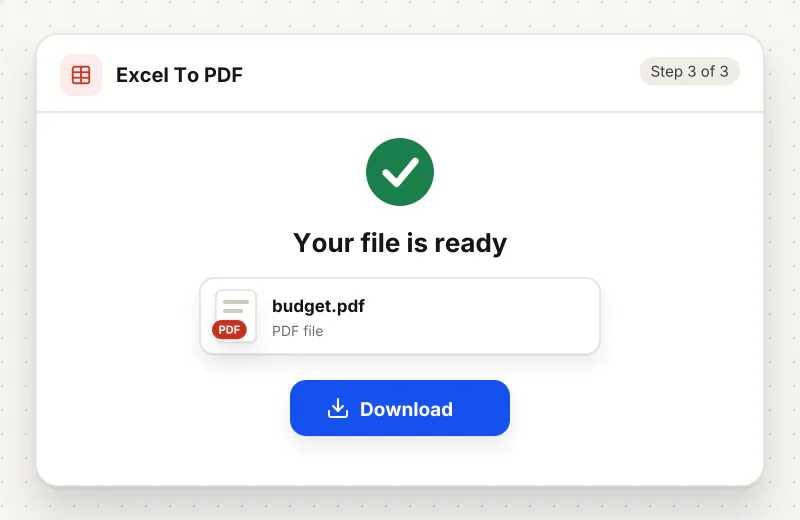
Step 3: Convert and download
Click Convert to PDF, then download the file. Page through it once to check that every sheet looks the way you expect and that no column has moved to a page of its own.
Features
What Excel to PDF Converter gives you
Your Excel page setup is kept
Paper size, orientation, margins, gridlines and row or column headings set in Page Setup carry over to the PDF, so a workbook prepared for printing converts the way it prints.
One page per sheet on request
Put each sheet on one page exports every sheet as a single page sized to fit it, so a 20-column budget is never split across pages. Long sheets make tall pages.
Every sheet in one file
All sheets of the workbook go into one PDF in tab order, so a monthly report with several tabs arrives as a single document you can send or archive.
What does Excel to PDF Converter do?
The converter opens your workbook and prints every sheet into a single PDF. Paper size, orientation, margins, gridlines and row or column headings come from the Page Setup saved in the file. With Put each sheet on one page switched on, each sheet becomes one page sized to fit all of its cells. Cell values, number formats and charts appear as they do in Excel.
Excel files are built for screens, not paper. A sheet that looks tidy on a monitor often prints with its last columns on a second page, blank pages at the end, or a header row that is missing. The Excel to PDF converter prints the workbook with the page setup you saved in Excel, and offers one switch, Put each sheet on one page, for sheets that must stay whole. For a single XLSX file, the XLSX to PDF page covers the same steps.
For a wide financial table that will be printed, set landscape, narrow margins and fit to one page wide in Excel Page Setup before uploading. For a table that will be read on screen, switch on Put each sheet on one page instead; every column stays on the page and you zoom to read. Cells with many lines can still run long, so set column widths and wrap text in Excel first.
Once the PDF is ready, the next step depends on where it is going. Compress PDF helps when a portal limits attachment size, and the guide on how to compress a PDF for free explains which level to pick; Merge PDF joins the sheet with a covering letter made in Word to PDF, and Protect PDF adds a password for salary or pricing data. If you receive figures back as a PDF, PDF to Excel turns them into a workbook again.
Typical reasons to convert are an invoice or quotation that a client should not be able to edit, a monthly sales report for managers who read on their phones, a timetable or price list to print and pin up, and a budget attached to a grant or tender application. A PDF also hides the formulas and any hidden working columns behind the printed values, which is often the point when you share pricing. If the person on the other side needs to change the numbers, send the XLSX as well, because the PDF only carries results.
Excel to PDF runs on our servers. The workbook is sent over an encrypted connection, converted automatically with no one opening your figures, and deleted from our servers within 2 hours along with the PDF. You do not need an account, and the free plan covers up to 30 tasks a day.
Every file is encrypted.
On the way to us and while stored.
- Sent over HTTPS
- Deleted automatically within 2 hours
- Never sold, never viewed by a person
When to use Excel to PDF Converter
- You need the result quickly and cannot install desktop software
- You are working from a phone, tablet or shared computer
At a glance
Excel to PDF Converter: free at a glance
What you get on the free plan, and when a paid plan applies.
| Price | Free for personal use, up to 30 tasks in any 24 hours |
|---|---|
| File size | Up to 200 MB per task |
| Files per task | Up to 20 on the free plan (up to 100 on paid plans) |
| Account | Not needed |
| Where it runs | On our servers, over an encrypted connection |
| File deletion | Deleted automatically within 2 hours |
| Watermark | None |
| Business use | Paid plans from ₹399 a week |
Why Siliph
Excel to PDF Converter on Siliph and on typical free PDF sites
The right-hand column sums up 5 popular free PDF sites we checked in October 2026.
| Feature | Siliph | Typical free PDF sites |
|---|---|---|
| Account for personal use | Not needed | Some sites ask you to sign in to finish or repeat a task |
| Free use | Up to 30 tasks in any 24 hours, 20 files a task | Some sites stop you after a few tasks an hour |
| Where your file goes | Uploaded over HTTPS and deleted within 2 hours | Usually uploaded, then deleted after 1 to 2 hours |
Checked October 2026. Other sites change their plans; check before you rely on a limit.Side-by-side comparisons
Questions about Excel to PDF Converter
Is it free, and do I need an account?
Yes. It is free, with no account to create and no daily task limit. Files uploaded for processing are deleted from Siliph servers within two hours.
Do I need to install any software?
No. Siliph works in any modern browser on Windows, macOS, Linux, Android or iPhone, so there is nothing to download or install.
How do I stop Excel columns from being cut off in the PDF?
Switch on Put each sheet on one page, which exports each sheet whole on a page sized to fit it. To keep A4 or Letter paper instead, set fit to one page wide in Excel Page Setup before uploading.
Can I choose the paper size and margins?
Yes, in Excel. The converter follows the paper size, orientation and margins saved in the workbook Page Setup. Change them in Excel, save, and upload the file again.
Does the converter accept old XLS files?
Yes. Both XLSX and the older XLS format are accepted. Each file can be up to 200 MB, and the output is always a PDF.
Will gridlines show in the PDF?
Only if the workbook is set to print them. Turn on gridlines or row and column headings under Page Setup in Excel before uploading. Cell borders you drew in Excel are printed either way.
Will my charts and number formats appear in the PDF?
Yes. Values are printed as Excel displays them, including currency, dates and percentages, and charts placed on a sheet are printed with it. Formulas are not kept; the PDF shows their results.
Are all sheets of the workbook converted?
Yes. Every sheet goes into the same PDF in tab order. To convert only one sheet, copy it into its own workbook in Excel and upload that file.
Do I need Microsoft Excel installed to convert a spreadsheet?
No. The workbook is converted on the server, so you only need a browser. For a Google Sheets file, choose File, Download, Microsoft Excel (.xlsx) in Sheets first, then upload that XLSX here.
Is my file private and secure?
Yes. Your file travels over HTTPS, is stored encrypted, is processed by machines with no person looking at it, and is deleted automatically within 2 hours. You need no account, and Siliph never sells your files. How we protect your files
Embed this tool on your site
Add Excel To PDF to your blog or website for free, with a credit link back to Siliph.
Get the embed code
Embed code (iframe)
<iframe src="https://siliph.com/xlsx-to-pdf/?embed=1" title="Excel To PDF — Siliph" width="100%" height="620" style="border:0;border-radius:12px;max-width:900px;" loading="lazy" allow="clipboard-write"></iframe>
<p style="font-size:12px;color:#666;margin-top:8px;">Free tool by <a href="https://siliph.com/xlsx-to-pdf/" rel="nofollow">Siliph</a></p>
Credit link for blog posts and tool lists
<p style="font-size:12px;color:#666;margin-top:8px;">Free tool by <a href="https://siliph.com/xlsx-to-pdf/" rel="nofollow">Siliph</a></p>
Direct link: siliph.com/xlsx-to-pdf/