

Compress Image to 100KB
Hit common 100KB photo limits while keeping your face clear and readable.
Hit strict upload limits (20KB, 50KB, 100KB, 200KB) with one click, for visa, job, university and exam photo uploads. Siliph is free for personal use and needs no account. Many tools work right on your device; the others use secure servers in Europe and India and delete your files within 2 hours.
- Free with no watermarks
- Files auto-delete after 2 hours
- Works on phone, tablet and desktop
- Sent over an encrypted connection
- Files deleted after 2 hours
- Free, no signup, no watermark
Loading the Compress Image to KB workspace… Files are processed securely and deleted automatically.
Compress Image to KB in short
Compress Image lowers the JPEG quality of each photo until it fits under a target size such as 20 KB, 50 KB, 100 KB or 200 KB, and makes it smaller only if quality alone cannot. It accepts JPG, PNG and WebP and returns JPGs. It is free with no account and deletes uploads within 2 hours.
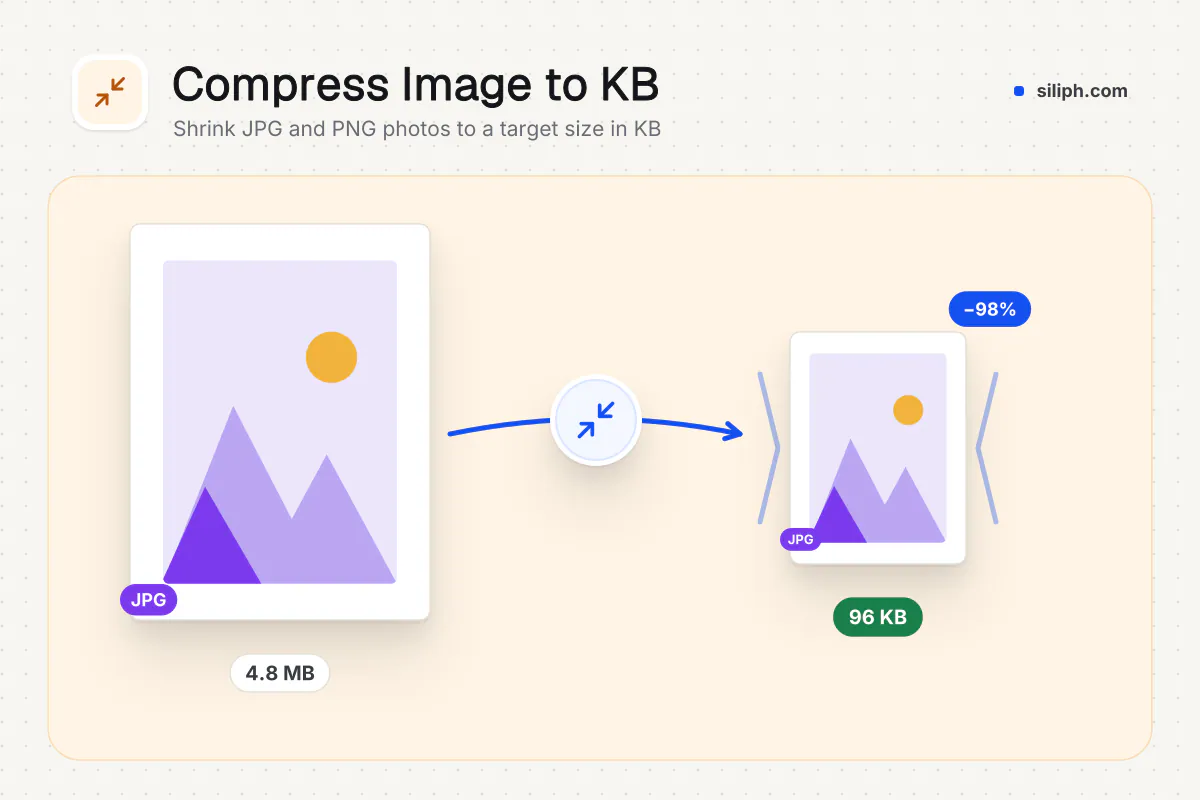
Step by step
How to compress an image to a KB size
Step 1: Upload the image
Drag a JPG, PNG or WebP into the drop zone or click Choose an image. Add several images to compress them all to the same target.
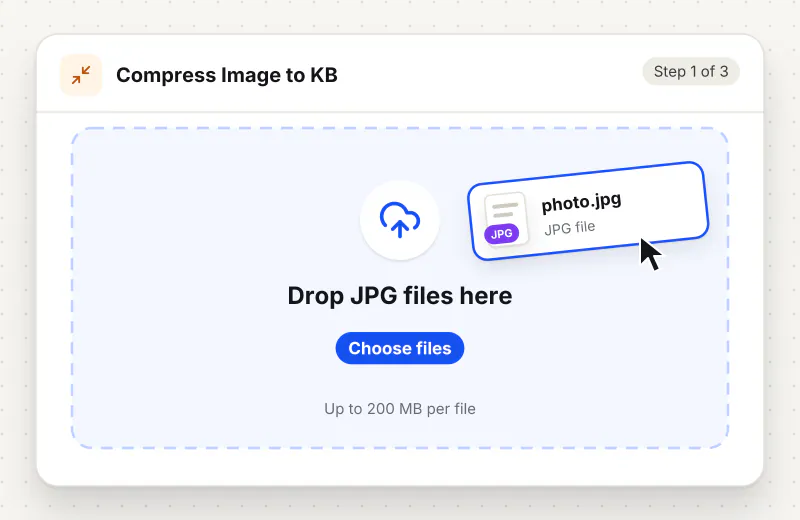
Step 2: Pick a target file size
Under Target file size, choose 20 KB, 50 KB, 100 KB or 200 KB. Each card notes a typical use, such as strict photo uploads for 20 KB or ID scans for 200 KB. With no choice, 100 KB is used.
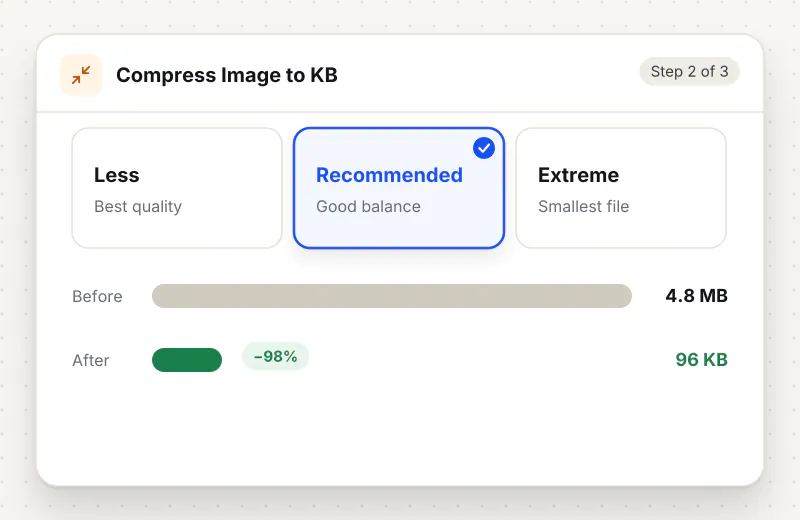
Step 3: Compress and check the size
Start the task and download the JPG. Its file name ends with the final size, for example photo-47kb.jpg, so you can confirm it is under the limit before you upload.
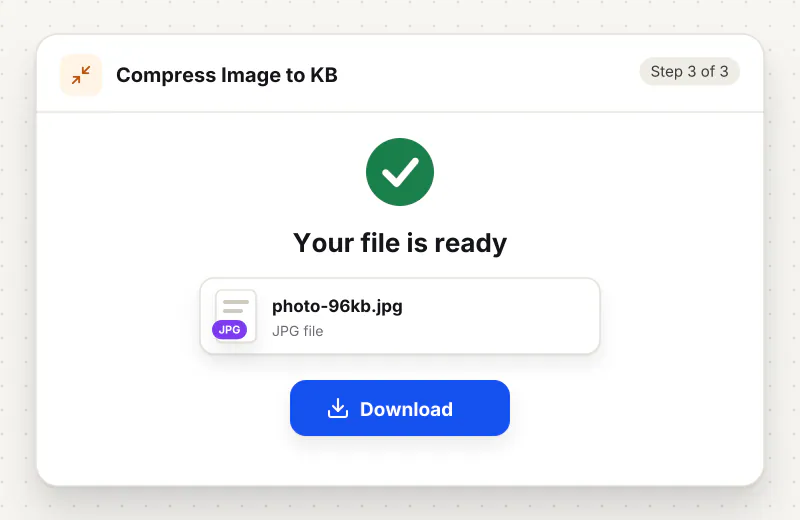
Features
What Compress Image to KB gives you
Presets for common portal limits
One click sets 20, 50, 100 or 200 KB, matching caps common on application portals: strict photo uploads, job and exam photos, ID photos, and scanned ID or bank documents.
Highest quality that still fits
Instead of applying one fixed setting, the tool tries quality levels and keeps the best-looking JPG that stays under your target, so you do not lose more detail than the limit requires.
Reaches the target, and says how
Pixel size is kept whenever lowering quality is enough. If it is not, the image is made smaller until it fits, and a note tells you the new width and height so you are not surprised by a portal check.
What does Compress Image to KB do?
The tool redraws your image on a white background and saves it as a JPG, testing quality levels until it finds the highest one that stays under the target. Width and height normally stay the same. If a large photo cannot reach the target even at the lowest quality, the tool shrinks its pixel size step by step until it fits, and tells you the new size.
Portals set KB limits to keep their storage small, and a modern phone photo is often 2 MB or more, a hundred times over a 20 KB cap. Compress Image closes that gap by lowering JPEG quality step by step until the file fits. The dedicated pages for Compress Image to 20 KB, Compress Image to 50 KB and Compress Image to 100 KB open the tool with that target already chosen, and Compress Image to 300 KB covers looser limits.
A large photo aimed at 20 KB may be shrunk in pixels to fit, and can look soft. When a form also states dimensions, such as 600 × 600 pixels for a US visa photo, use Exam & Passport Photo Resizer, which resizes and compresses in one go. PNG and WebP files come back as JPG with any transparent areas turned white, which portals expect anyway. For a PDF rather than a picture, Compress PDF does the same job, and more upload helpers are in the Exam and photo tools hub.
Small images are compressed in your browser. Larger ones use an encrypted upload to our servers, are handled automatically with no one viewing them, and are deleted within 2 hours. It is free for personal use and needs no account.
Small files stay on your device.
Bigger files use an encrypted upload.
- No account, no sign-up
- Larger files go over HTTPS and are deleted automatically within 2 hours
- Never sold, never viewed by a person
When to use Compress Image to KB
- You need the result quickly and cannot install desktop software
- You are working from a phone, tablet or shared computer
Questions about Compress Image to KB
Is it free, and do I need an account?
Yes. It is free, with no account to create and no daily task limit. Files uploaded for processing are deleted from Siliph servers within two hours.
Do I need to install any software?
No. Siliph works in any modern browser on Windows, macOS, Linux, Android or iPhone, so there is nothing to download or install.
How do I compress a photo to 20 KB?
Upload the photo, choose the 20 KB card under Target file size and start the task. The file name of the result shows its final size. A huge photo is also made smaller in pixels if that is needed to reach 20 KB.
Why is my compressed image smaller in pixels?
Your photo could not get under the target by lowering quality alone, so its width and height were reduced until it fit. A note after the task gives the new size. Pick a higher target to keep more pixels.
Does Compress Image change the photo dimensions?
Only when it must. If lowering the JPEG quality reaches the target, the width and height stay exactly the same. If not, the image is shrunk just enough to fit and you are told the new size.
Can I compress a PNG or WebP file?
Yes. PNG and WebP are accepted, and the result is always a JPG, because JPG gives the smallest files for photos. Transparent parts of a PNG become white.
Which size should I pick for an application photo?
Use the exact limit in the official instructions for your form. The presets cover the common caps of 20, 50, 100 and 200 KB; if the instructions also give pixel dimensions, use Exam & Passport Photo Resizer instead.
How do I compress an image without losing quality?
Pick the largest target your form allows, because every step down removes detail. At 200 KB a typical passport photo looks unchanged; at 20 KB it is softer and may be scaled down. Start from the original photo, not a copy that was already compressed.
Is my file private and secure?
Yes. Compress Image to KB runs on your phone or computer, so your file usually stays there. Only a file too big to handle on your device goes to our servers: it travels over HTTPS, is stored encrypted, is processed by machines with no person looking at it, and is deleted automatically within 2 hours. Siliph never sells your files. How we protect your files
Guides for Compress Image to KB
Walk-throughs for common jobs, such as hitting an upload limit or preparing an application.
- Step by stepCompress Image to 20KBHit strict 20KB photo limits used by exam and application portals.
- Step by stepCompress Image to 50KBOne-click compression to about 50KB while keeping your photo readable.
- Step by stepCompress Image to 200KBCompress JPG/PNG to ~200KB while keeping document text and faces readable.
- Step by stepCompress Image to 300KBHit 300KB image limits for visa, job and university application portals.
- ReferenceOfficial photo & document upload specificationsEvery size, pixel and KB rule we cite, by country, each from an official source with the date checked. Open data (CC BY 4.0).
Embed this tool on your site
Add Compress Image to KB to your blog or website for free, with a credit link back to Siliph.
Get the embed code
Embed code (iframe)
<iframe src="https://siliph.com/compress-image-to-100kb/?embed=1" title="Compress Image to KB — Siliph" width="100%" height="620" style="border:0;border-radius:12px;max-width:900px;" loading="lazy" allow="clipboard-write"></iframe>
<p style="font-size:12px;color:#666;margin-top:8px;">Free tool by <a href="https://siliph.com/compress-image-to-100kb/" rel="nofollow">Siliph</a></p>
Credit link for blog posts and tool lists
<p style="font-size:12px;color:#666;margin-top:8px;">Free tool by <a href="https://siliph.com/compress-image-to-100kb/" rel="nofollow">Siliph</a></p>
Direct link: siliph.com/compress-image-to-100kb/